Browse by Solutions
Browse by Solutions
How do I create message templates in xinnect app?
Updated on October 11, 2015 11:39PM by Admin
Message templates contain an email subject, and body text. But, this body text can contain information from the invoice/customer, called a token. For example, you can insert the contact's name when addressing them; by adding a token like this "Thanks again FIRST_NAME!".
Steps to Create Message Templates
- Log in and access Xinnect App from your universal navigation menu bar.
- Click on "More" icon and select "Settings" located at the app header bar.

- Click on "Message Templates" from left navigation panel.

- Click on "Create" button to create new message template and specify:
- Template Name - Provide name for the message template
- Subject - Provide message template subject
- Message - Provide content of the message template
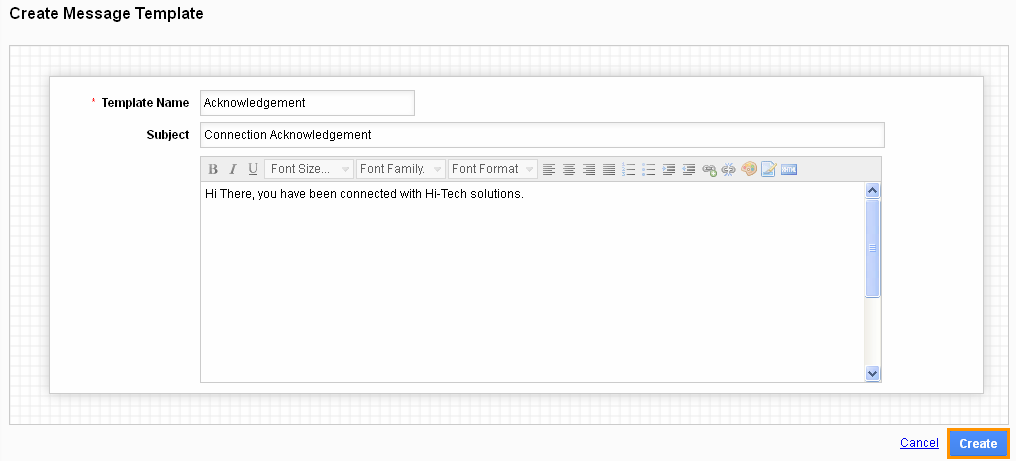
- Click on "Create" button to complete.
- You can update message template information by clicking on "Edit" icon, if needed.
Related Links
Read more about:
Flag Question
Please explain why you are flagging this content (spam, duplicate question, inappropriate language, etc):