Browse by Solutions
Browse by Solutions
How do I Customize the Xinnect App?
Updated on September 21, 2015 05:27AM by Admin
Xinnect App allows you to connect with other businesses. You can customize Xinnect app as per your business needs. Follow these steps:
- Log in and access Xinnect App from your universal navigation menu bar.
- Click on "More" icon and select "Settings" located at the app header bar.

Message Templates
Message Templates allow you to set up predefined messages. These are customized email messages that you can send to your customers Message templates can be used with any email sent from Xinnect App. Click on "Create" button to create new message template.
Quick Links
You can add your own referral links for this app. These links will display on the left panel under the "Quick Links" menu. Click on "Add" button to create new quick links.
Views
- Default Home Page View:
- It allows you to set default home page view, which includes: Xinnect Home Businesses Invited Invitations Customer Connections Vendor Connections
- Left Panel Views:
Views found on left navigation panel, are filters that allow you to access business connections within the app. You can show/hide views in configuration, but you must at least enable one view.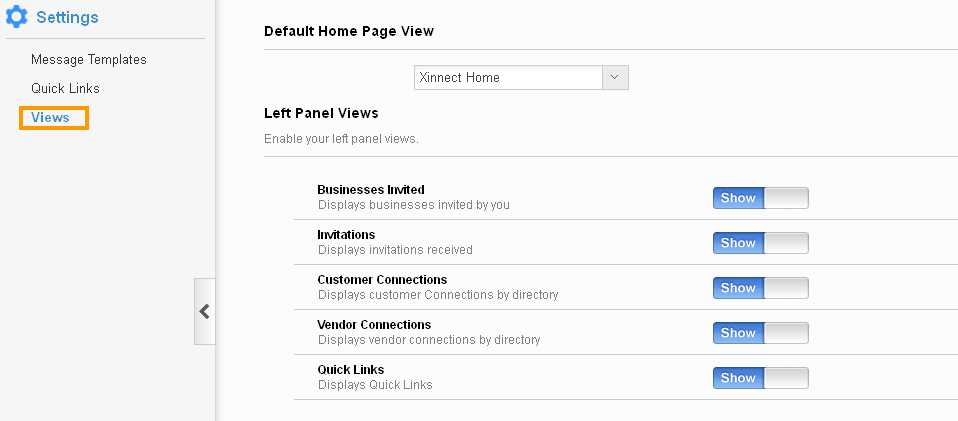
Related Links
Read more about: