Browse by Solutions
Browse by Solutions
How do I Customize Default Home Page View in Xinnect App?
Updated on September 21, 2015 05:35AM by Admin
Steps to Customize Default Home Page View
- Log in and access Xinnect App from your universal navigation menu bar.
- Click on "More" icon and select "Settings" located at the app header bar.

- Click on "Views" from left navigation panel.
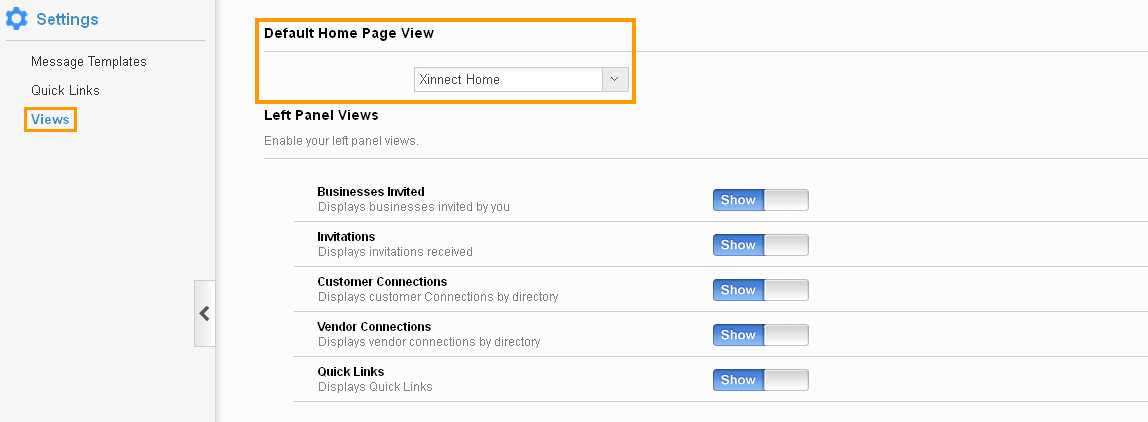
- In views dashboard, you can view "Default Home Page View"
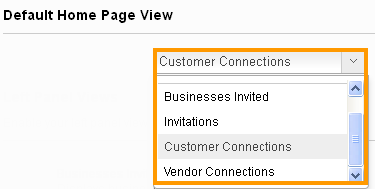
- Click on "Drop down" panel to select a default home page view, which includes:
- Xinnect Home - Displays default Xinnect homepage with news feed and recent connections
- Businesses Invited - Displays businesses invited page.
- Invitation - Displays invitations received page.
- Customer Connection - Displays customer connection page.
- Vendor Connection - Displays vendor connection page.
- You can set your own custom home page. For instance: Customer Connection
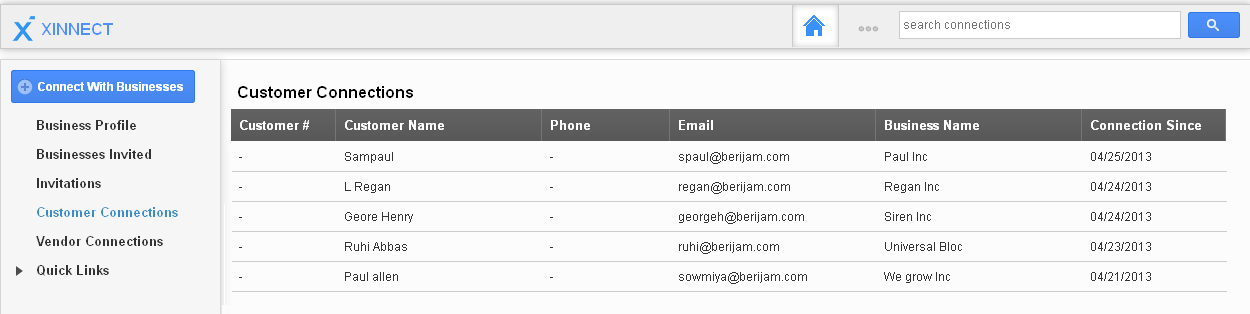
- You can view default home page "Customer Connections" as shown in the image below:
Flag Question
Please explain why you are flagging this content (spam, duplicate question, inappropriate language, etc):