Browse by Solutions
Browse by Solutions
How to transfer calls to an external phone number in the Chrome extension of the Contact Center app?
Updated on December 20, 2020 09:55PM by Admin
The Call Transfer feature of Apptivo allows you to transfer the call to an external phone number. Let’s go through the steps to transfer the call to an external phone number in the Chrome extension of the Contact Center app.
Steps to transfer calls
- Assume you have received a call from one of your contacts. Once the call is answered, the Call Window will come into view.
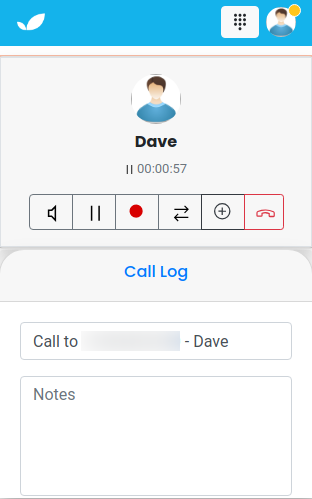 |
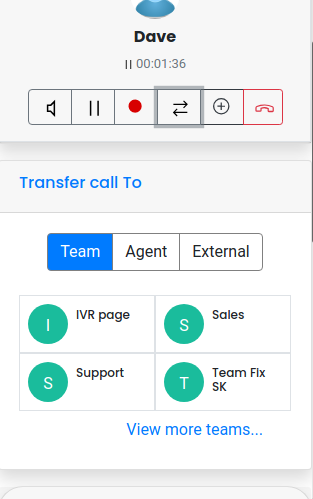
- To transfer a call, click on the Transfer icon located in the Call Window.
- You can transfer your customer’s call to a team, agent, or external phone number.
 |
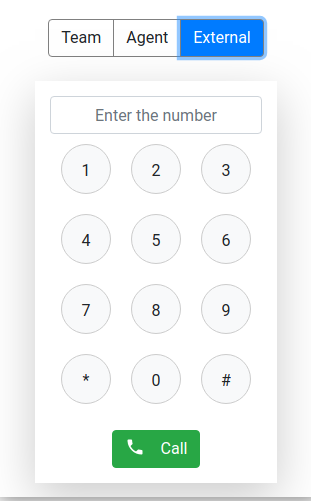
- Here, External is selected. On selection, a dial pad will come into view. Here, you can enter the phone number of the agent.
- On clicking the call icon, the call will be disconnected for the agent who answered the call and transferred to the external phone number added in the dial pad. Until the call is connected, the customer will be kept on hold with music.
 |
Note: If a call is placed to a blacklisted phone number, you will be notified that the number is blacklisted and the call will be transferred only after confirmation from your end.
Flag Question
Please explain why you are flagging this content (spam, duplicate question, inappropriate language, etc):