The Items App of Apptivo allows you to create tasks with the information available on the item’s overview page. By this, you can map the values present in the fields of the Items App with the fields present in the tasks.
Note: This feature is available in the Ultimate and Enterprise plans of Apptivo.
Steps to map the attributes
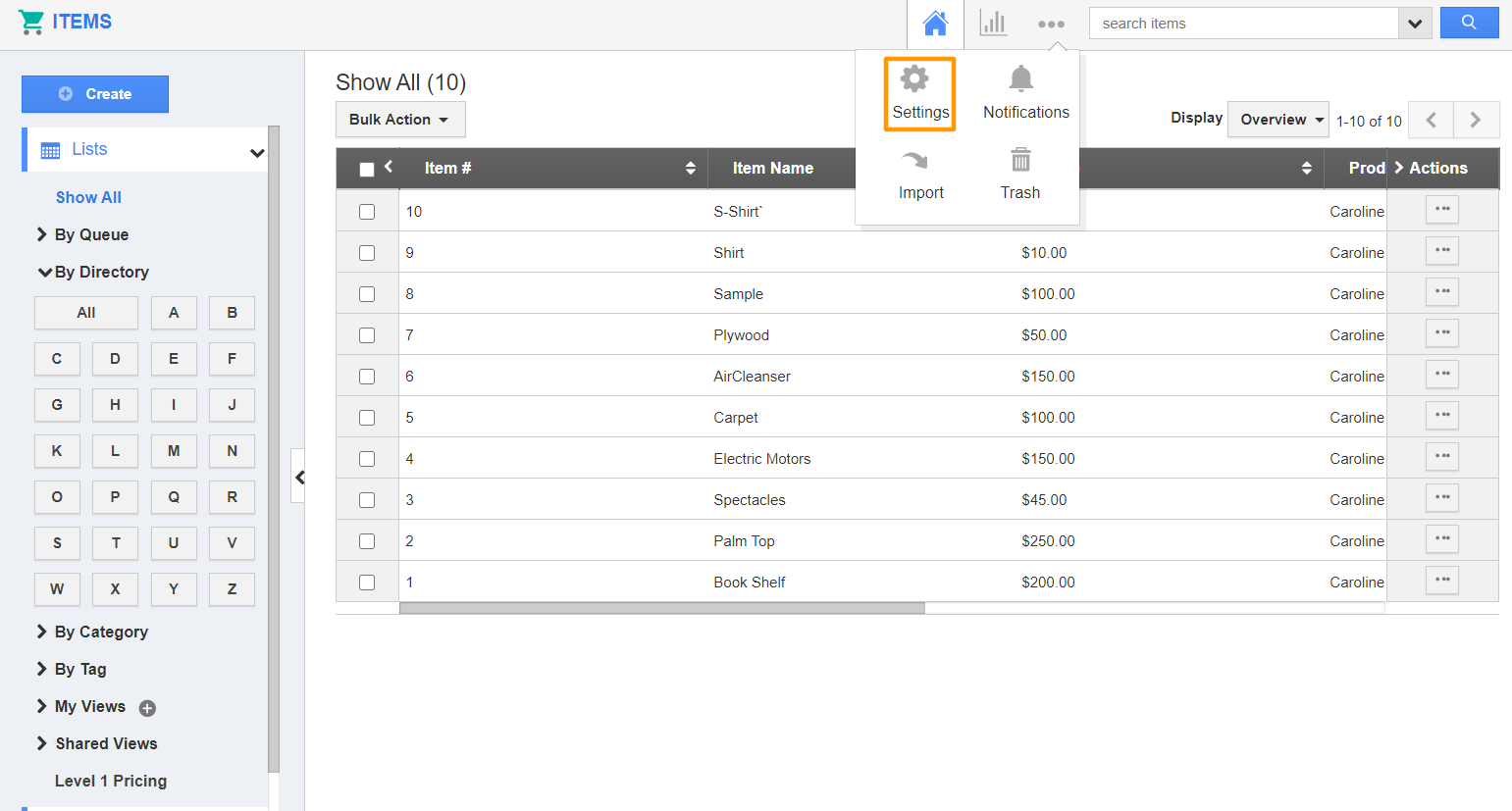
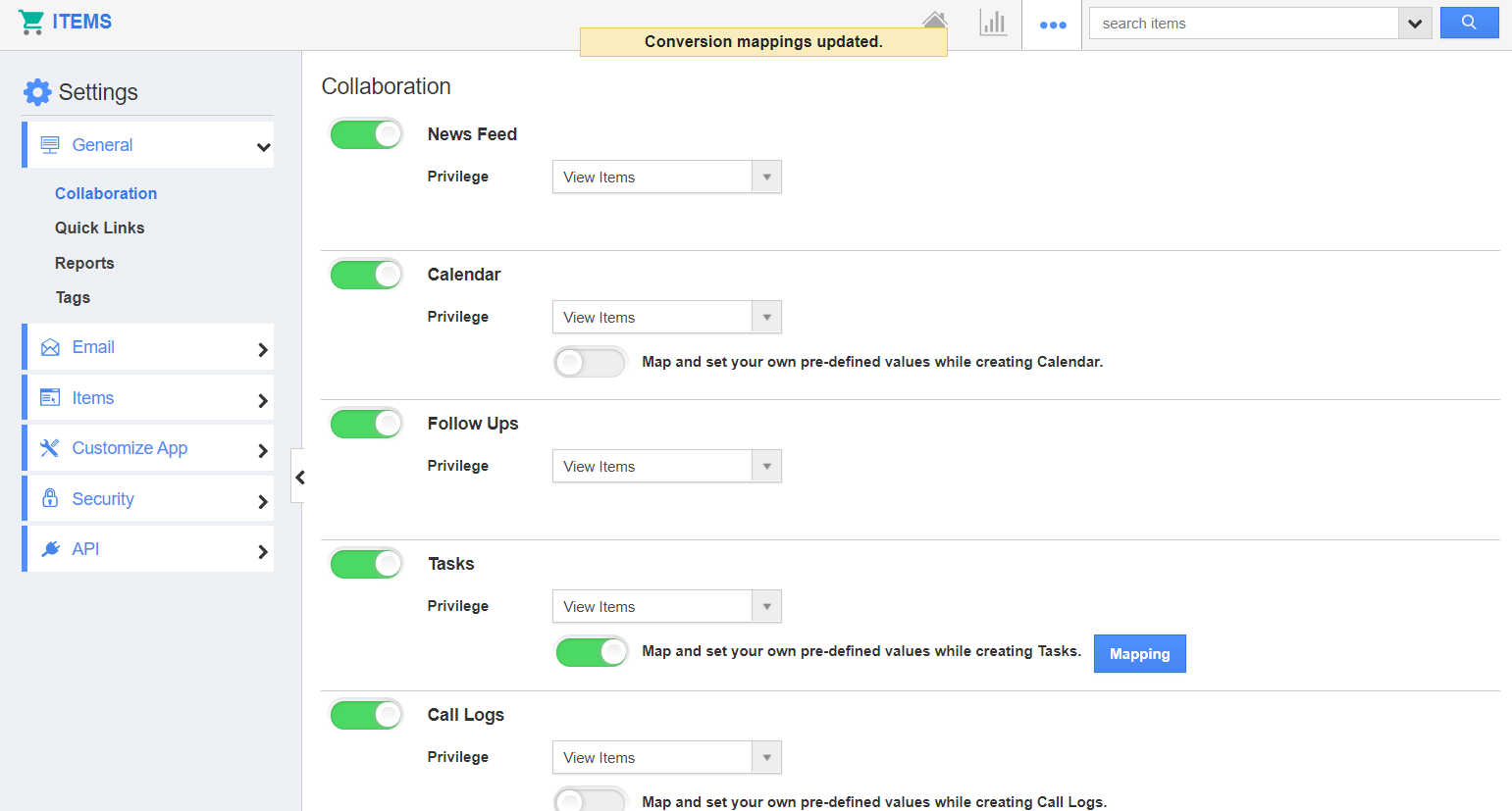
- Log into your Apptivo account and navigate to the Items App. In the Items App, select Settings.
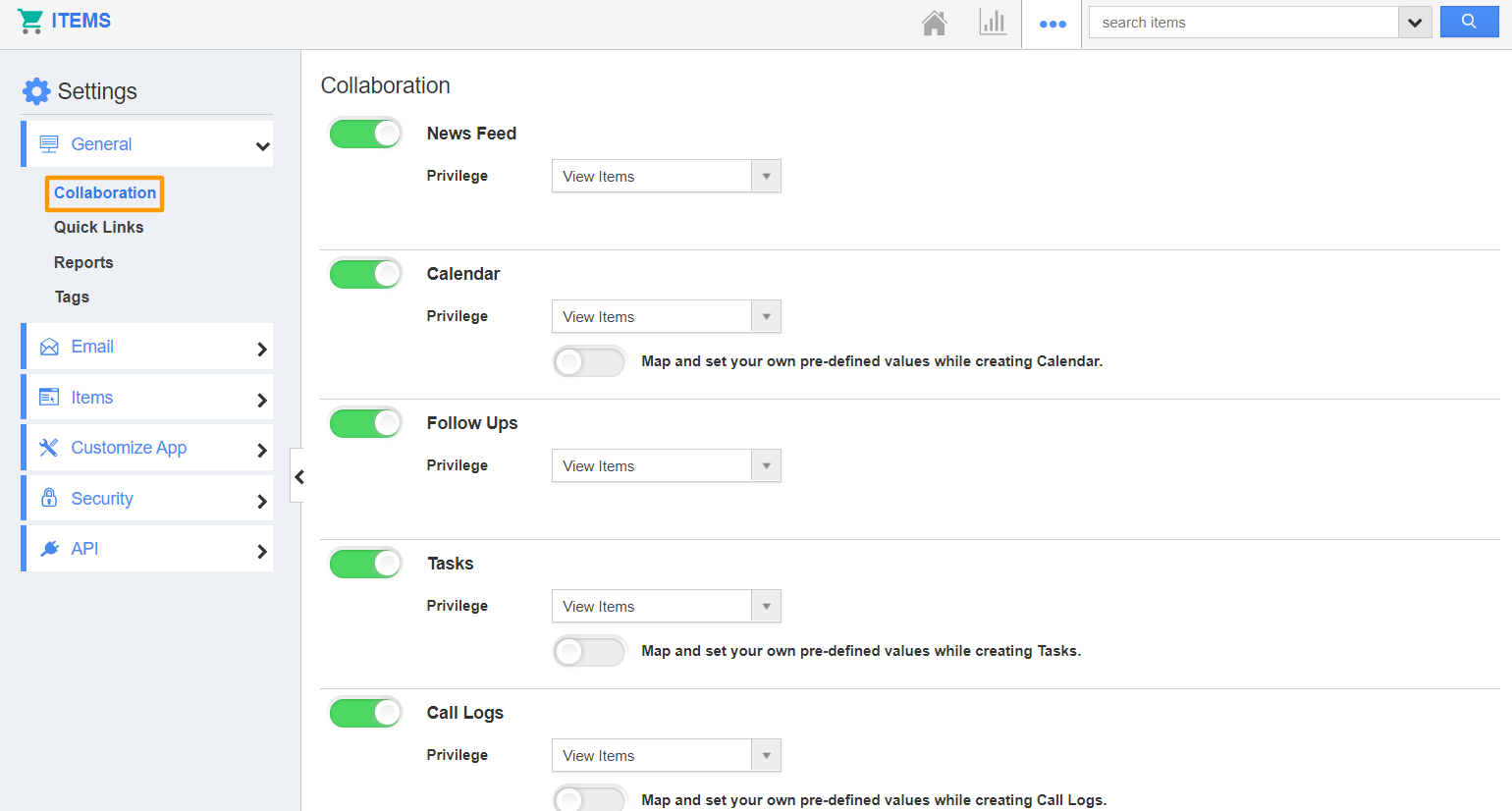
- In the Settings page, go to Collaboration. Here, scroll down to Tasks.
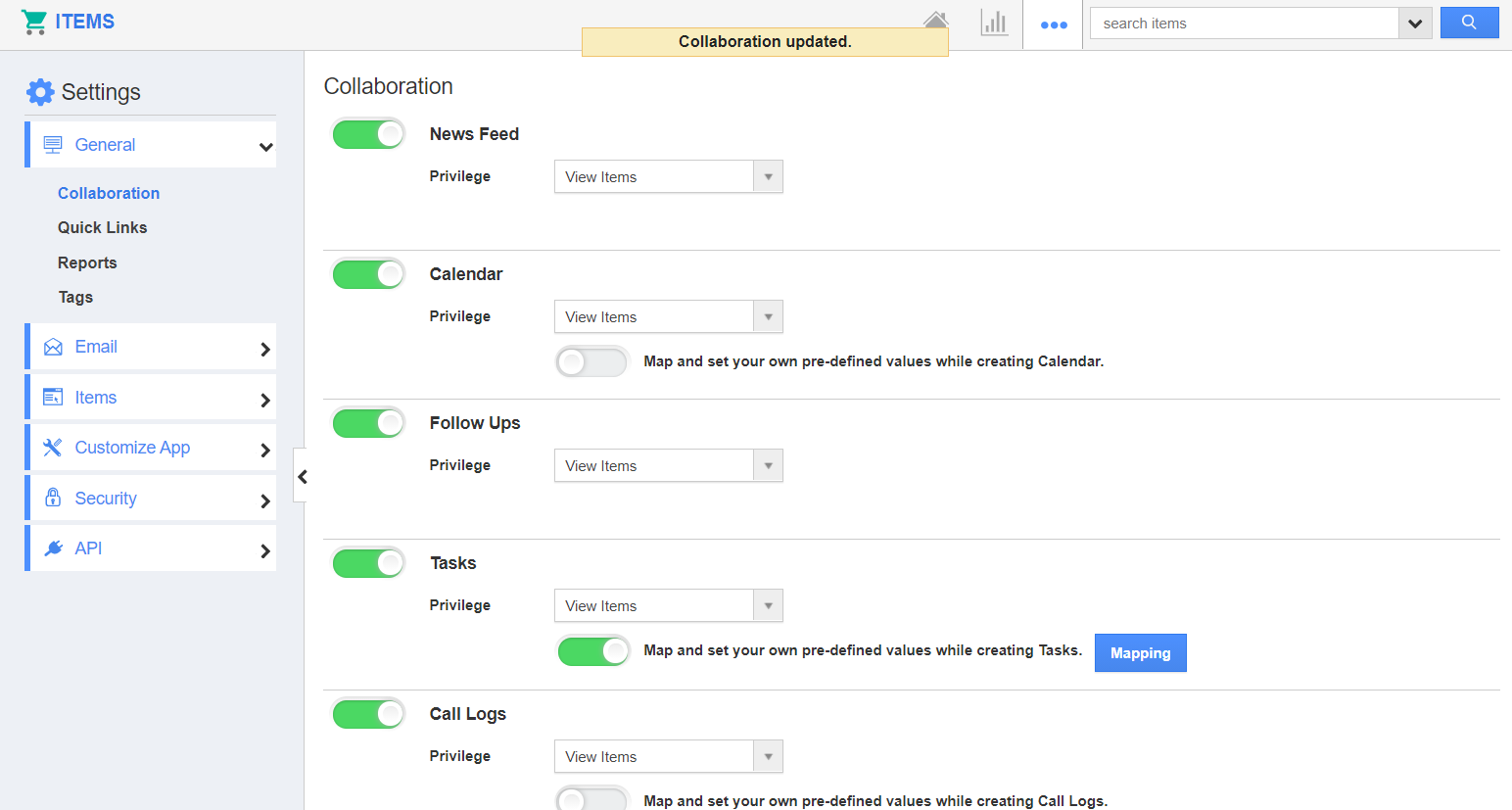
- Here, enable Map and set your own pre-defined values while creating Tasks toggle. Now, select Mapping.
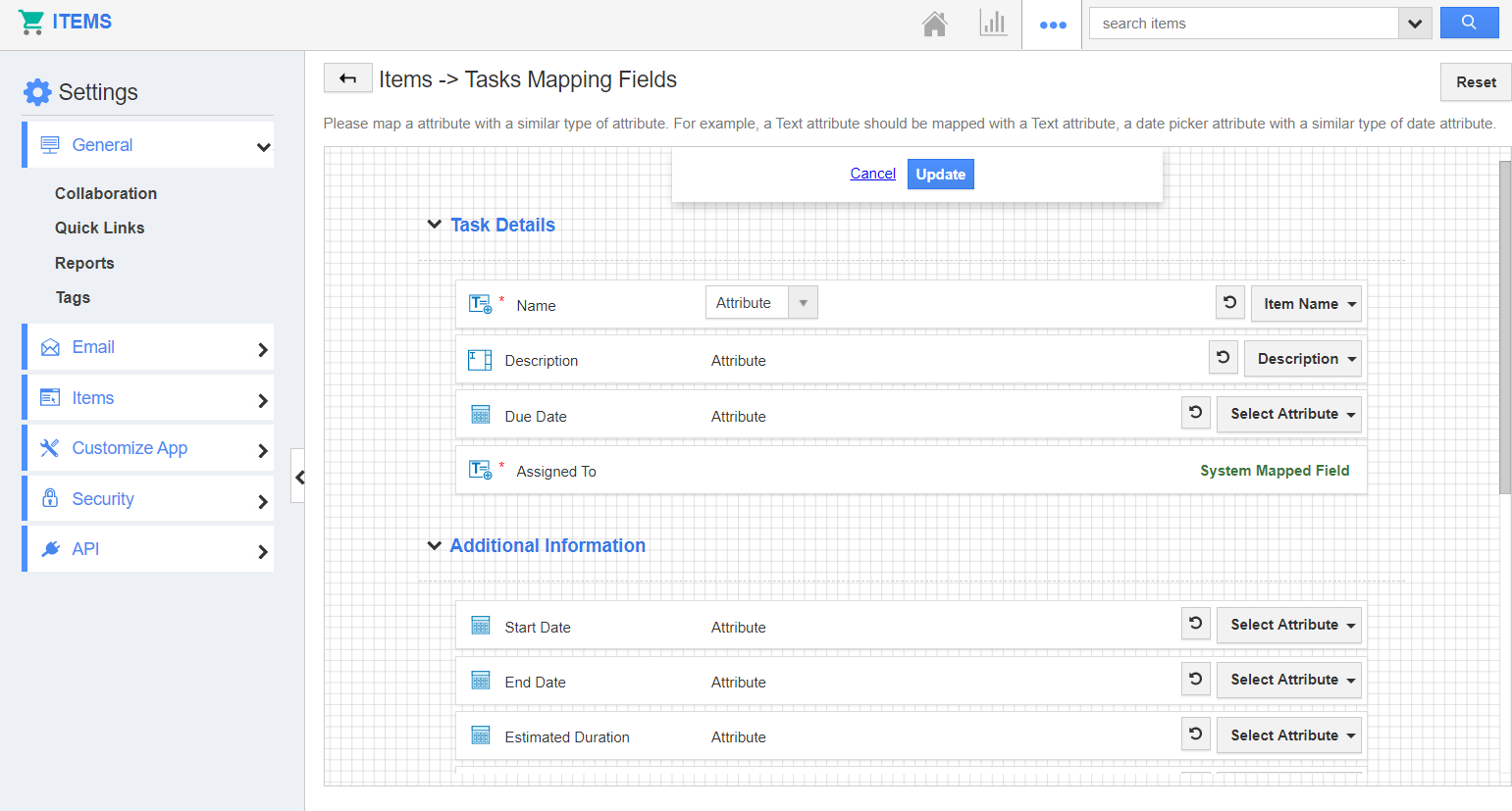
- You will be redirected to Items → Tasks Mapping Fields. Here, map the required fields.
- Here, the Item Name and description fields of Items App are mapped with the Name and description fields of the tasks.
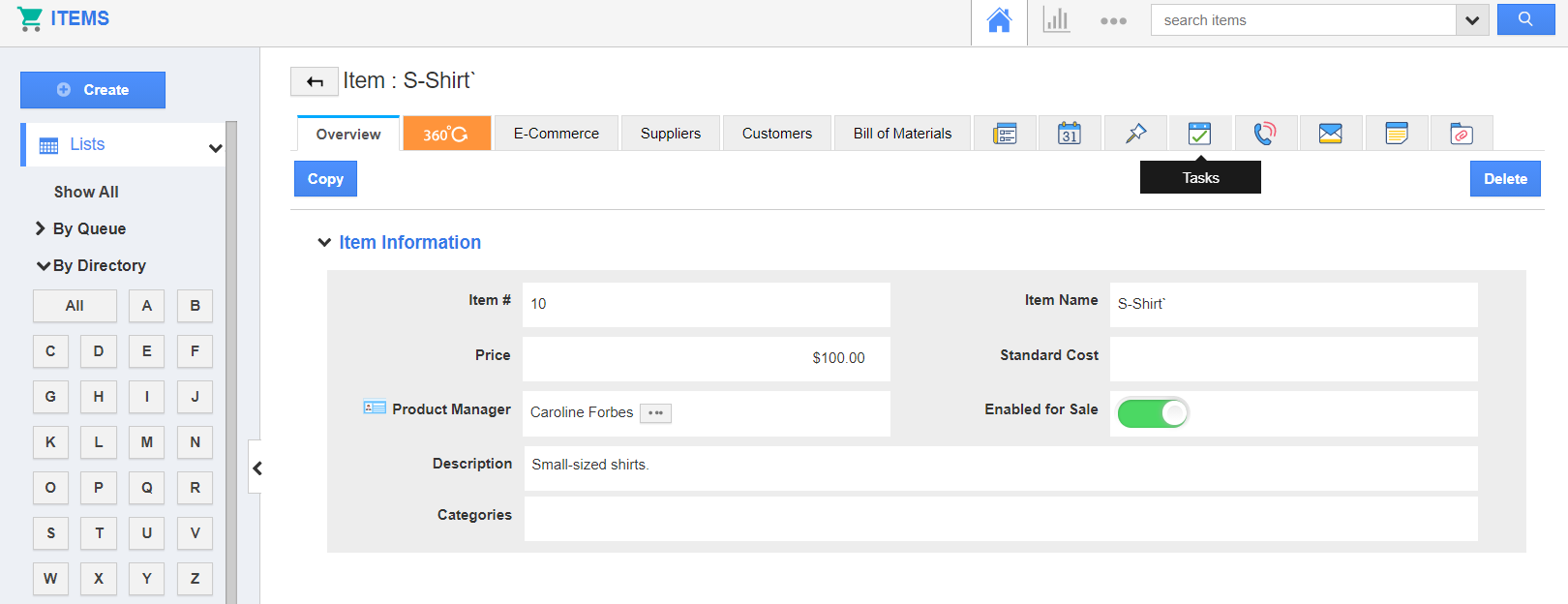
- Now, create a new item or open an existing item in the Items App.
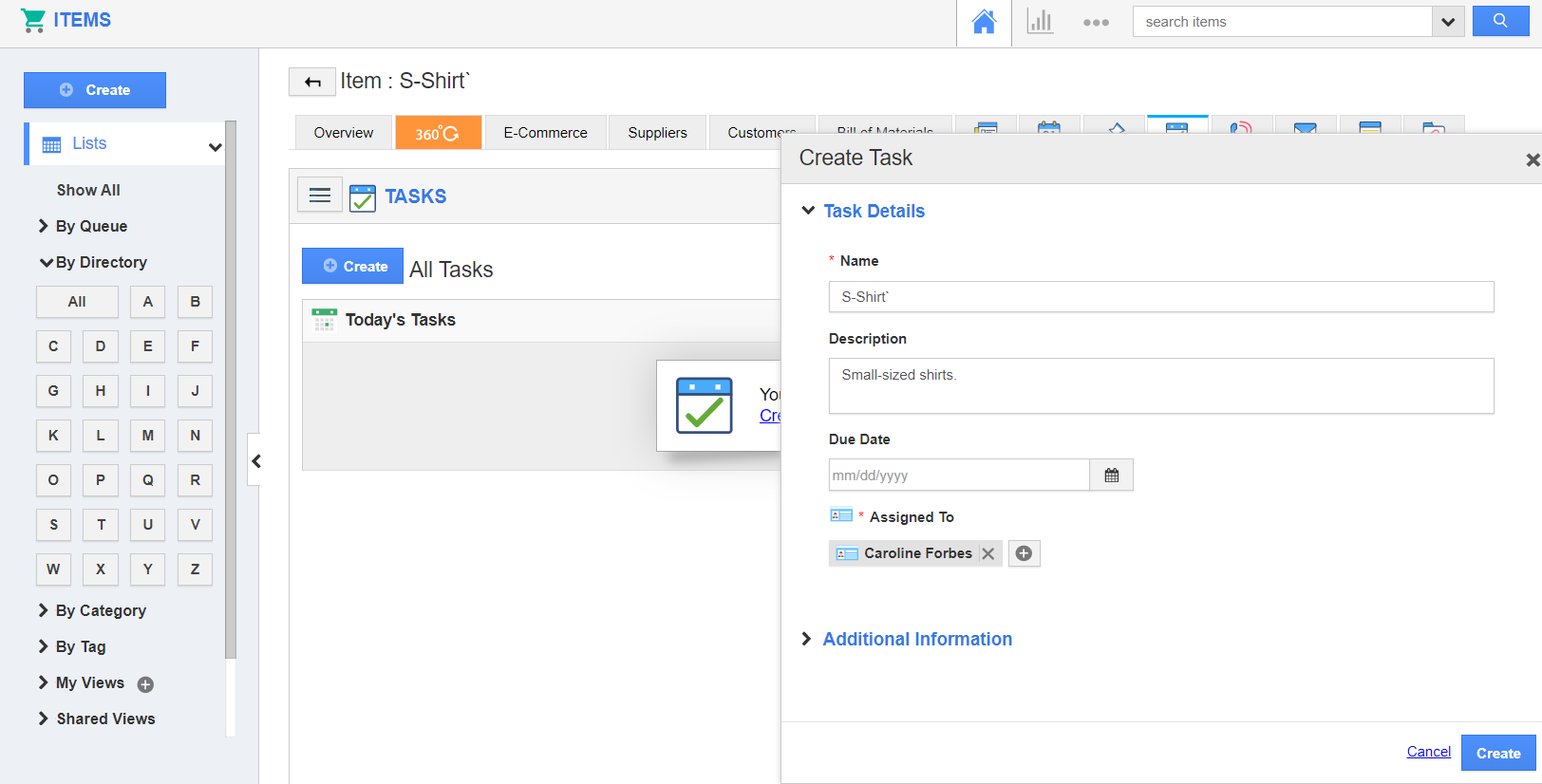
- Switch to the Tasks tab and select Create.
- The fields in the Create Task window will have the values as per the configuration. For instance, the item name is added as the name of the task according to the mapping done.