Browse by Solutions
Browse by Solutions
How do I set the default Assignee in Requirements App?
Updated on July 23, 2020 07:15AM by Admin
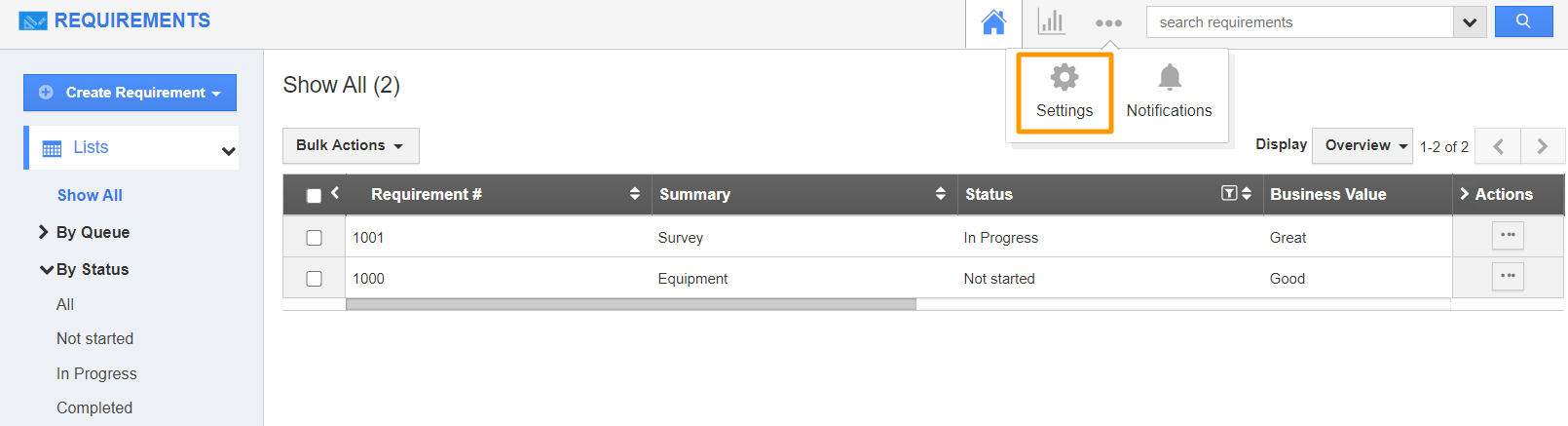
- Connect to your Apptivo account and redirect to the Requirements App. In the Requirements App, select Settings from the App Header.
 |
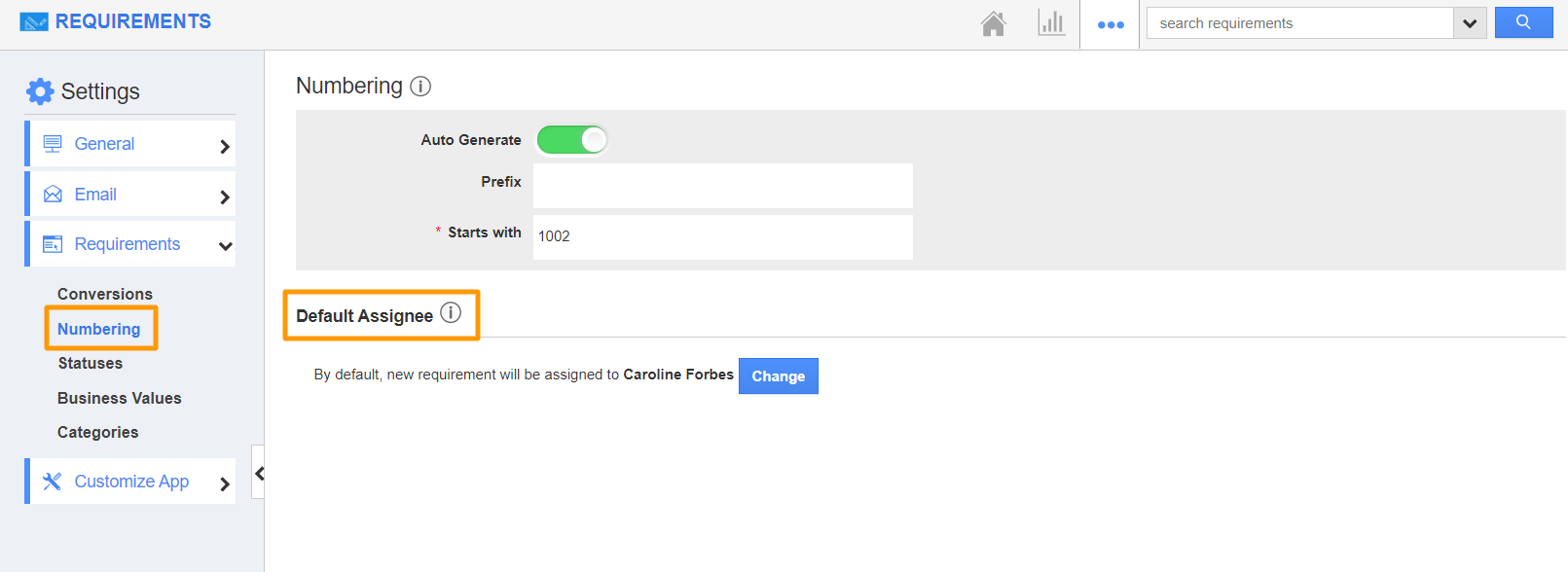
- In the Settings page, select Requirements → Numbering from the left navigation panel.
- The Numbering page will come into view. Here, you can set the default assignee. You can configure to whom the requirements must be assigned to automatically while creating them.
- Select the change button to change the assignee.
 |
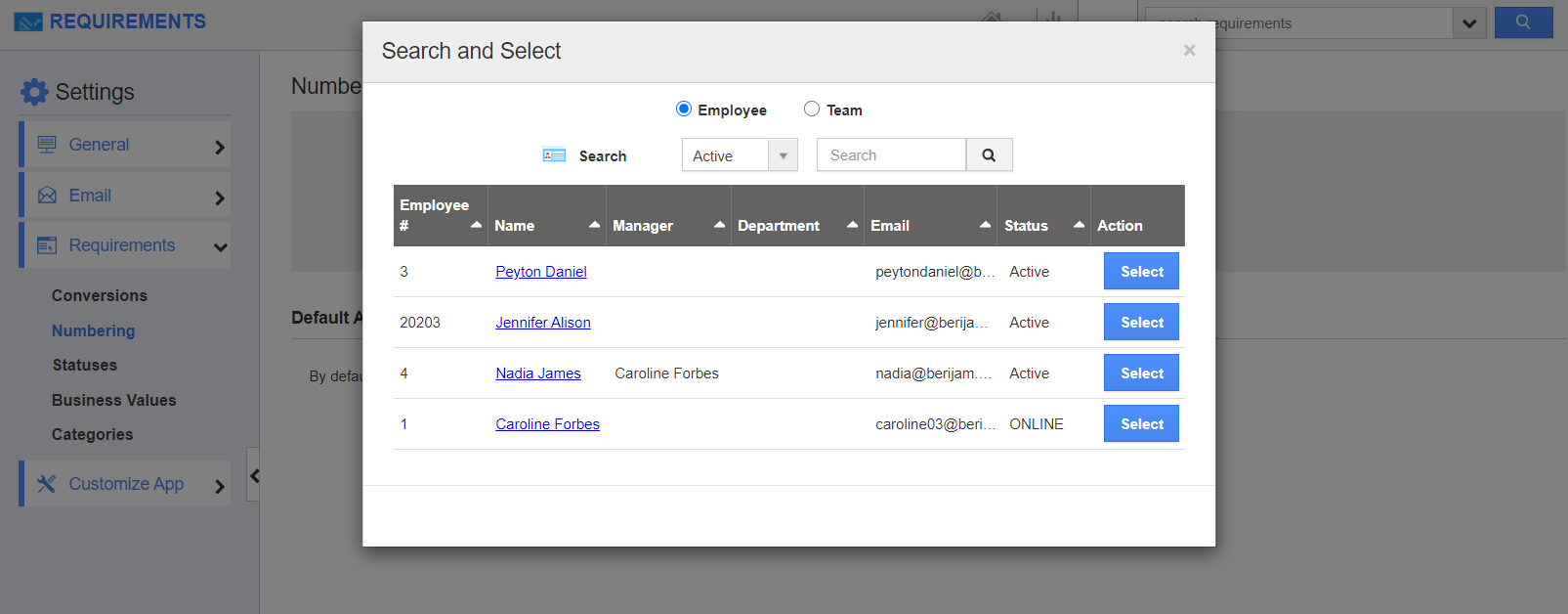
- The Employee- Search and Select popup will appear. Select an employee.
 |
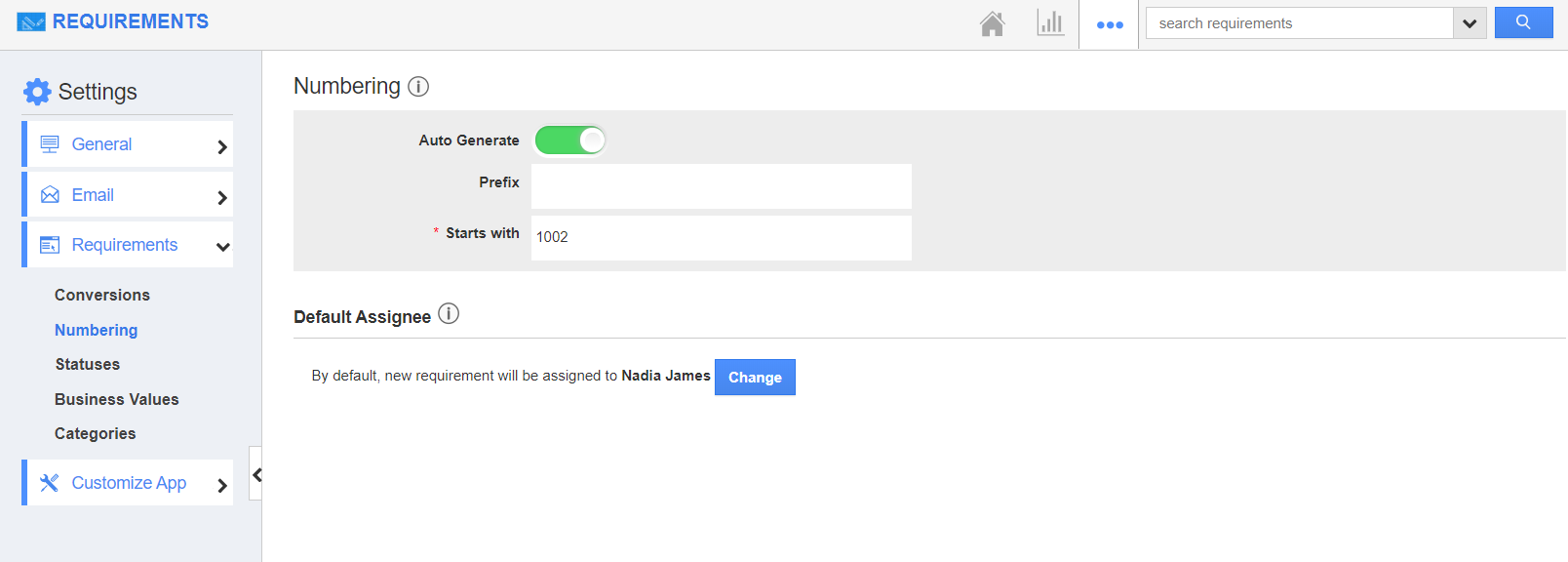
- The employee gets added as the default assignee automatically.
 |
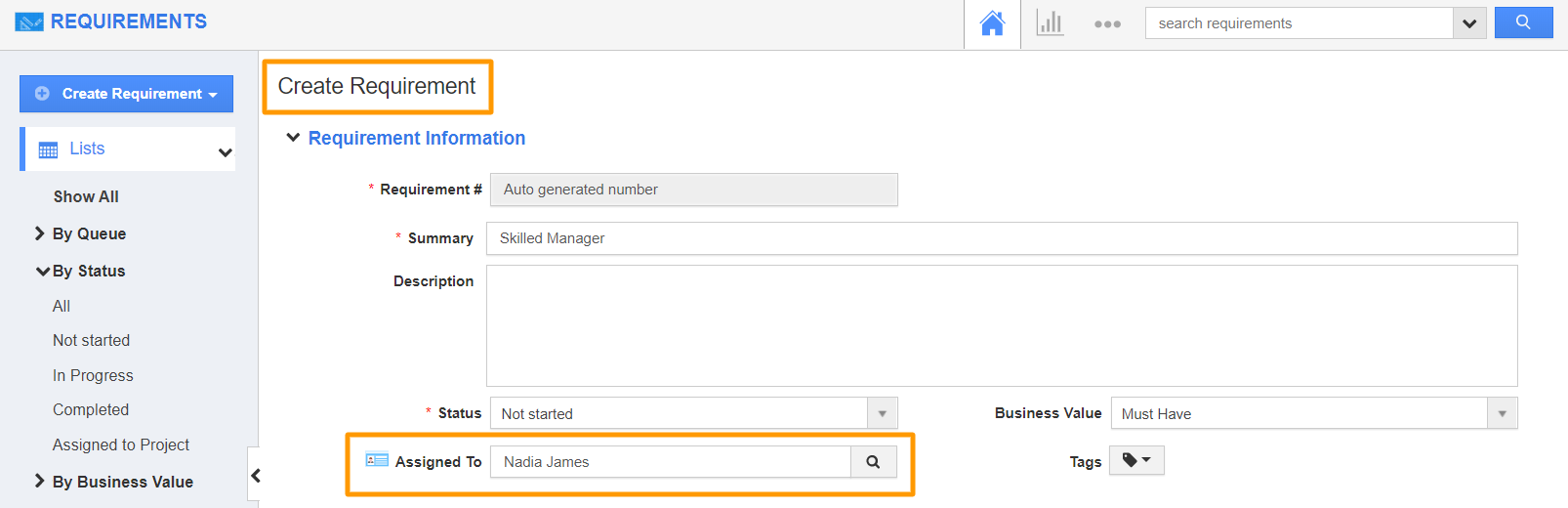
- While creating the requirements, the assignee will be the default assignee configured in the Settings page.
 |
Flag Question
Please explain why you are flagging this content (spam, duplicate question, inappropriate language, etc):