The Miscellaneous Issue App of Apptivo lets you receive both Email Feed and News Feed if documents are added, deleted, downloaded, emailed, and downloaded.
Steps to Generate Notifications
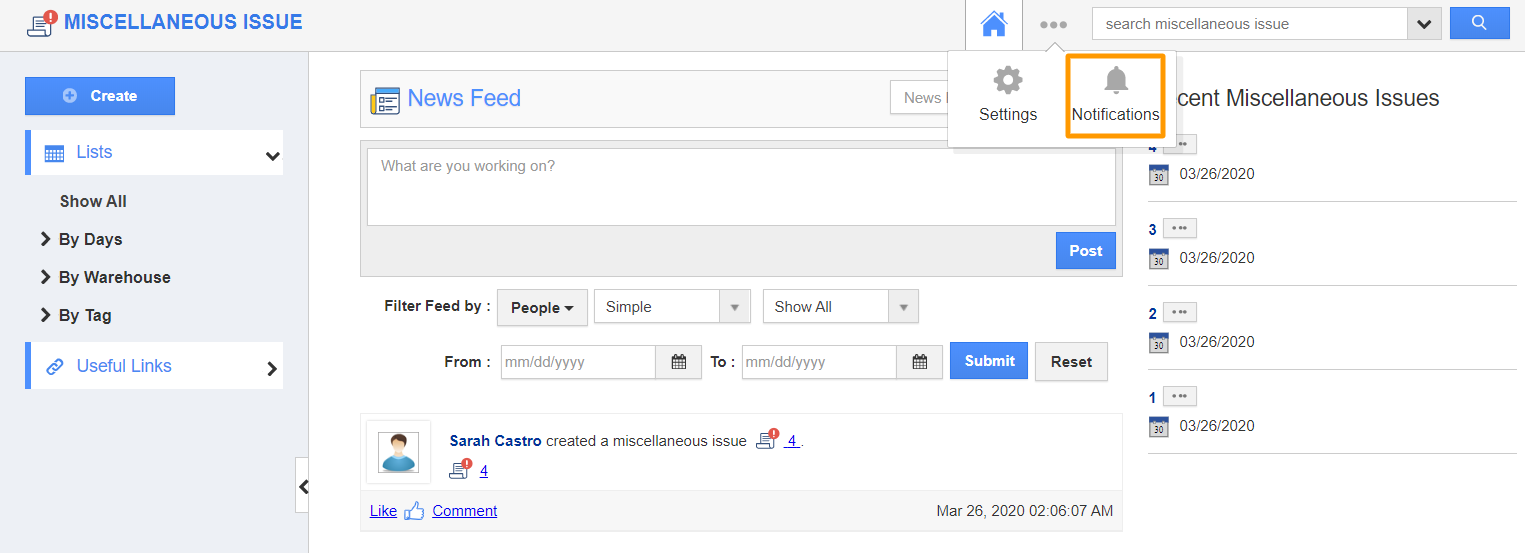
- Login and access the Miscellaneous Issue App from the universal navigation menu.
- Click on the More(...) icon from the App Header and select the Notifications icon.
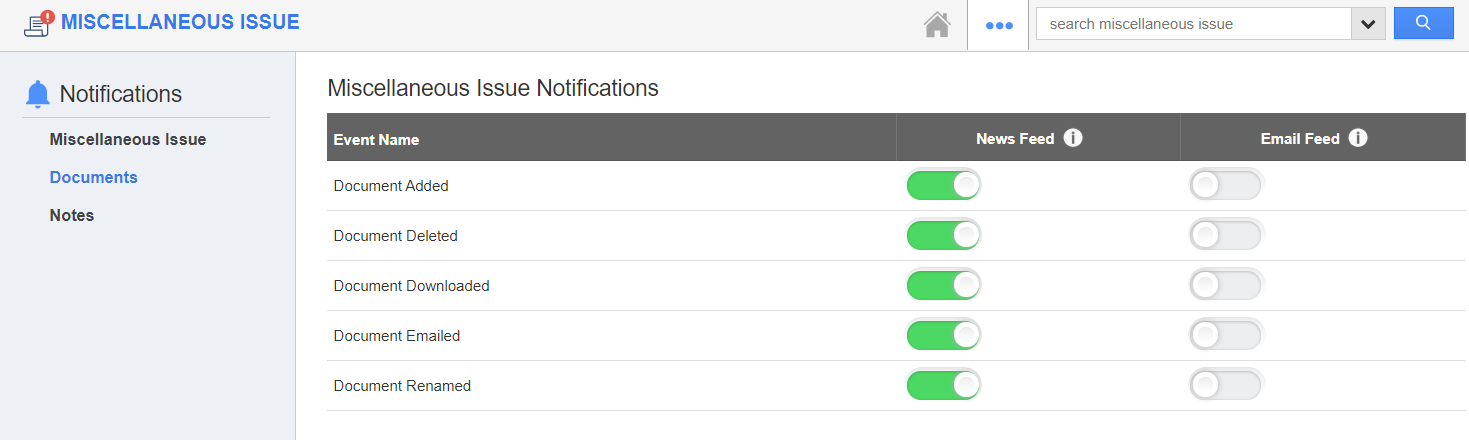
- In the Notification page, you can view the Documents and the Notes on the Left panel.
- Select the Documents, you can view the Document’s notification for the News Feed and the Email Feed.
- By Default, the News Feed notifications will be Enabled while the Email Feeds will be Disabled.
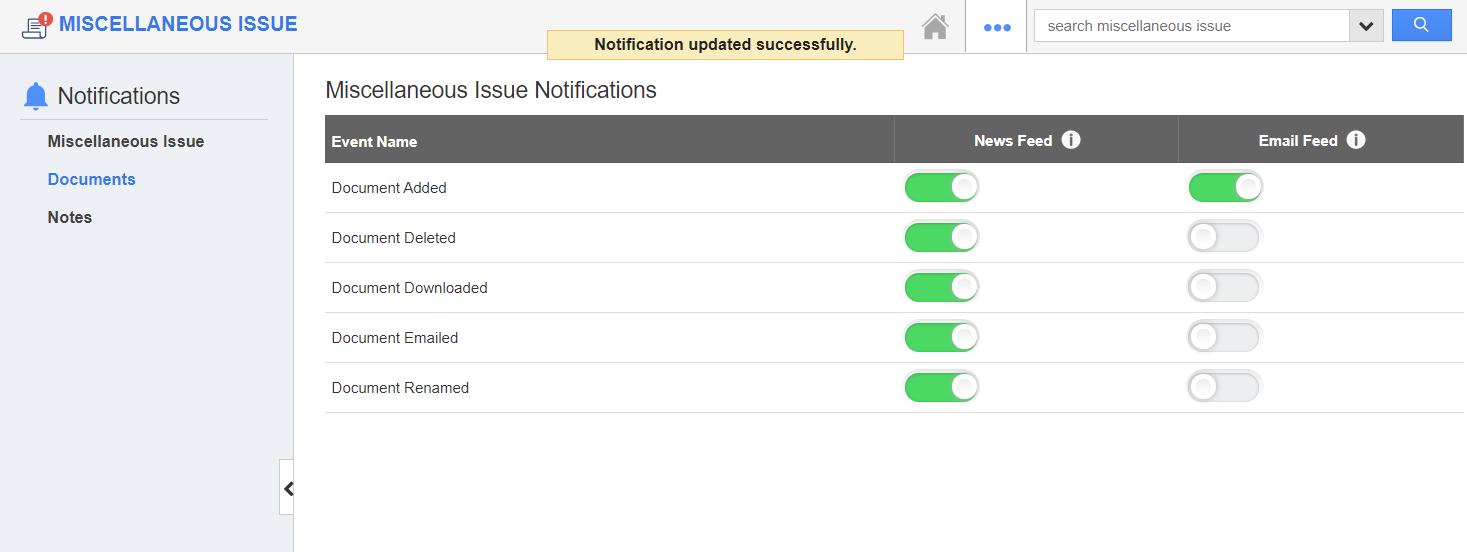
- You can also enable the Email Feed when needed. Here, the Email Feed is enabled for Document Created.
- All your changes will be automatically saved.
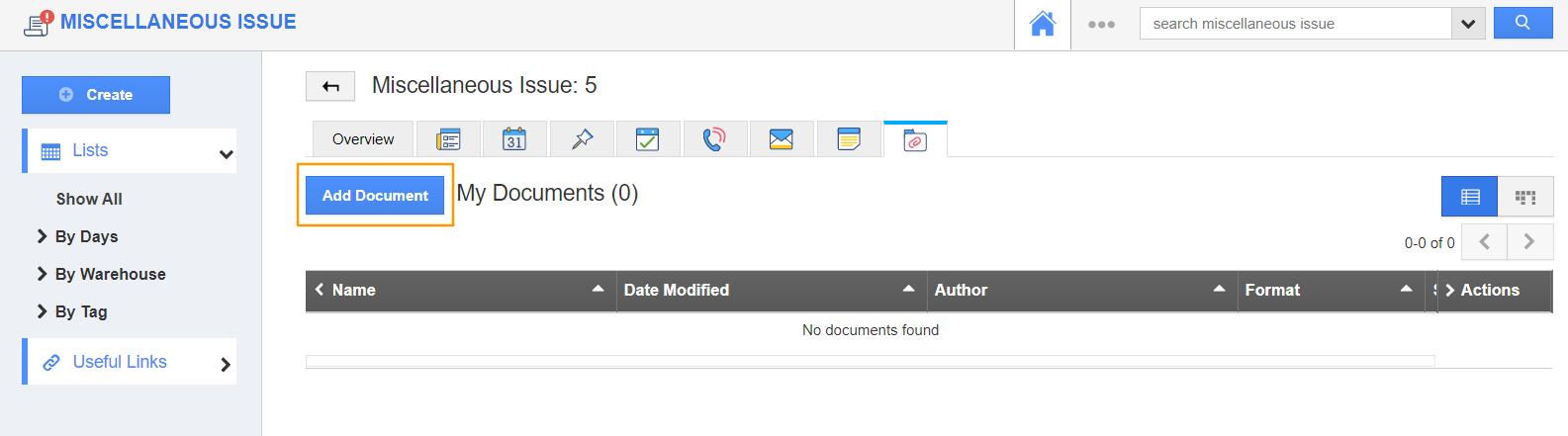
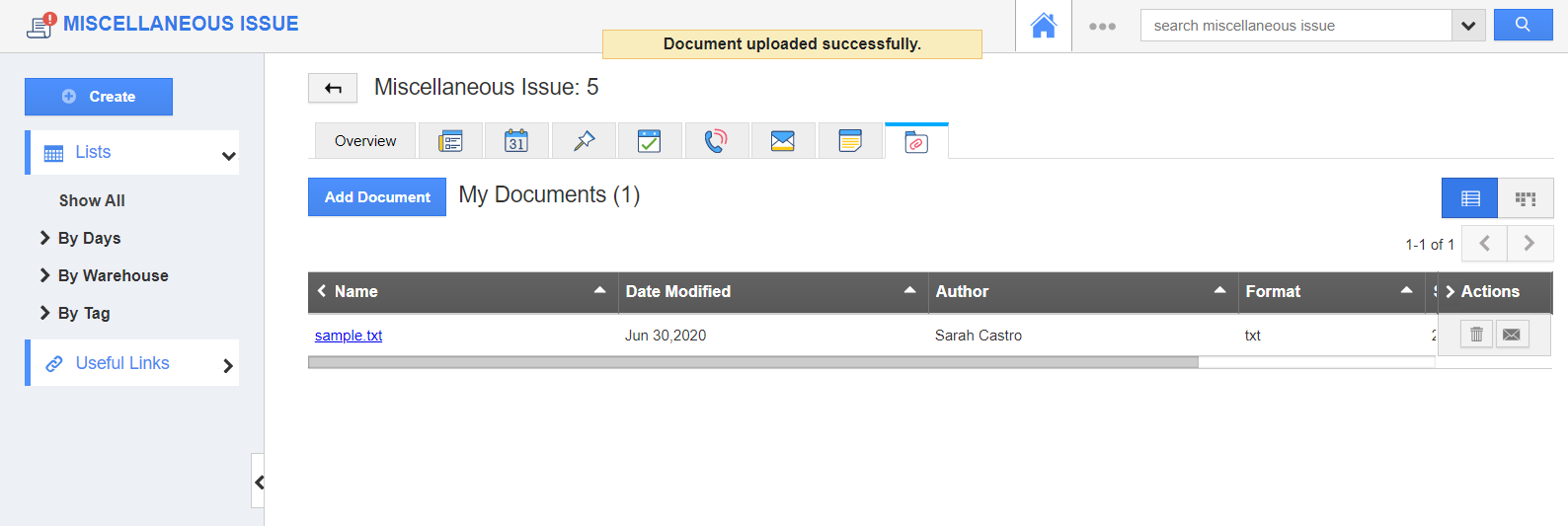
- Go to the Miscellaneous Issue App and go to the Documents tab of an issue.
- Add a document to the issue.
- You can view the News Feed under the News Feed tab.
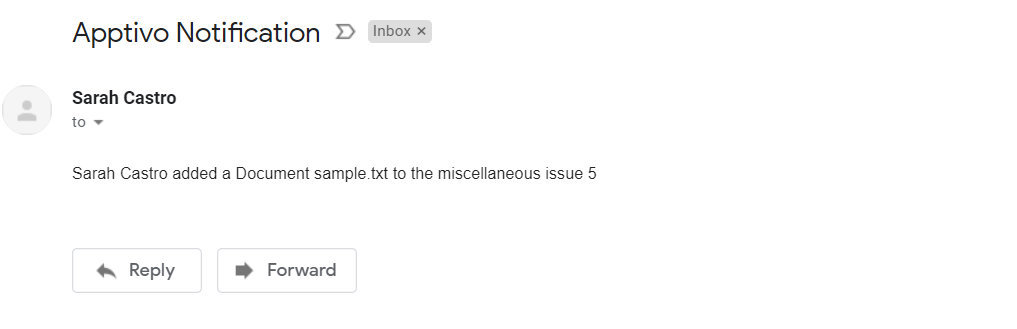
- Simultaneously, an email notification will be sent.