Browse by Solutions
Browse by Solutions
How do I configure the Transaction Number in the Miscellaneous Issue App?
Updated on June 12, 2020 05:41AM by Admin
- Navigate to Settings → Miscellaneous Issue → Number Generation → Transaction Number Generation.
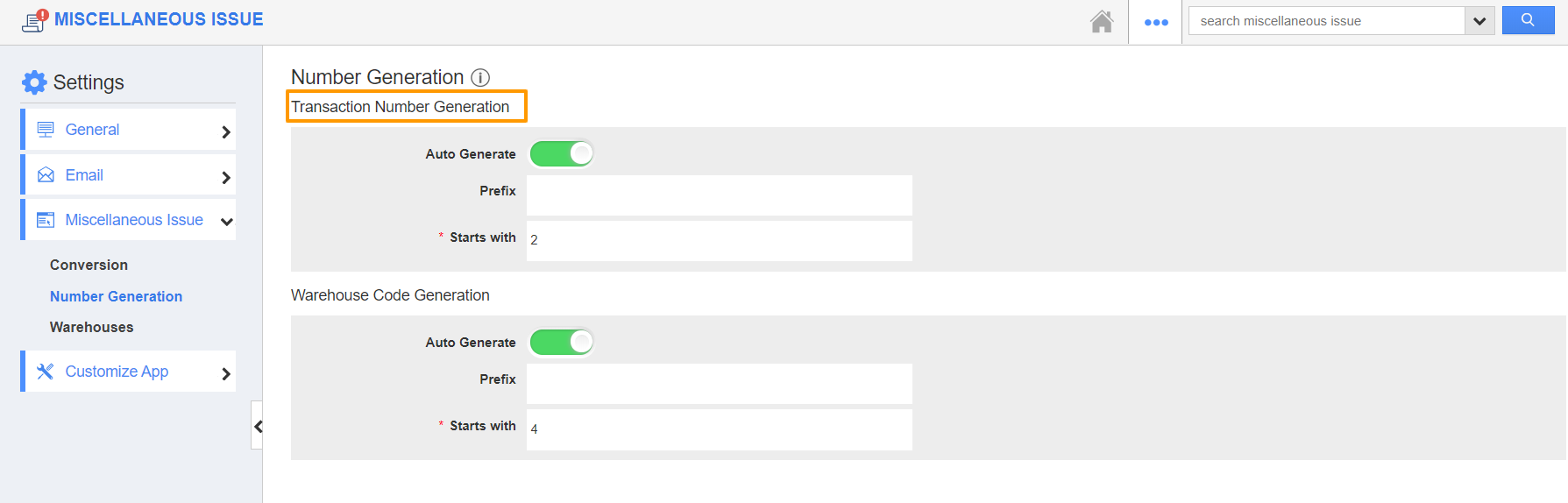 |
- You can configure the transaction numbers for the issues.
- Enable the Auto Generate toggle under Transaction Number Generation to utilize this feature.
- In the Prefix section, you can set it up to have a static text or the year of the issue date.
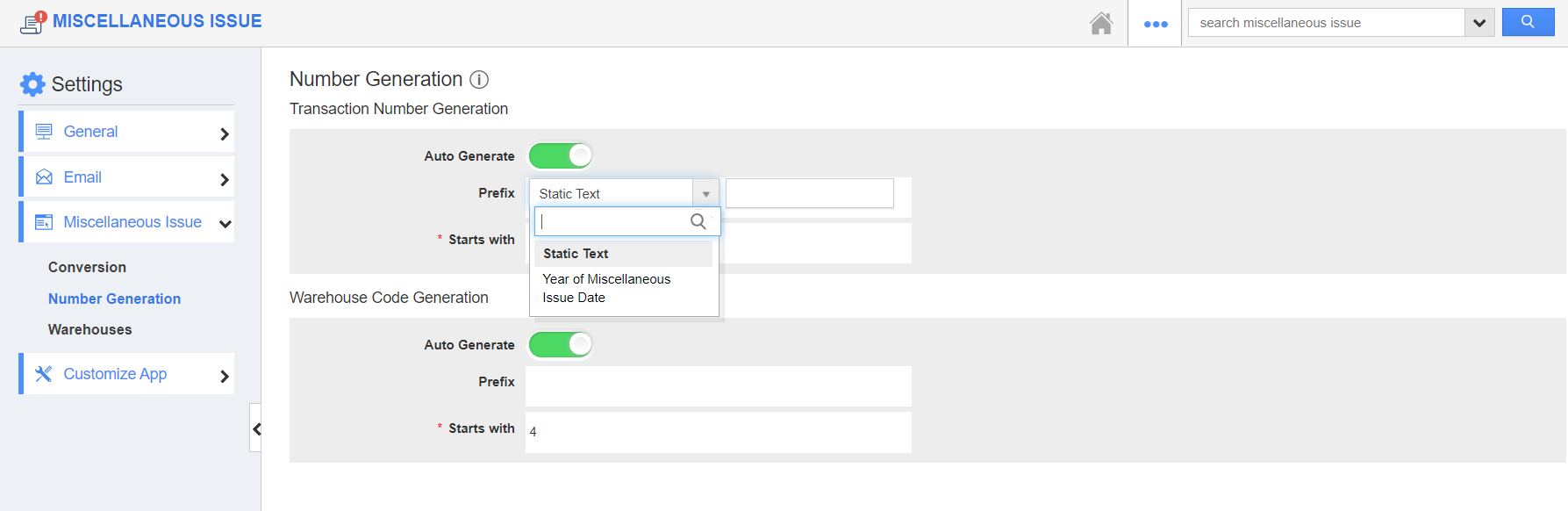 |
- Static Text: Add a predefined text to the Issues.
 |
- Year of Miscellaneous Issue Date: The Issues are created based on the year of generation. As the current year is 2020, the year will change to 2020 automatically while creating a new Miscellaneous Issue.
 |
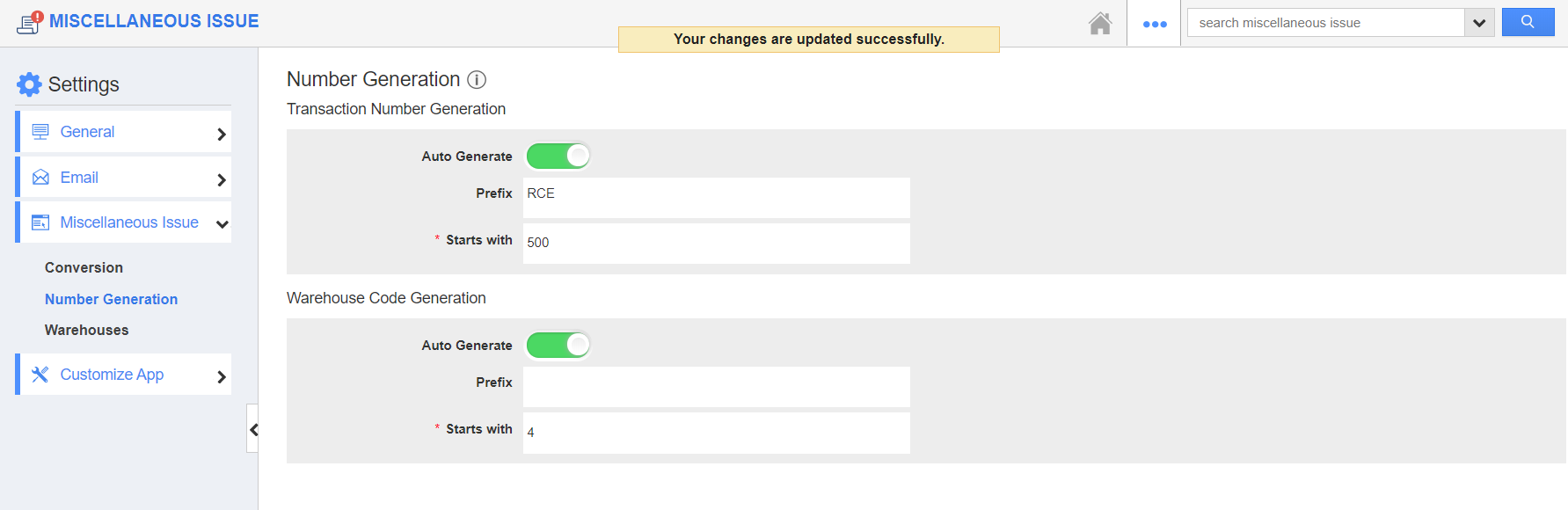
- Here, the prefix is set as a static text - RCE and starts with as 500.
 |
- Create a new record in the Miscellaneous Issue App. As the Auto Generate feature is enabled, the Transaction # is marked as Auto-generated number.
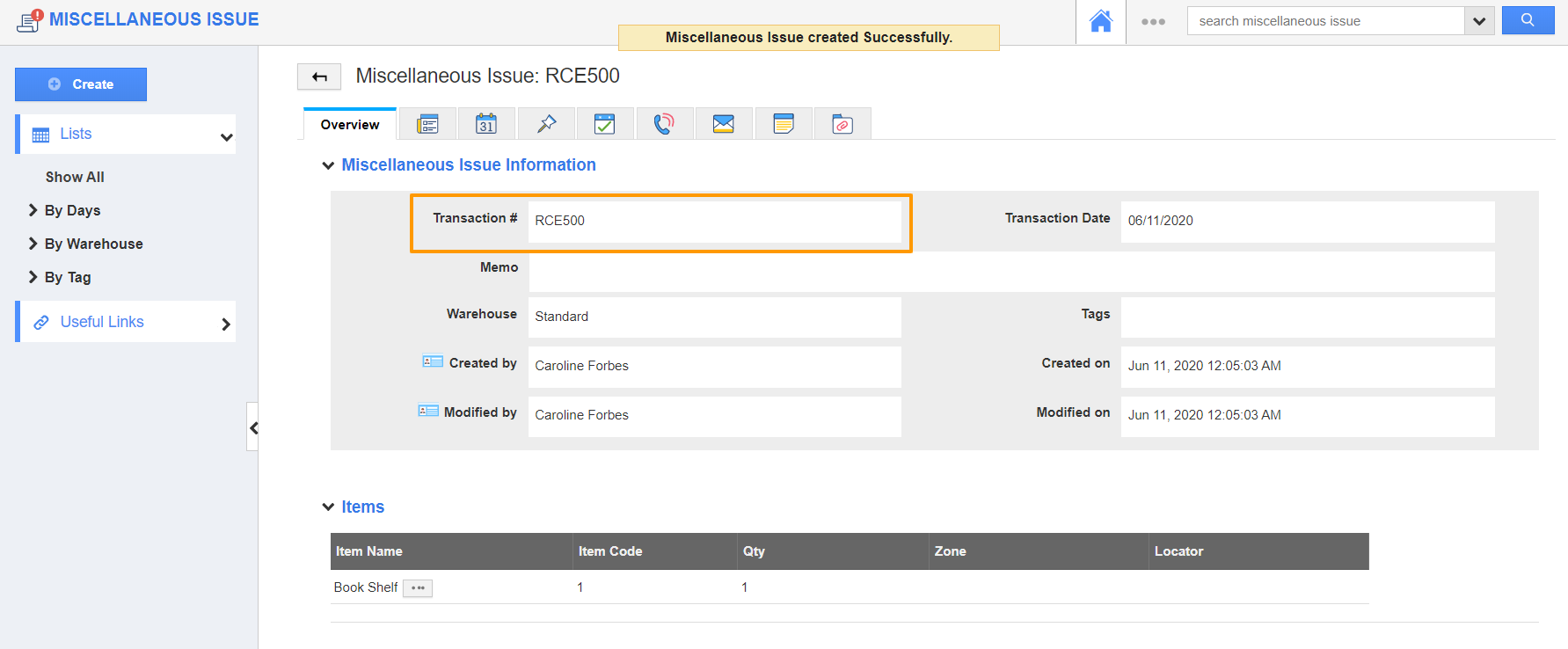
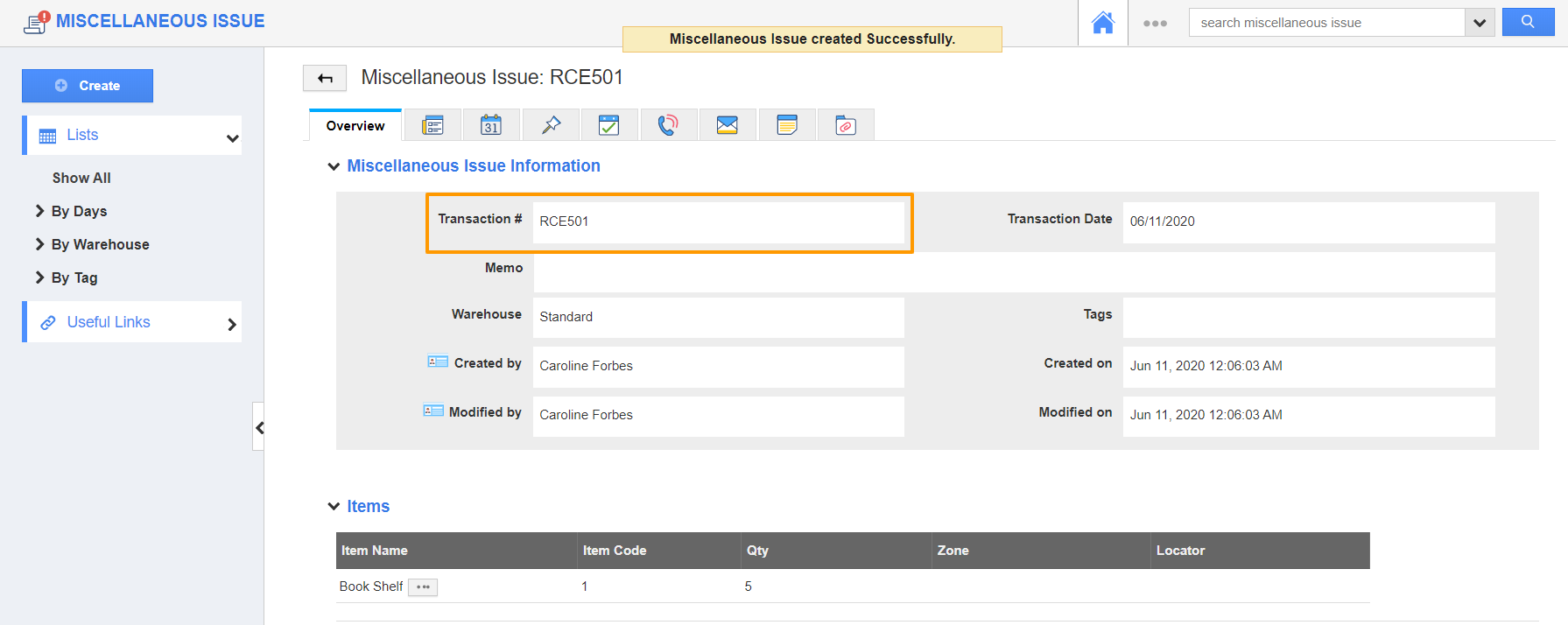
- Once the record is created, you can see the Transaction number is generated according to the configuration.
 |
- Now, create another record in the Miscellaneous Issue App. The transaction number will change based on the sequence.
 |
Flag Question
Please explain why you are flagging this content (spam, duplicate question, inappropriate language, etc):