Browse by Solutions
Browse by Solutions
How to create an event automatically using Time-Based Triggers in the Estimates App?
Updated on June 1, 2020 07:41AM by Admin
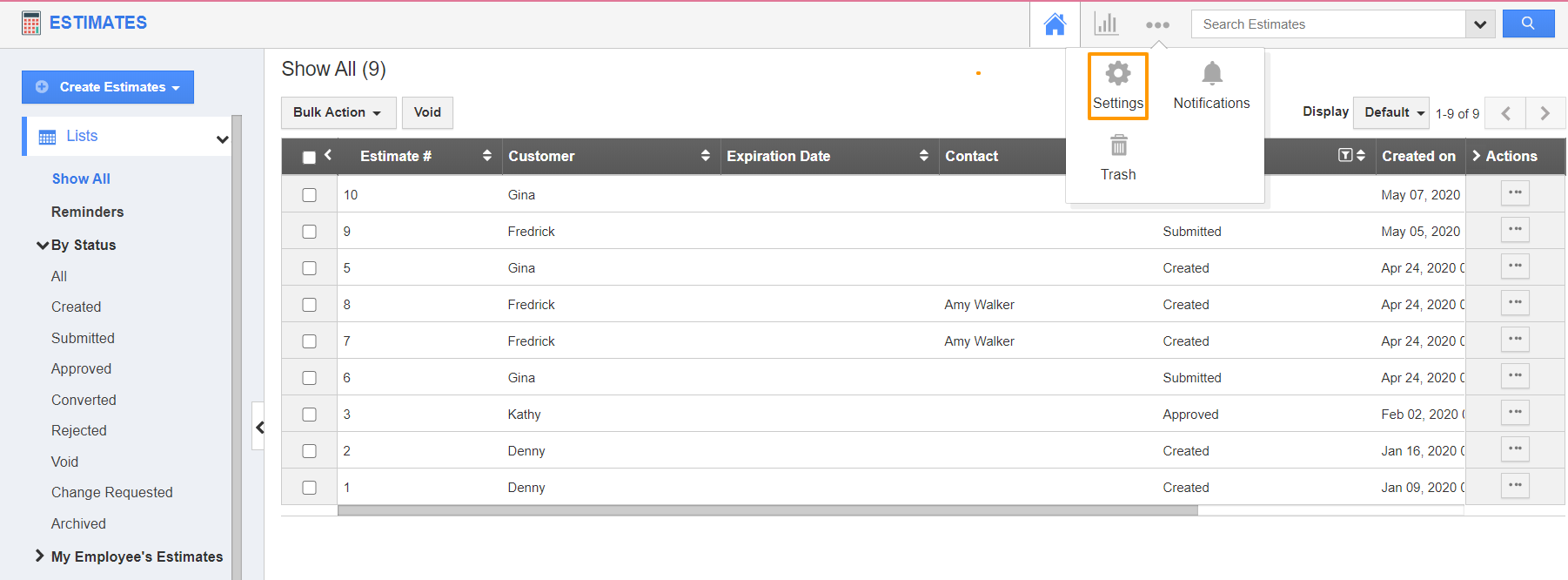
- In the Estimates App of Apptivo, select the Settings from the App Header.
 |
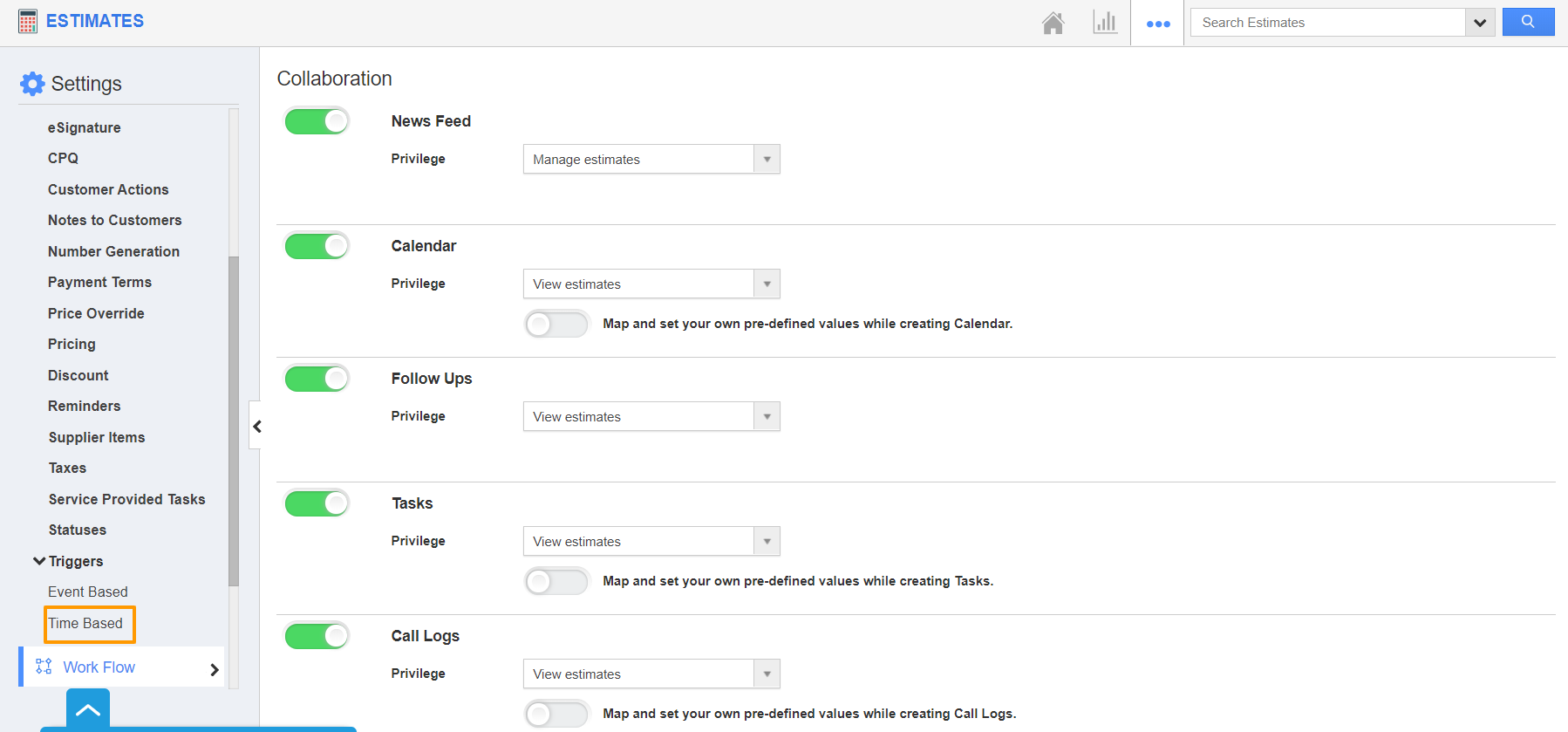
- From the Settings page, select Estimates → Triggers → Time Based.
 |
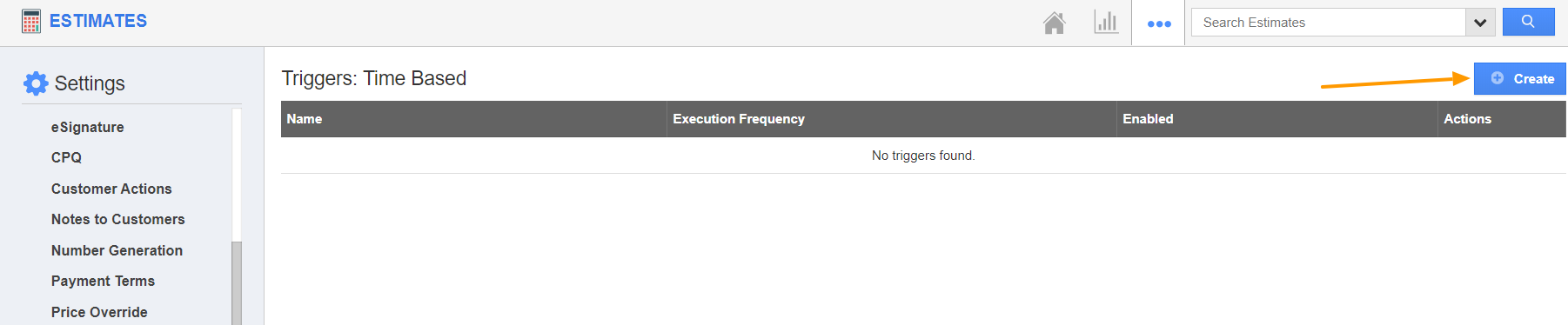
- In the Time Based Triggers page, select Create to create a new trigger.
 |
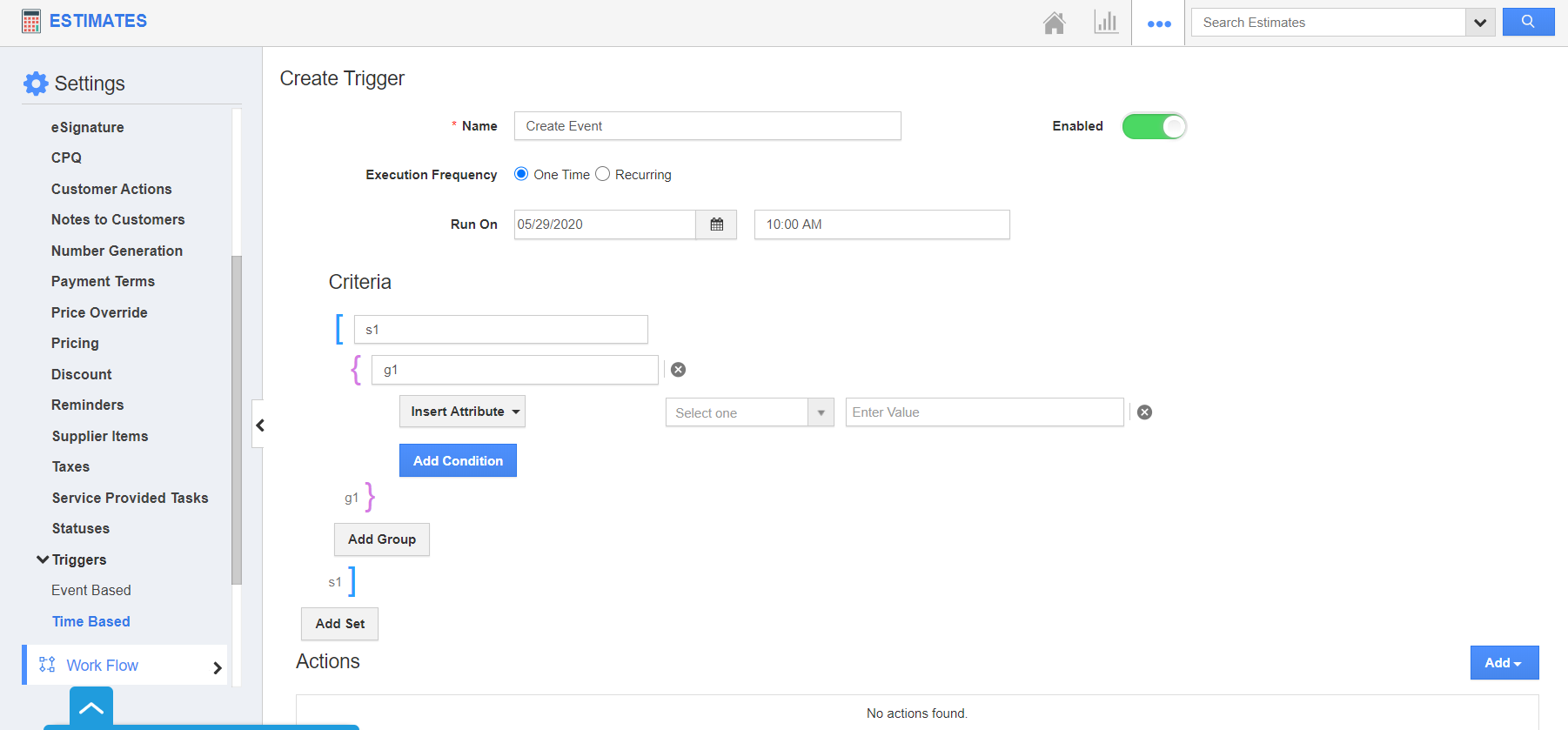
- Add a name for the trigger in the Create Trigger page. In addition, enable the toggle to keep the trigger active.
- Determine the execution frequency for the trigger. State whether the trigger is one time or recurring.
- As stated below, an one time trigger is chosen along with the trigger date and time. The date and time are set as May 29, 2020, at 10 AM.
 |
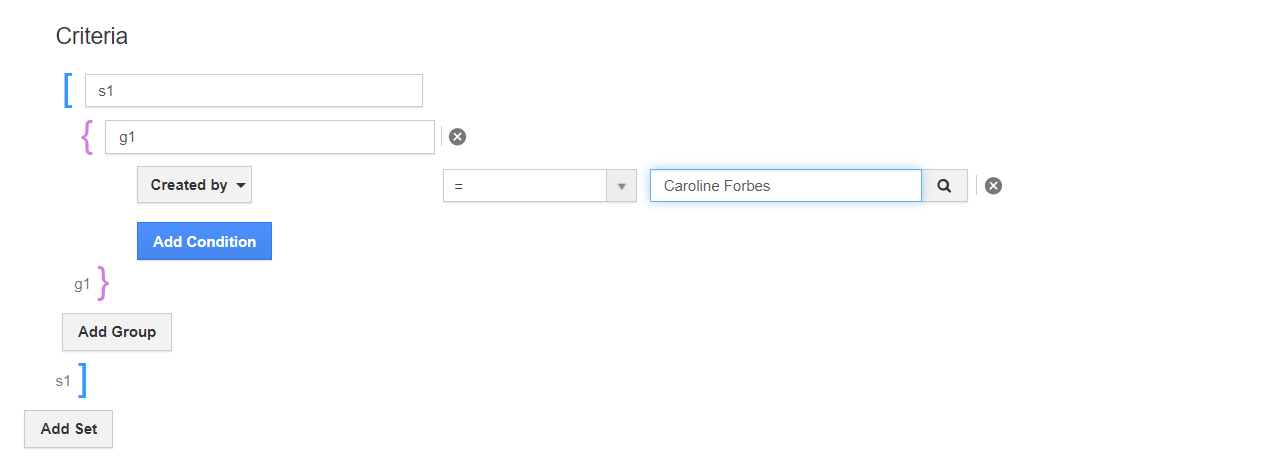
- In the Criteria section, the condition is set to generate a trigger if the estimate is created by Caroline Forbes.
 |
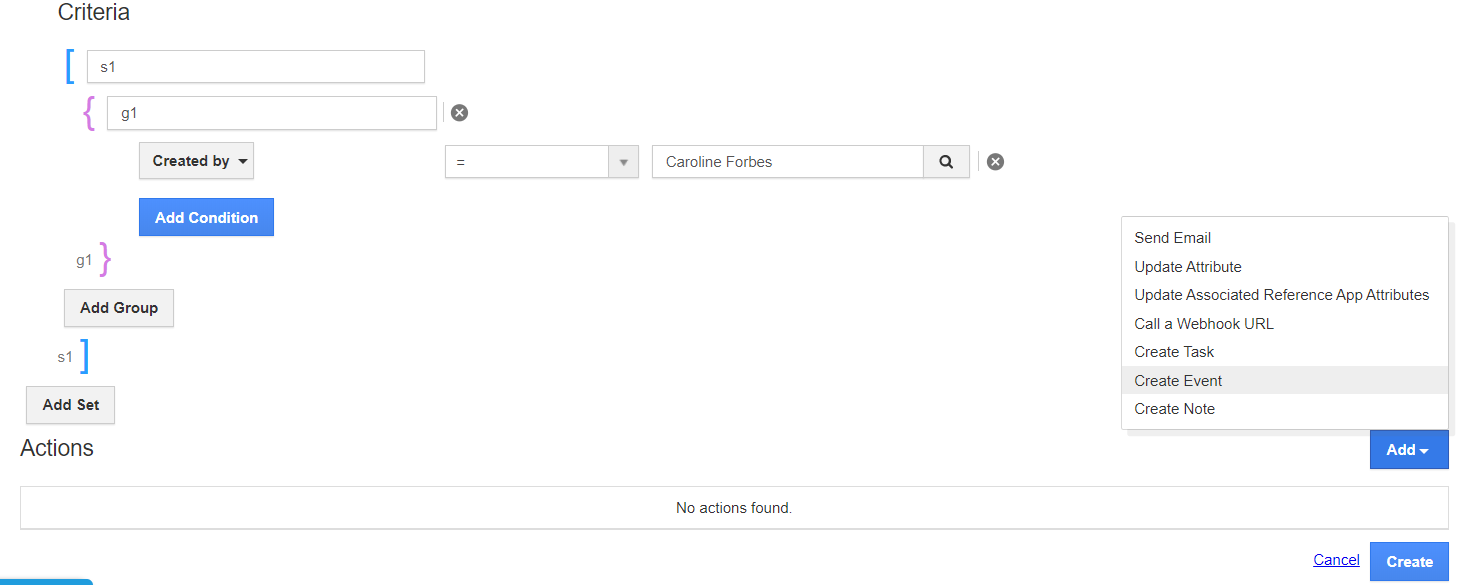
- Select the Actions dropdown and select Create Event to create an event automatically.
 |
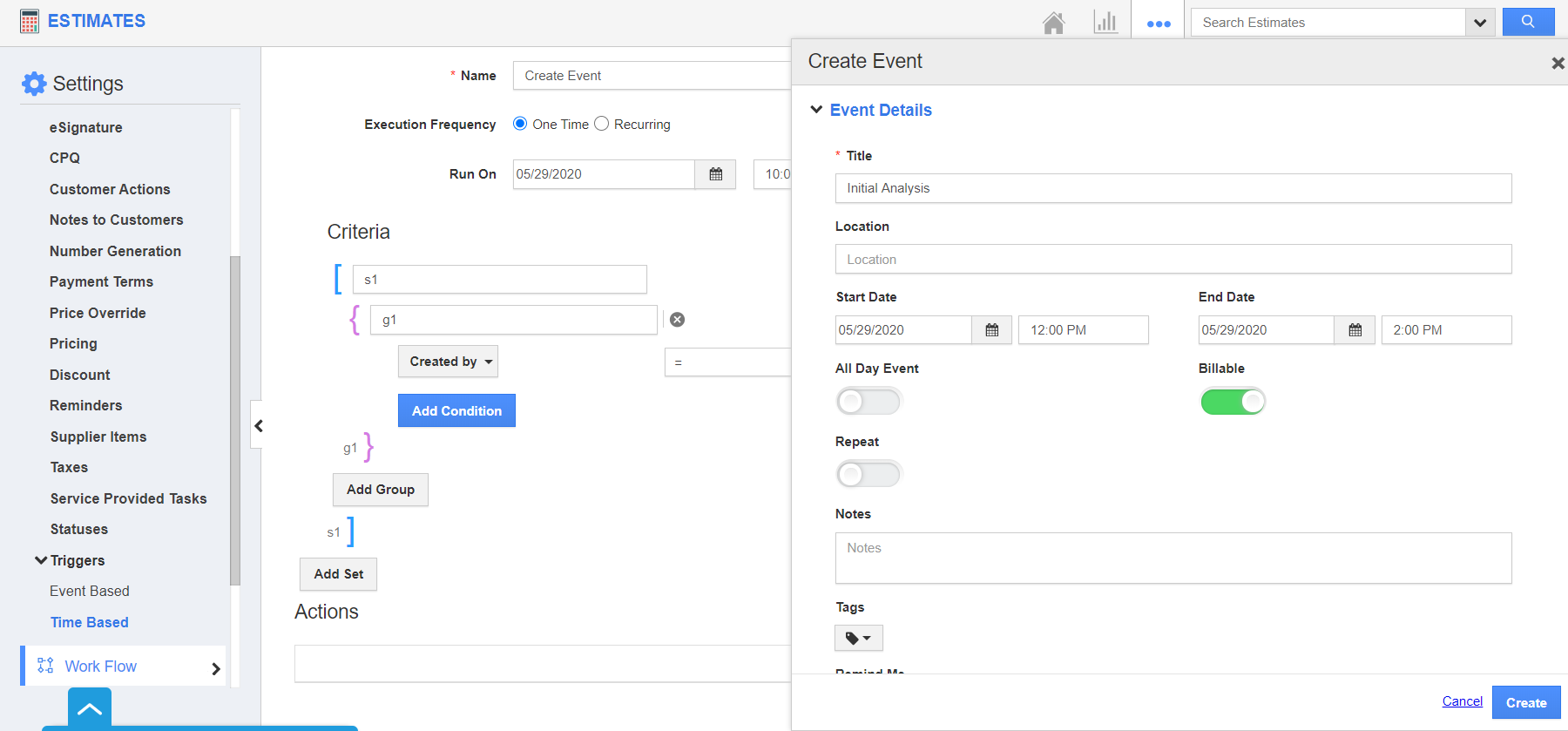
- In the Create Event side panel, add the name, date, time, participants, and other information related to the event.
- Select Create to complete the configuration.
 |
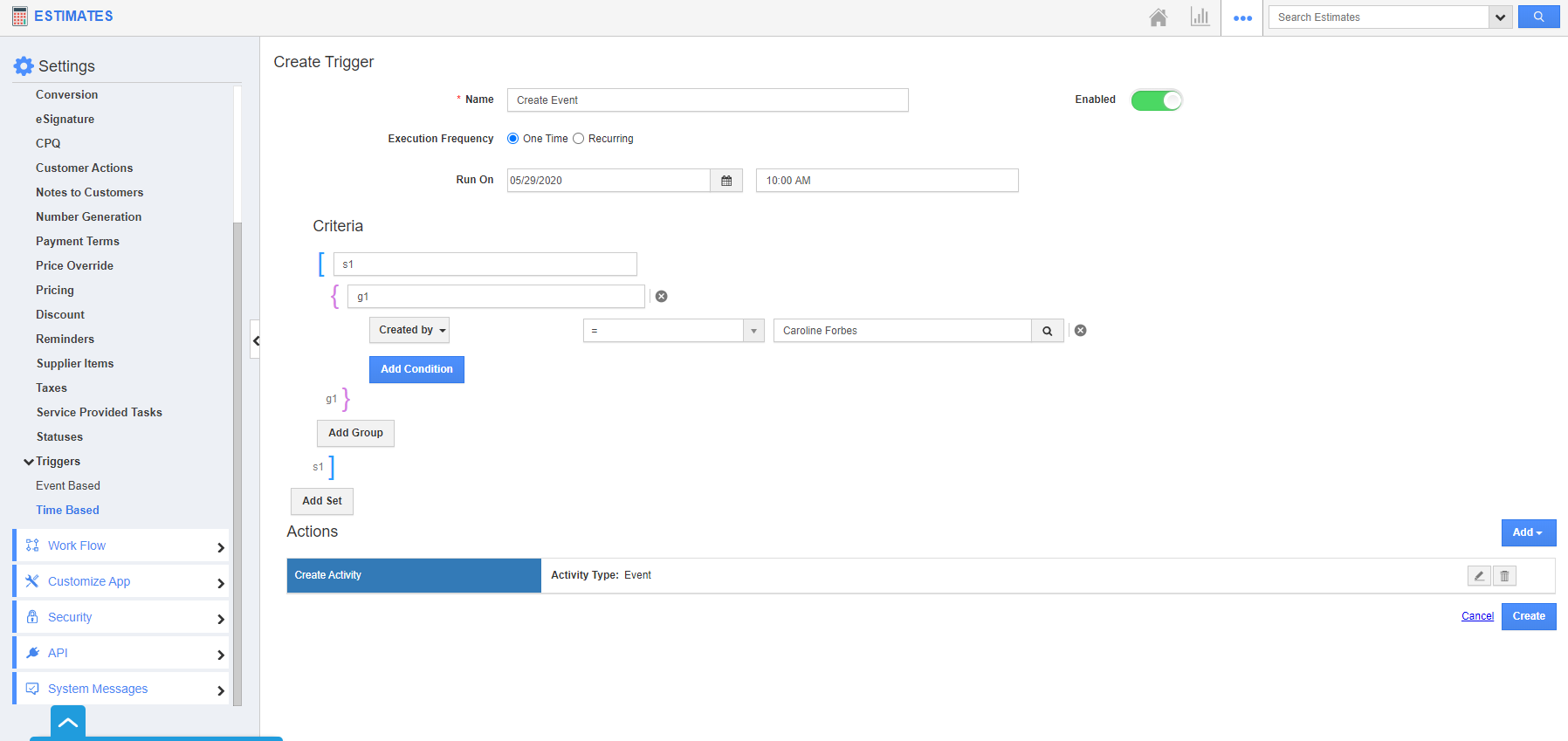
- In the Create Trigger page, select create to create a new trigger.
 |
- You will be notified that a trigger is created successfully.
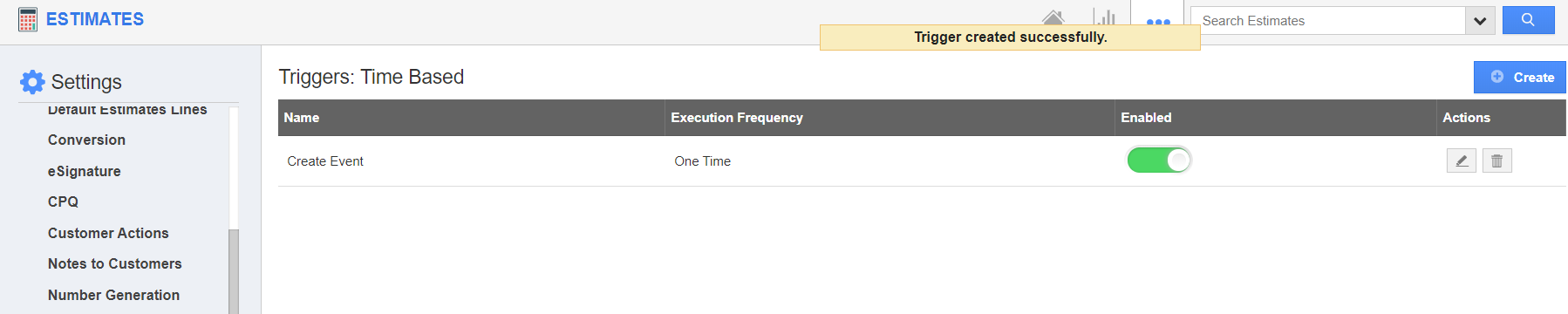 |
- Consider a new estimate in the Estimates App of Apptivo is created by Caroline Forbes.
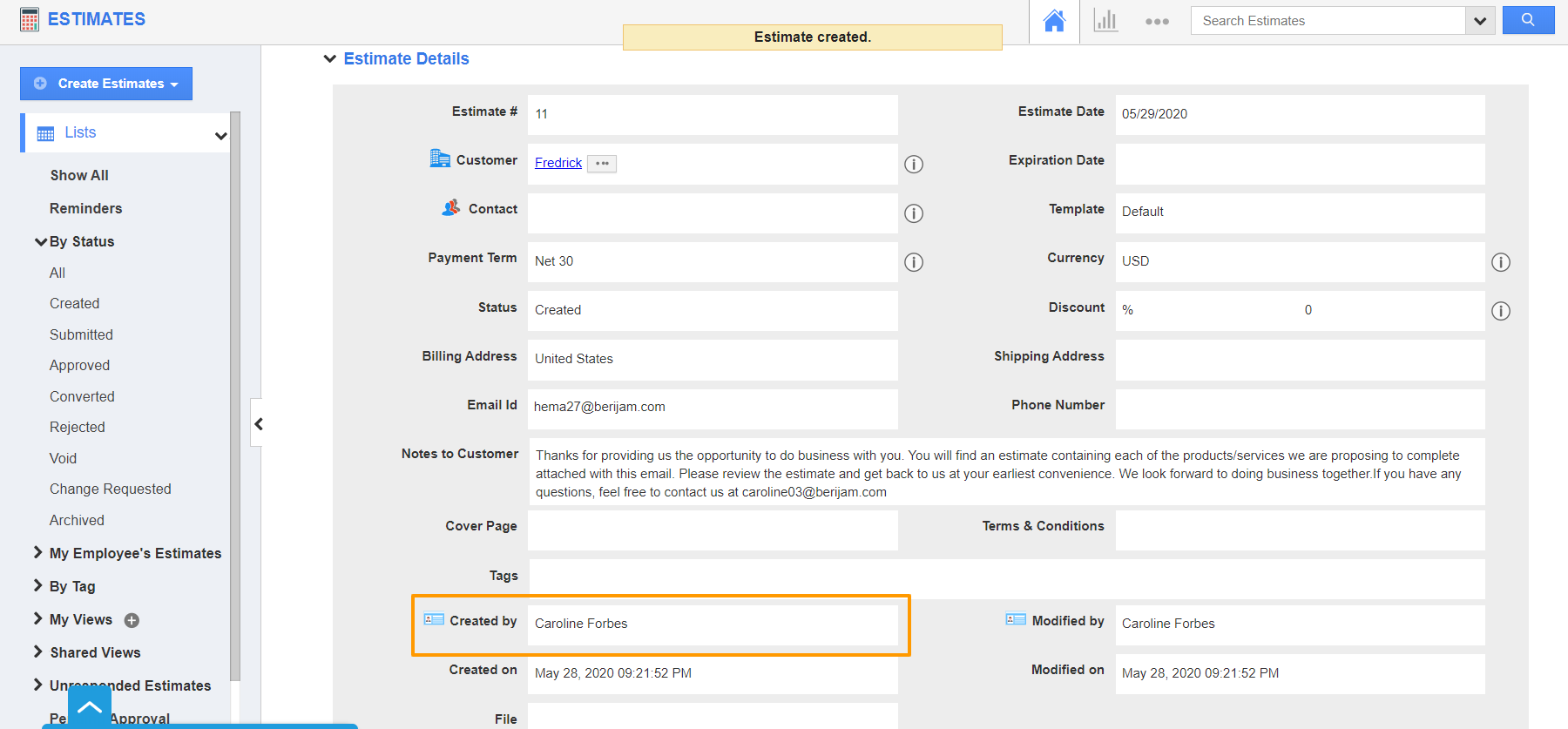 |
- As the criteria match, an event will be created automatically at the specified time. Here, May 29, 2020, at 10 AM.
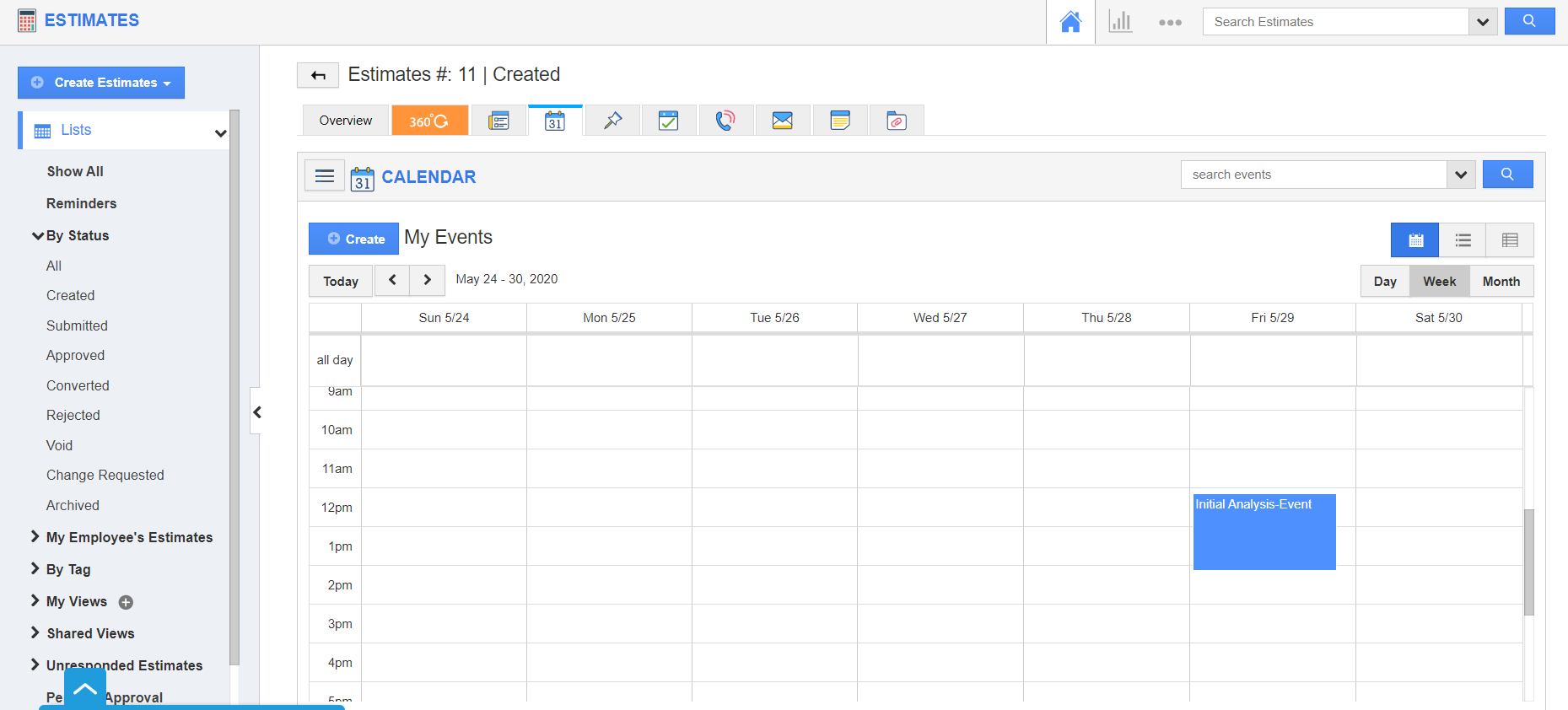 |
Flag Question
Please explain why you are flagging this content (spam, duplicate question, inappropriate language, etc):