- Log into your Apptivo account and select Sales Returns App from the Supply Chain section.
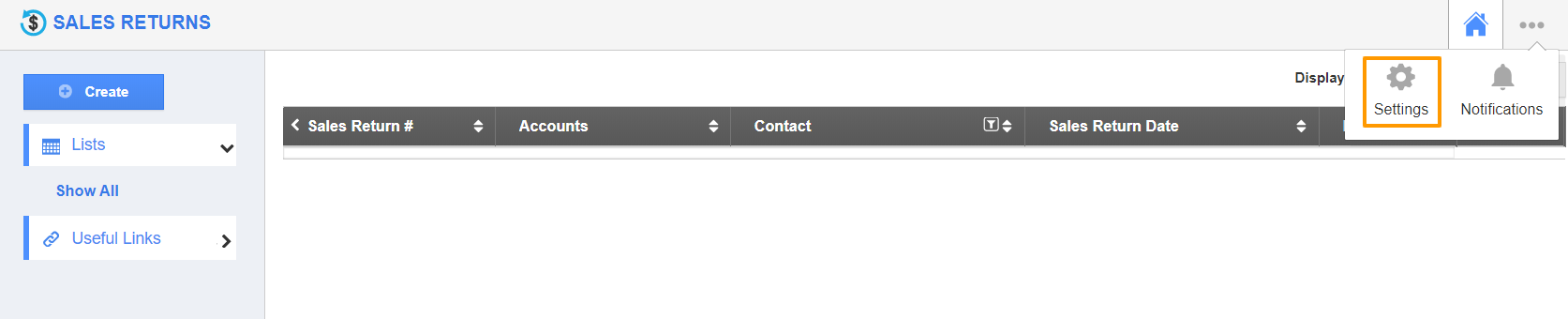
- In the Sales Returns App, select Settings from the App Header.
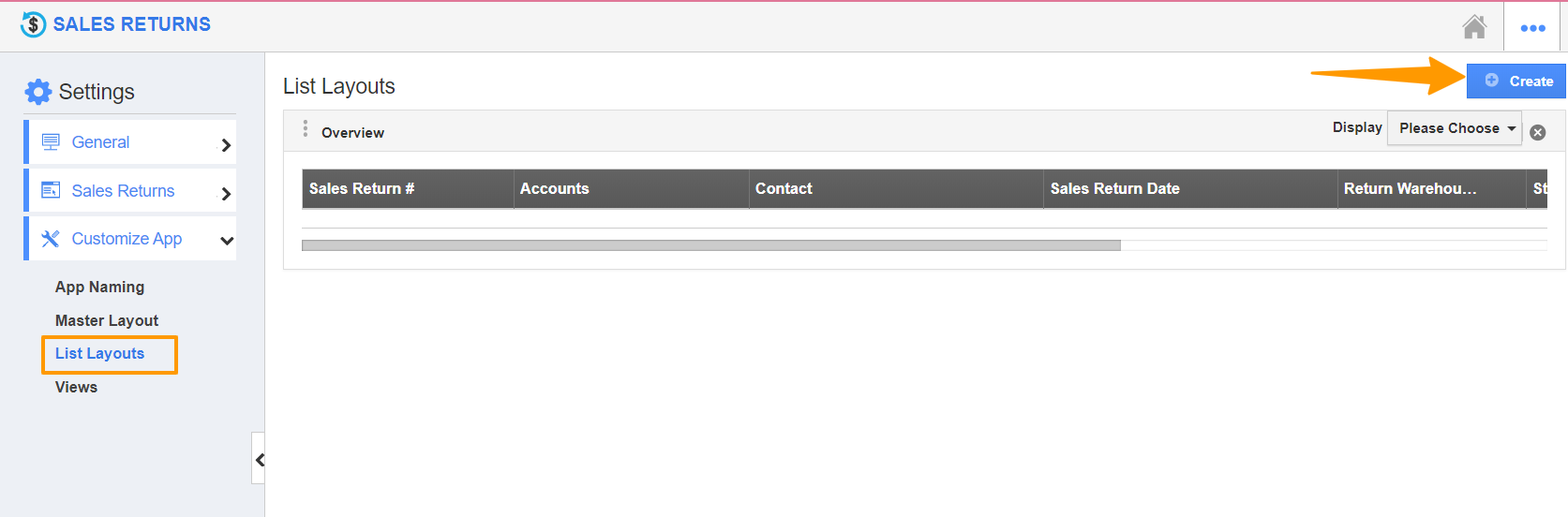
- In the Settings page, navigate to Customize App → List Layouts from the left panel.
- The List Layouts page will load on the right side. Select Create to create a new List Layout.
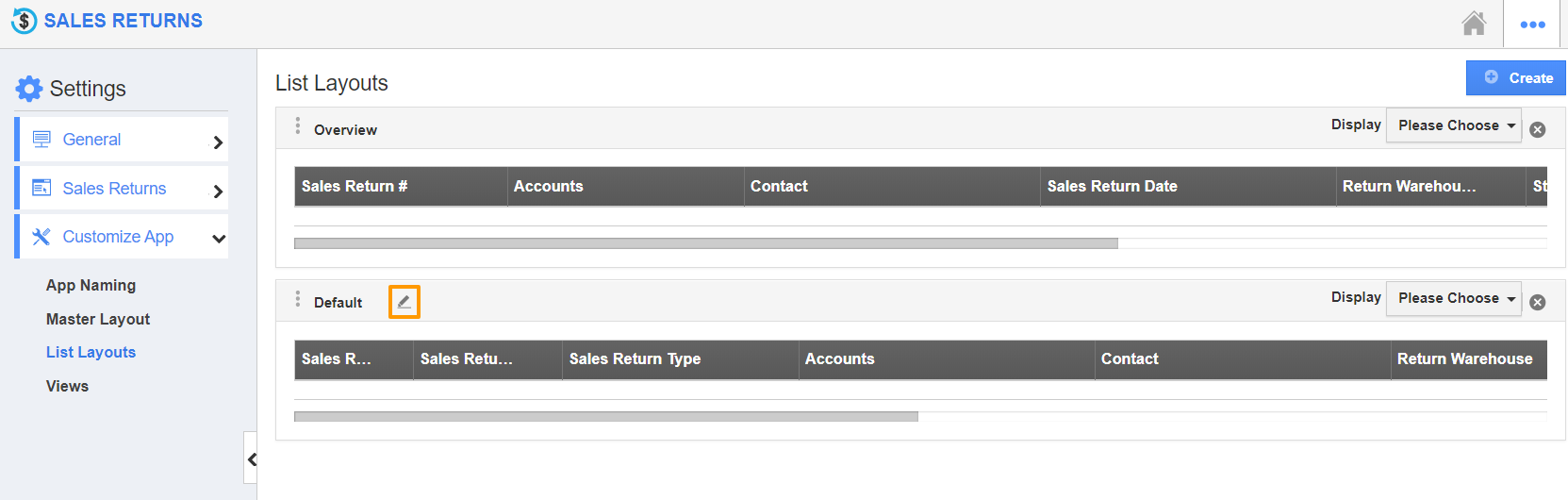
- A default list layout is created. To rename the layout, hover your mouse over the name. A pencil icon will appear.
- Click the pencil icon to rename the layout. Here, the layout is renamed as Item Details.
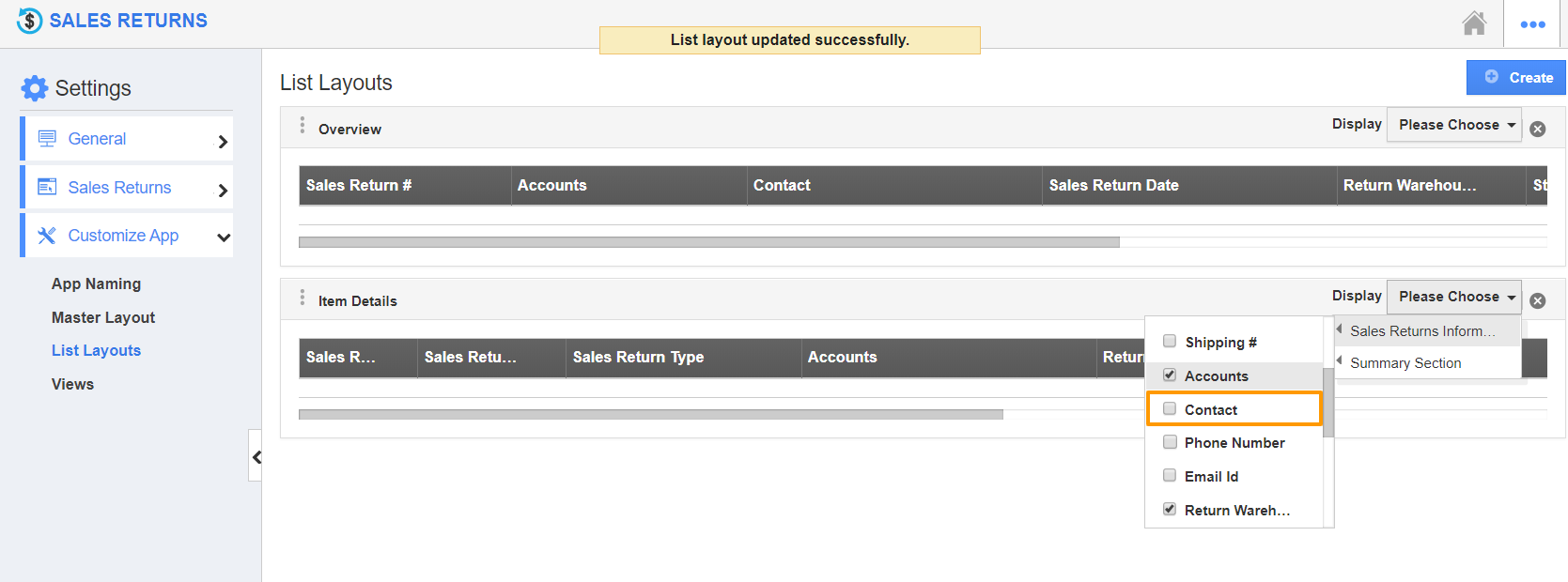
- Now, choose the attributes to be included in this List Layout. This can be configured by selecting the Display dropdown.
- On selecting the Display dropdown, the list of attributes (fields) present in the Sales Returns App will be displayed.
- By default, the attributes added to this Item Details layout will be ticked.
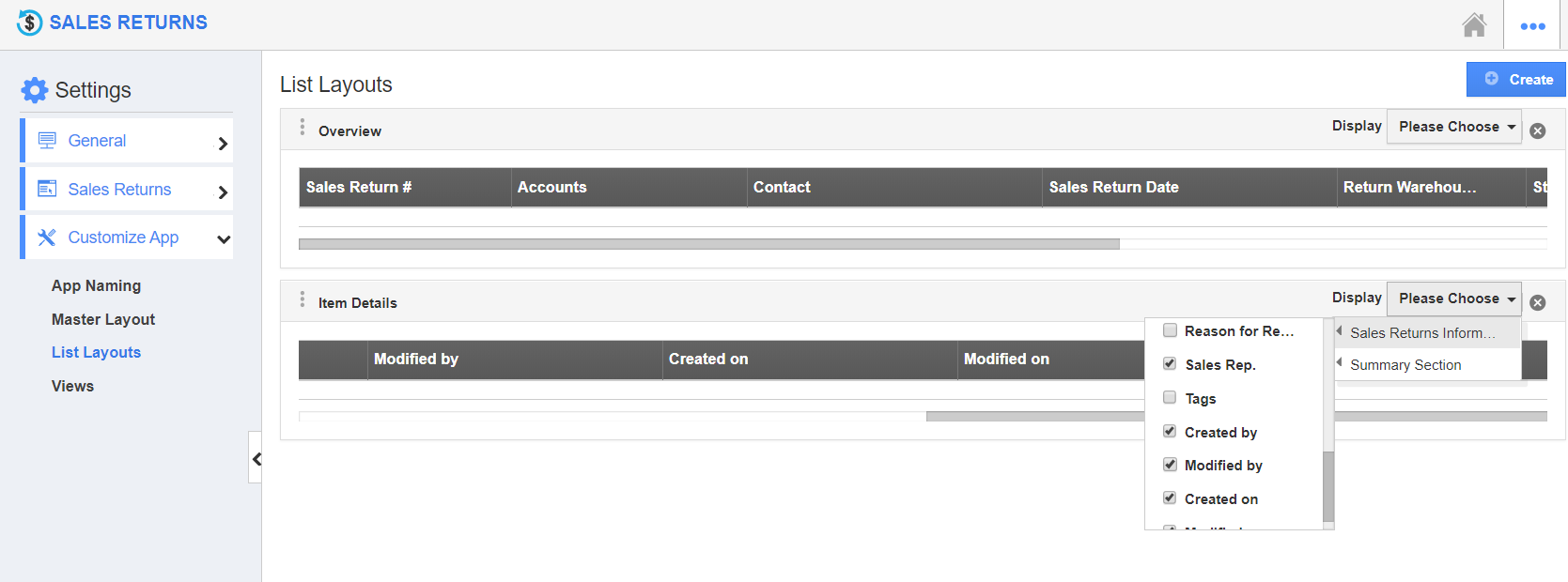
- To add an attribute to the layout, tick it from the dropdown. To remove an attribute from the layout, untick it from the dropdown.
- From the above image, it can be noted that the Contacts attribute is removed while the below image shows that Sales Rep is added to the layout.
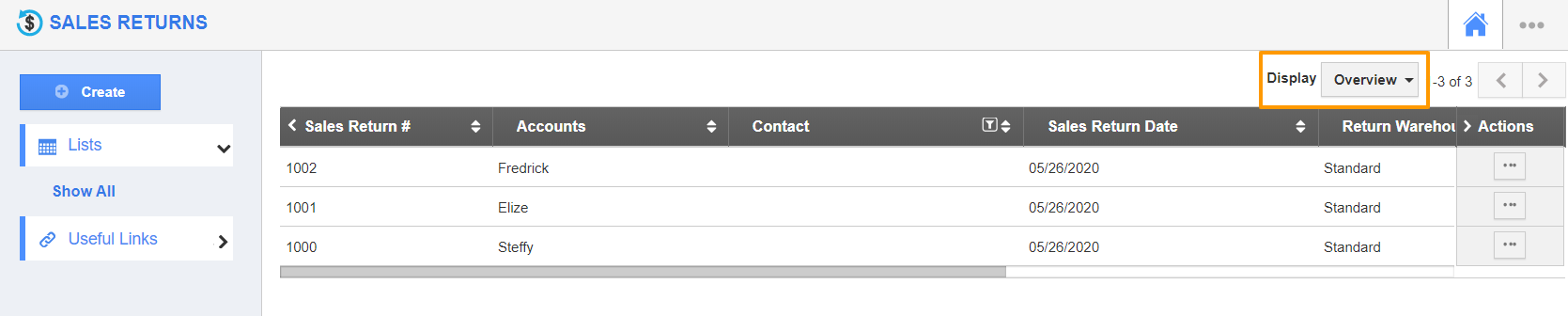
- Once the changes are made, go to the Show All page in the Sales Returns App.
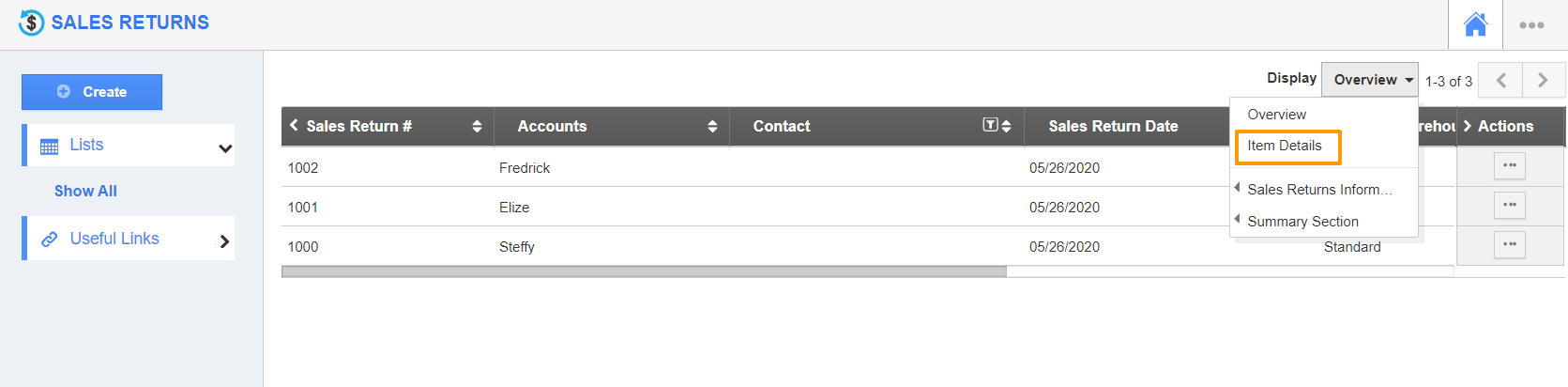
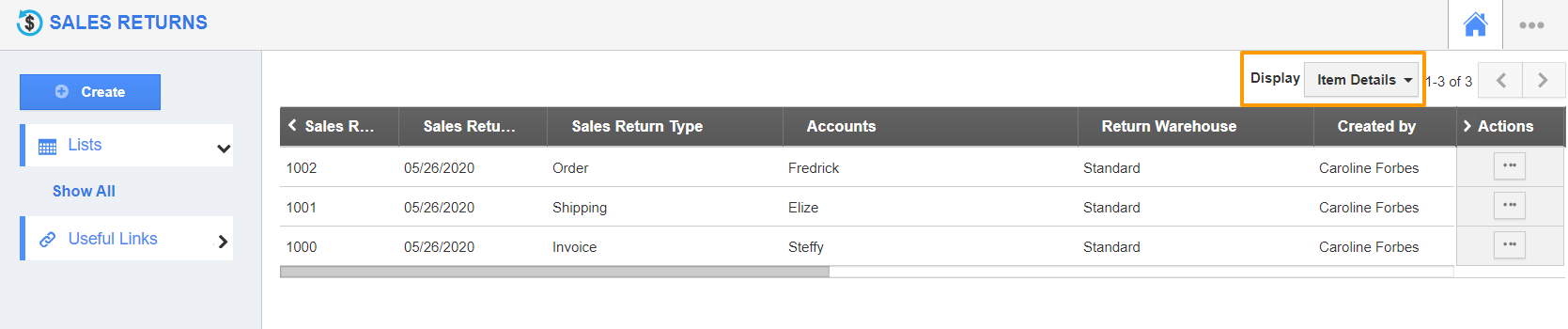
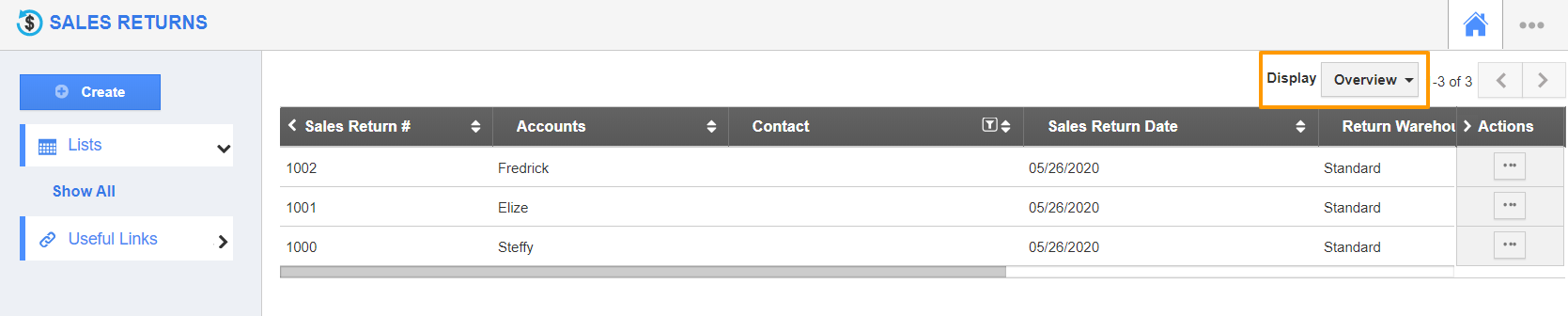
- Select the Display dropdown from the top right.
- The Item Details layout will also be listed.
On choosing
Item Details, the sales returns will be rearranged according to the selected attributes.