Browse by Solutions
Browse by Solutions
How to add Manufacturer information for an item in the Items App?
Updated on May 26, 2020 05:20AM by Admin
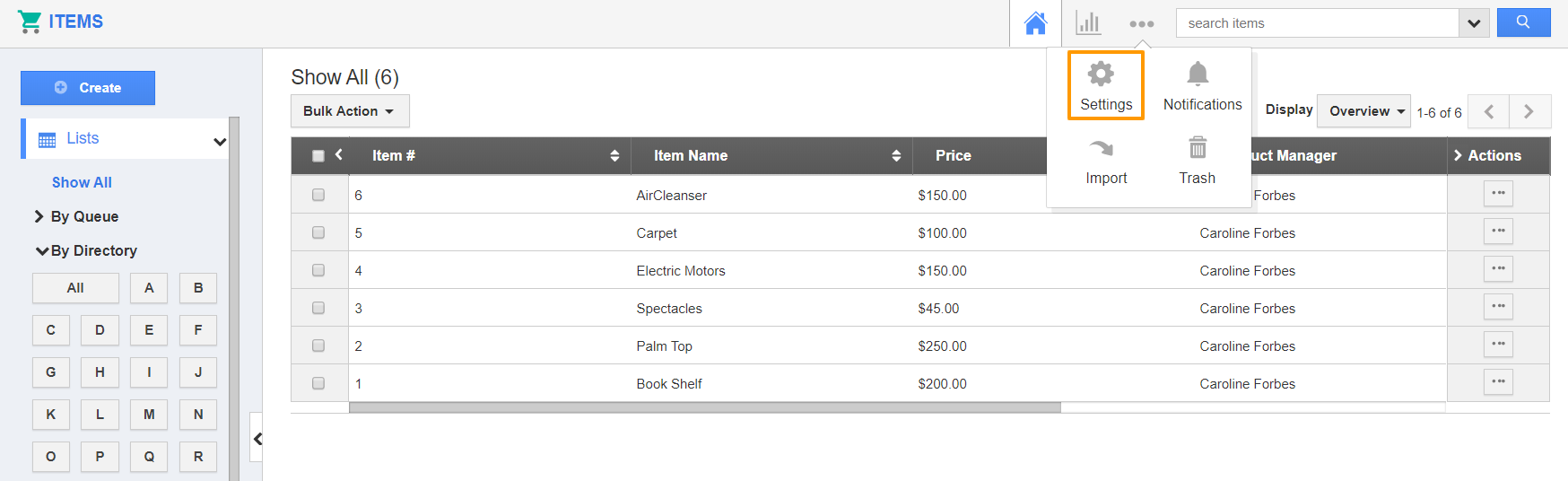
- Log into your Apptivo account and Settings icon from the App Header of the Items App.
 |
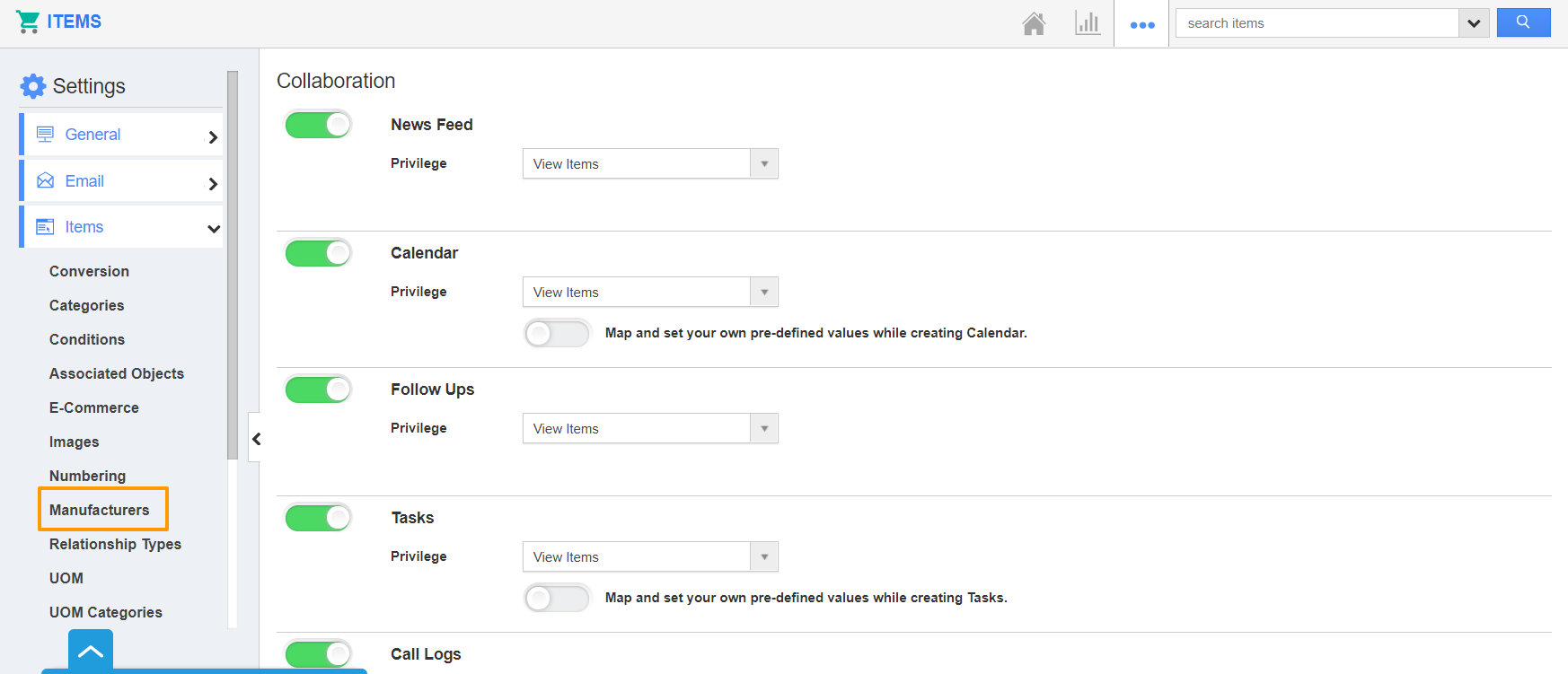
- You will be redirected to the Settings page. From the left panel, choose Items → Manufacturers.
 |
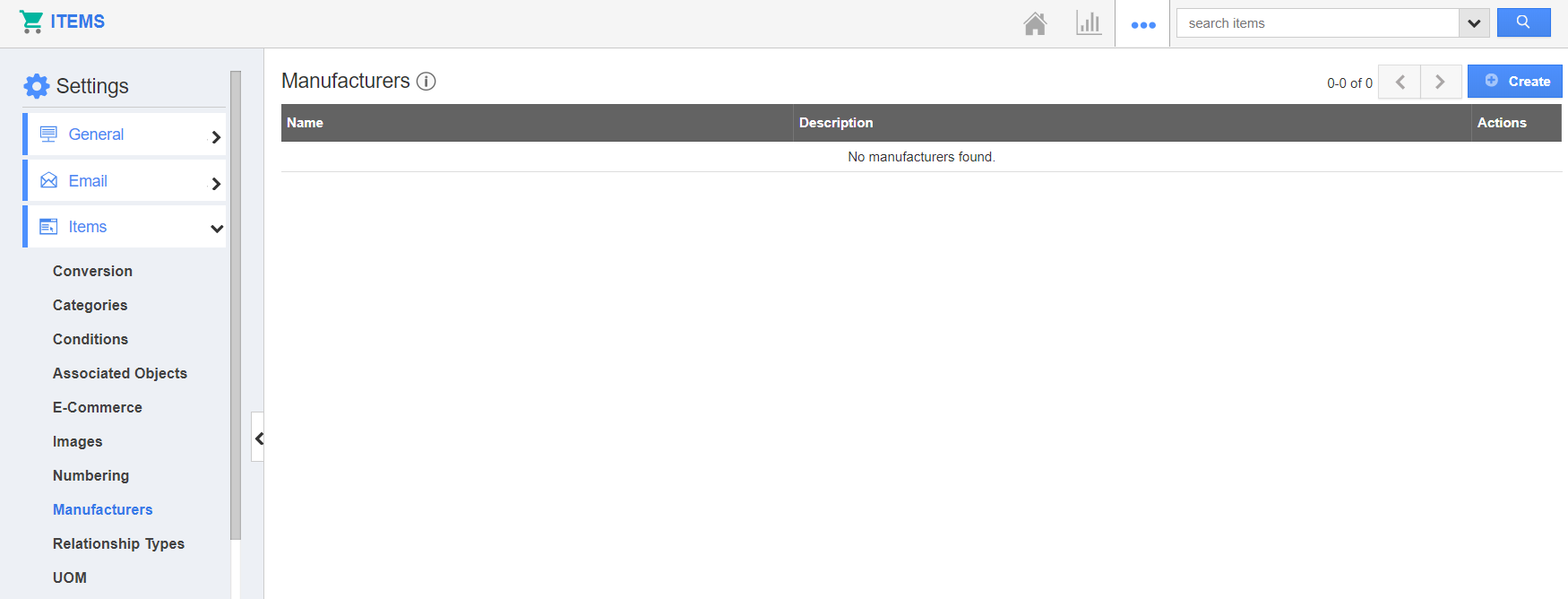
- The Manufacturers page will come into view. Select Create to add new manufacturer information.
 |
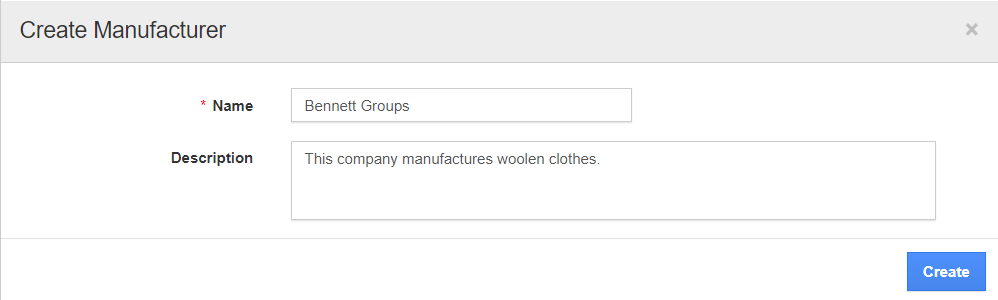
- The Create Manufacturer popup will appear. Here, add the name and description of the Manufacturer.
 |
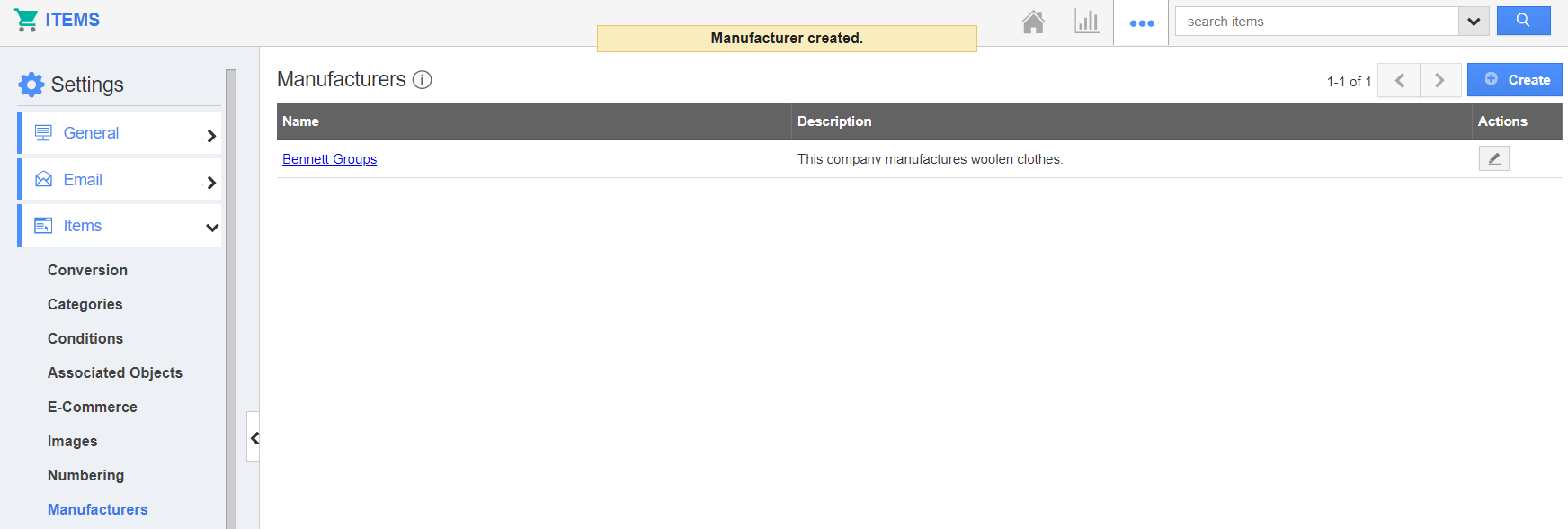
- On selecting Create, a new manufacturer will be added to the Manufacturer list. You can also add contacts to your manufacturer.
- Click on the Manufacturer Name to redirect to view the manufacturer page.
 |
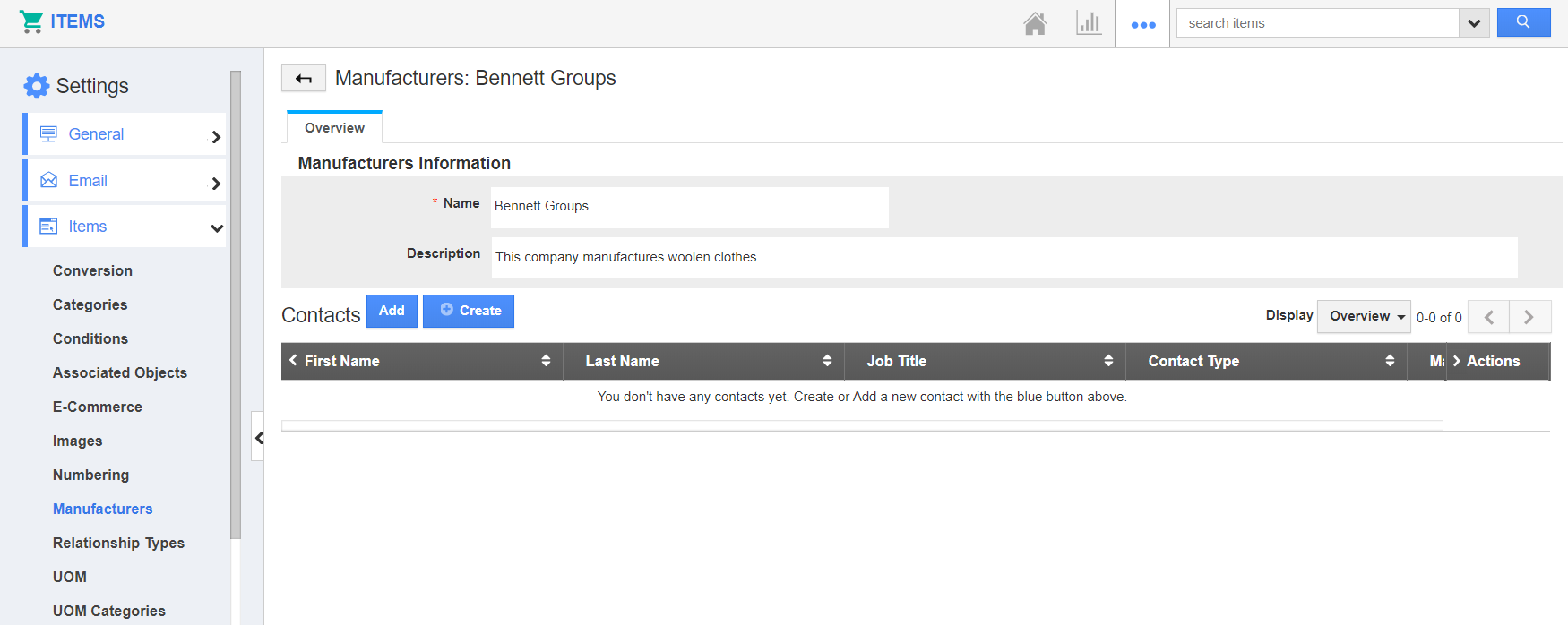
- In the View Manufacturer page, you can add or create contacts to associate with it.
 |
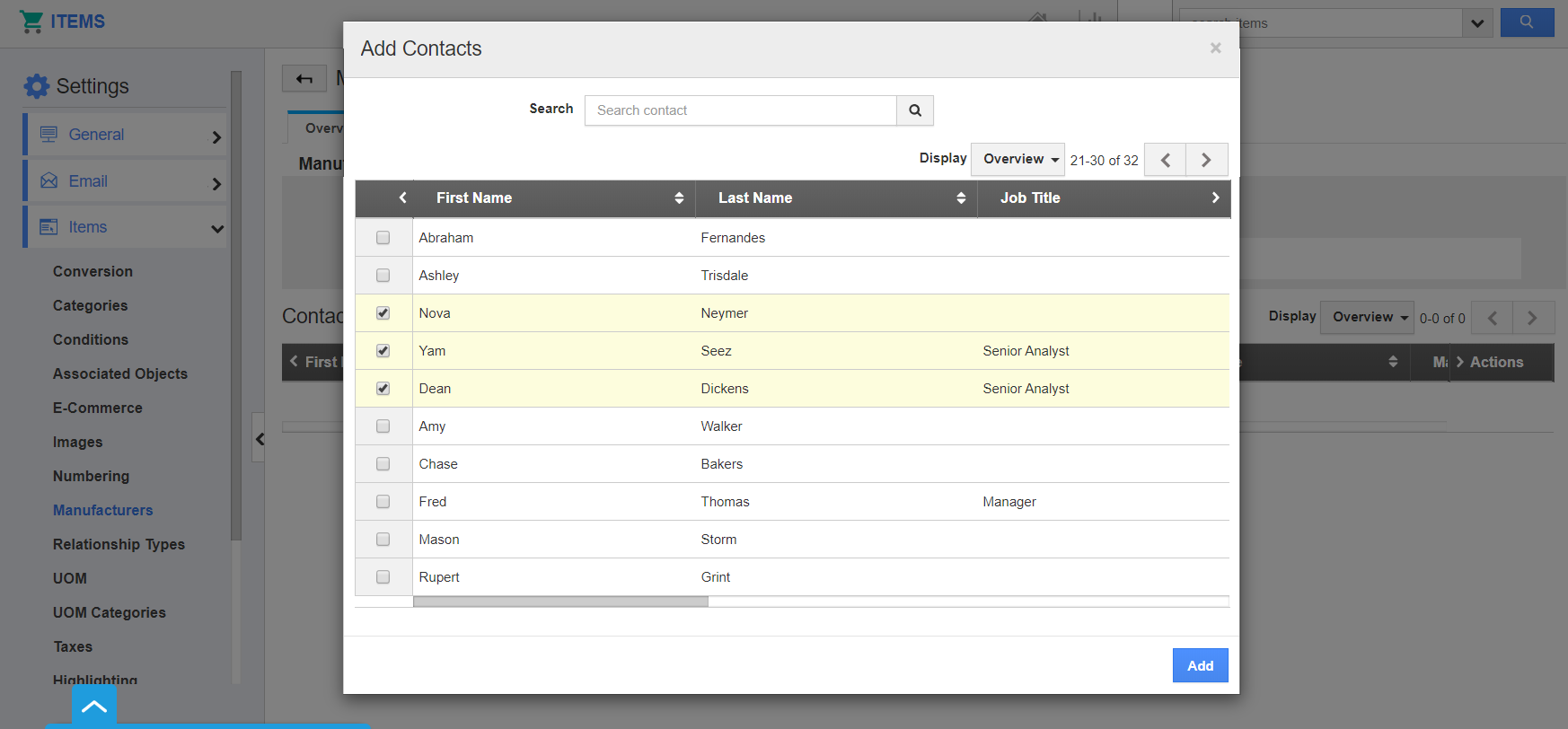
- Here, I have selected Add Contact. The contacts available in the Contacts app will be listed as a popup. Select the associated contacts.
 |
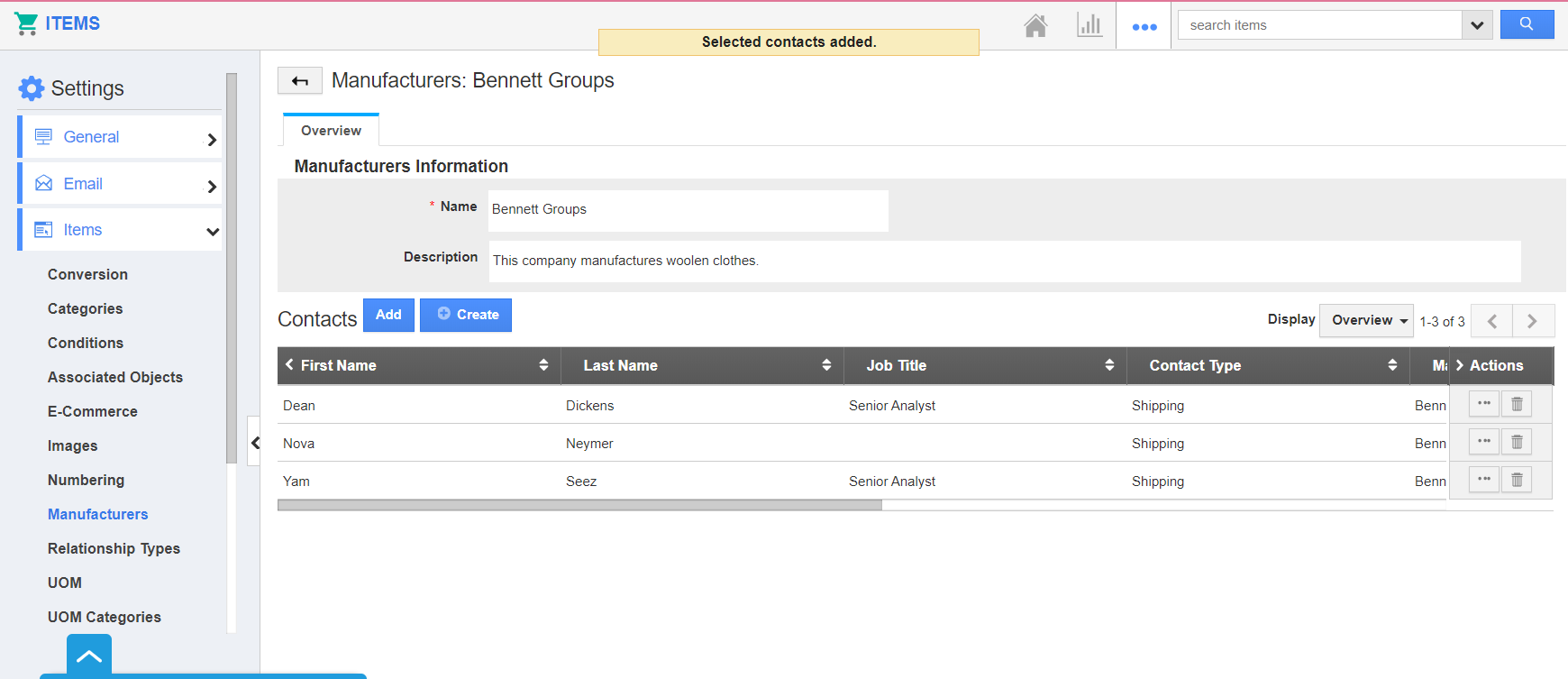
- The selected contacts are associated successfully with the Manufacturer.
 |
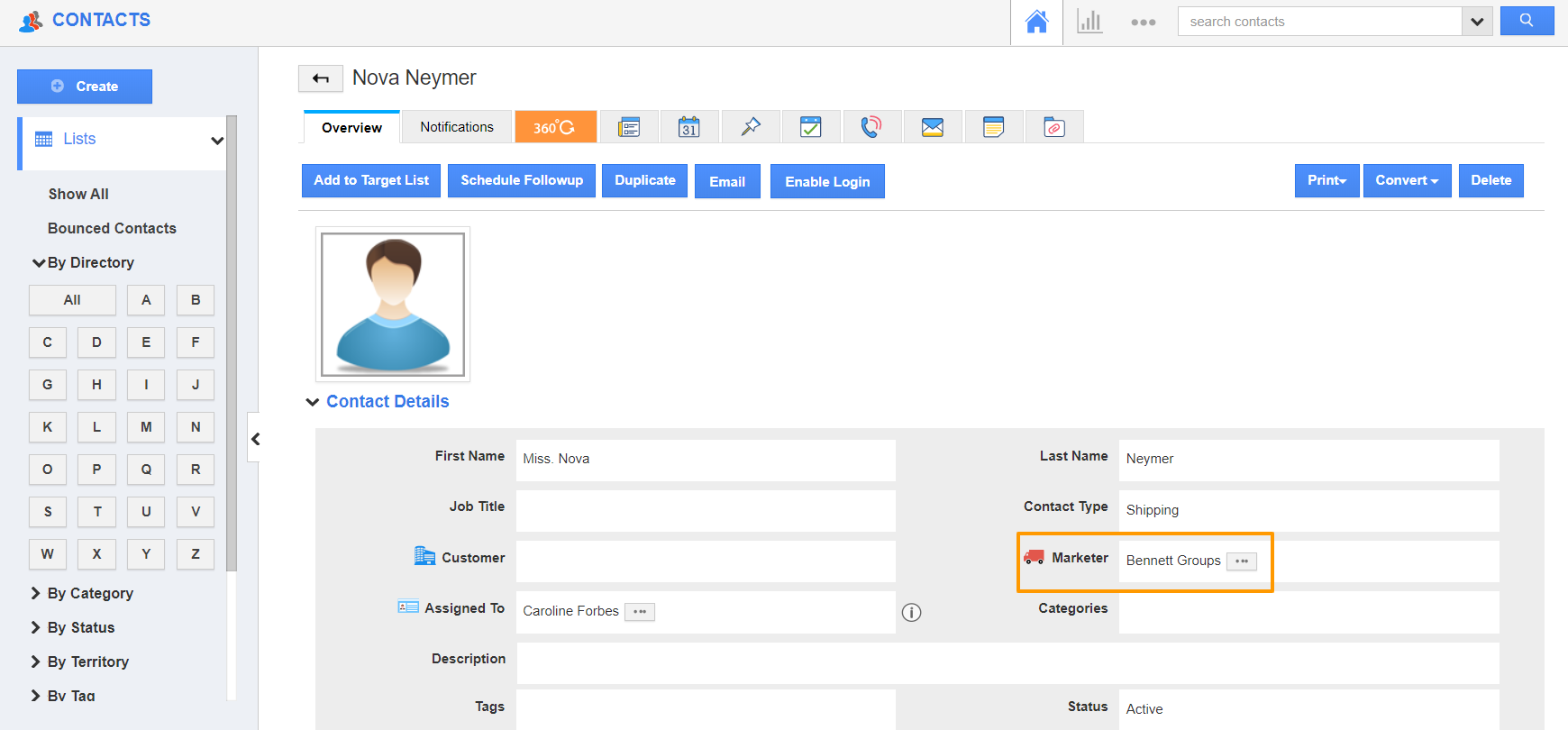
- Simultaneously, the Manufacturer information is added to the Contact’s Profile in the Contacts App.
 |
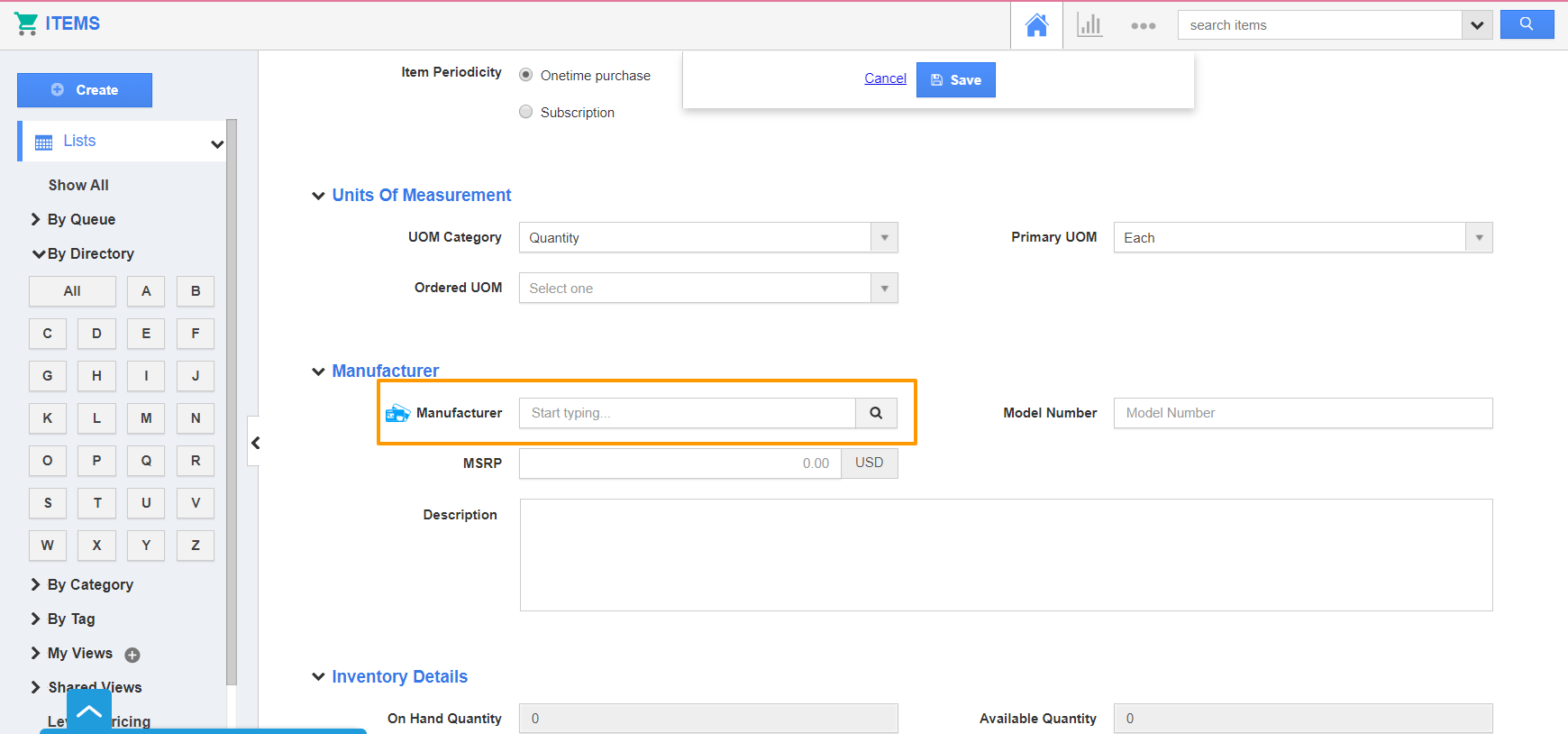
- Now, create a new item or open an existing item in the Items App. Select the Search icon of the Manufacturer field.
 |
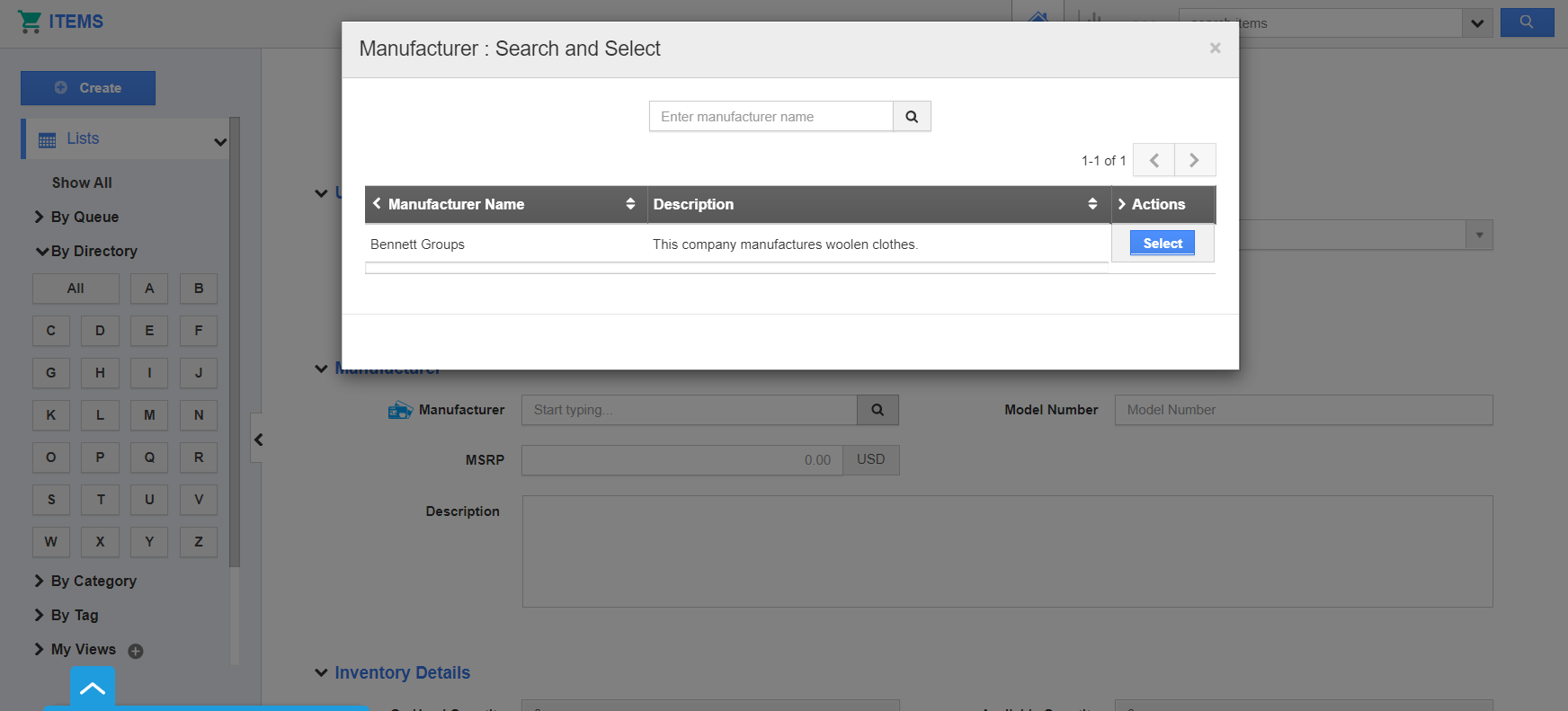
- The Manufacturer: Search and Select popup will appear. Here, the created Manufacturers will be listed. Select a Manufacturer.
 |
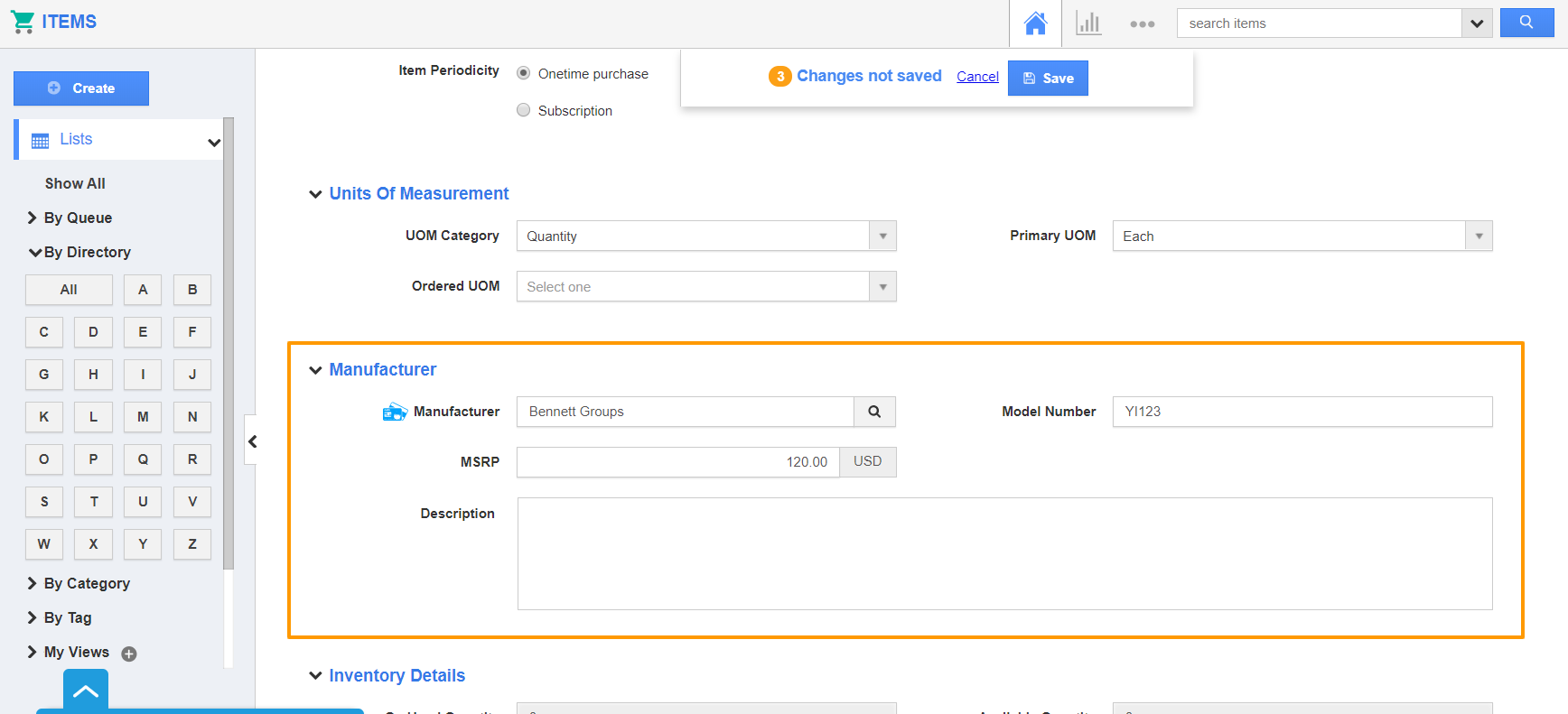
- The Manufacturer is added to the Item. You can save the changes after adding the relevant information.
 |
Flag Question
Please explain why you are flagging this content (spam, duplicate question, inappropriate language, etc):