Browse by Solutions
Browse by Solutions
How to automatically calculate the estimated duration?
Updated on May 12, 2020 07:15AM by Admin
- Log in and access the Employee app from the universal menu.
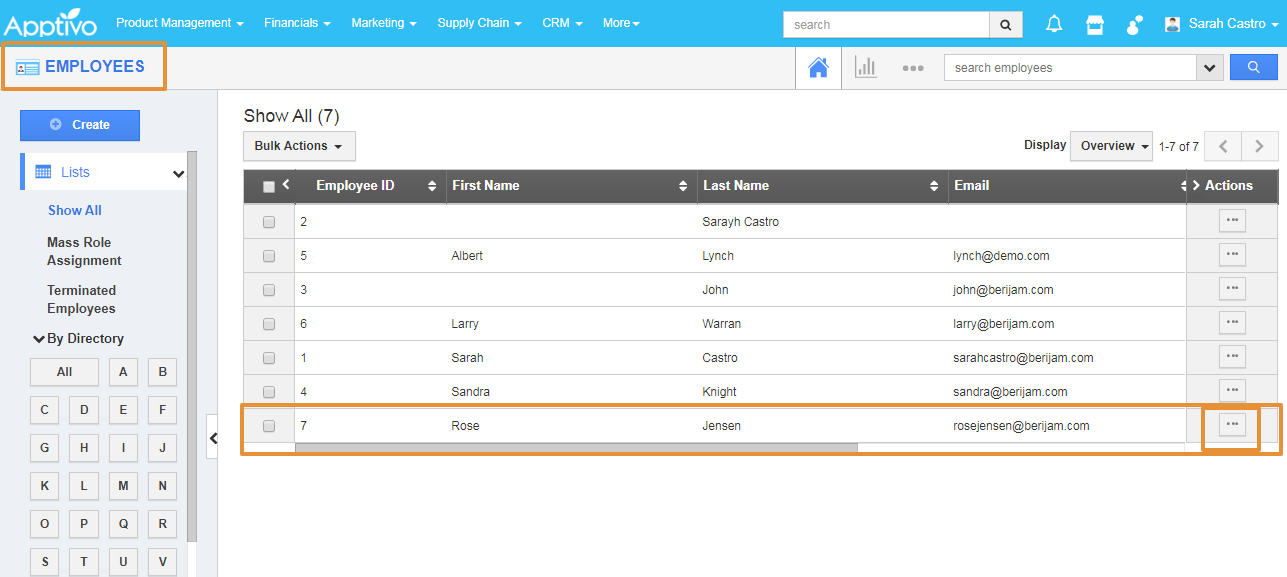
- Selects the Employee from the list for whom the Task needs to be assigned.
- Click on the More details to view the Overview of the employee page.
 |
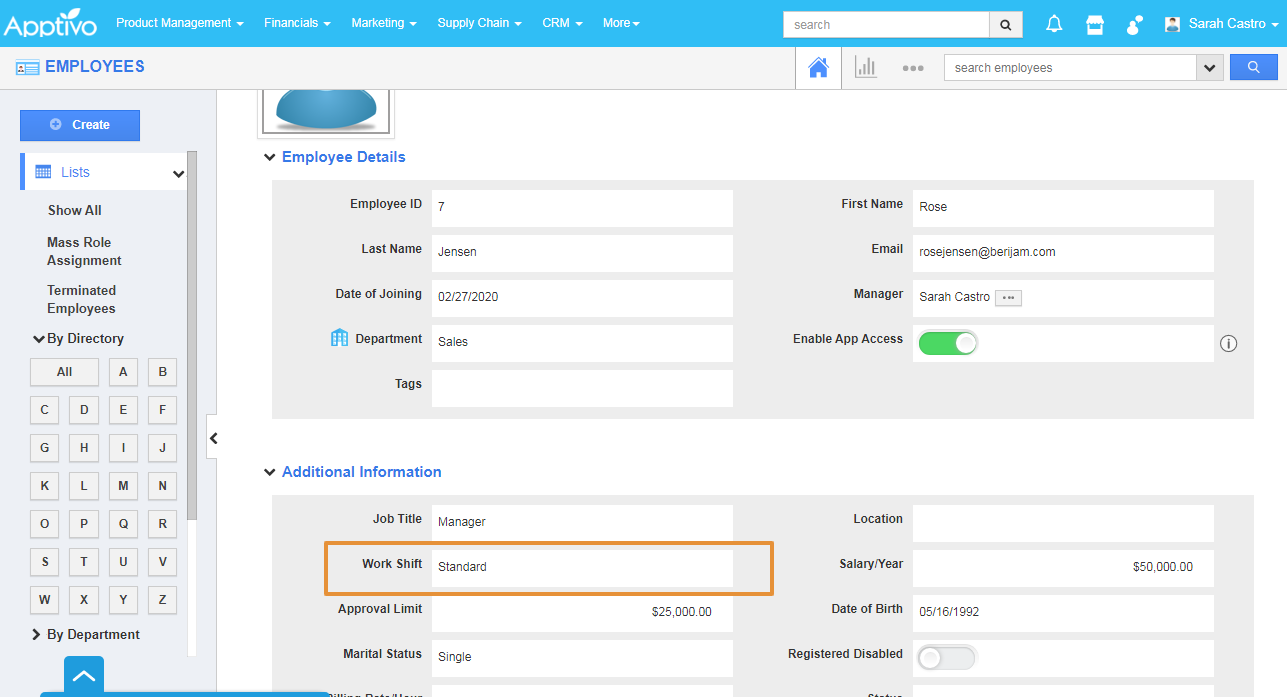
- Scroll down to view the Work Shift, click on the work shift.
 |
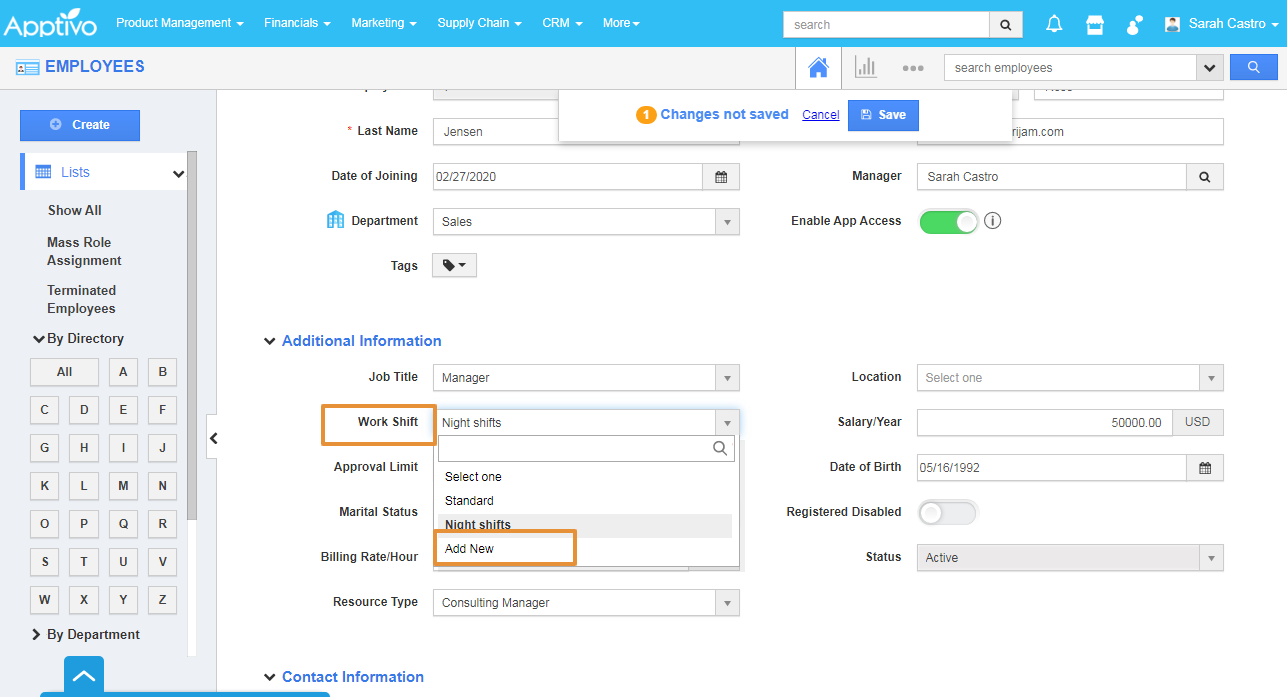
- Select the Add new option on the Work shift Dropdown.
 |
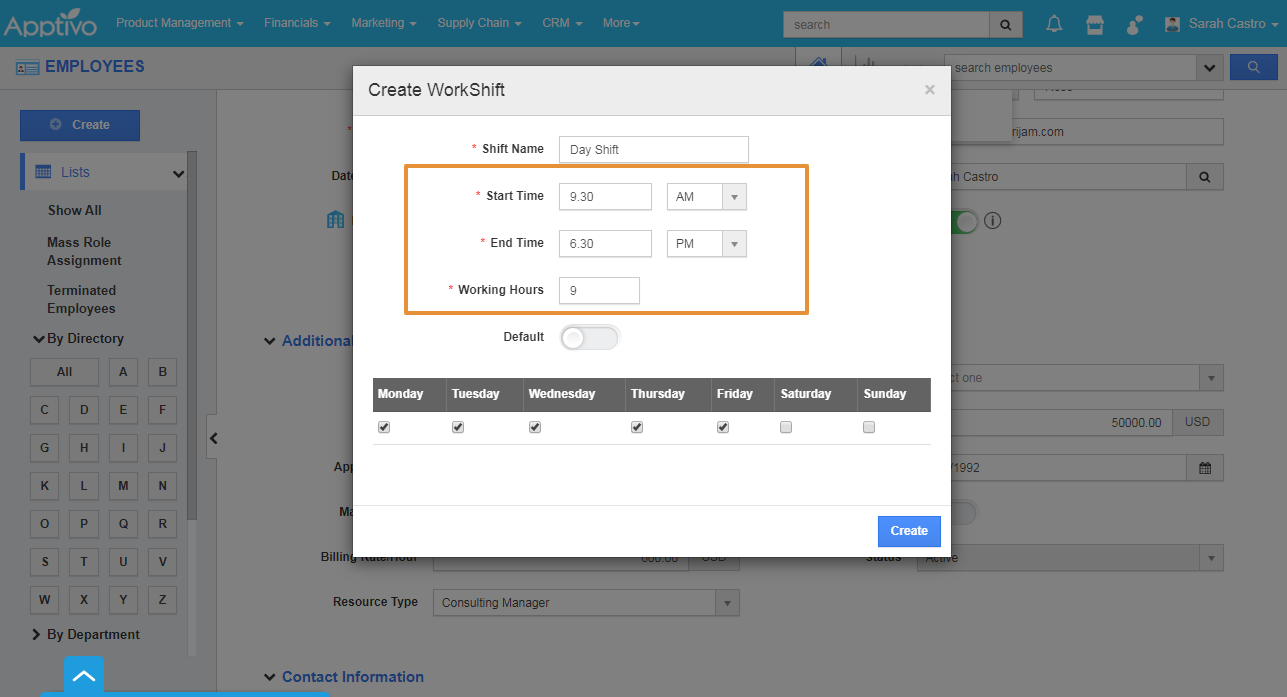
- The Create WorkShift popup will get open. Enter the Name of the Shift.
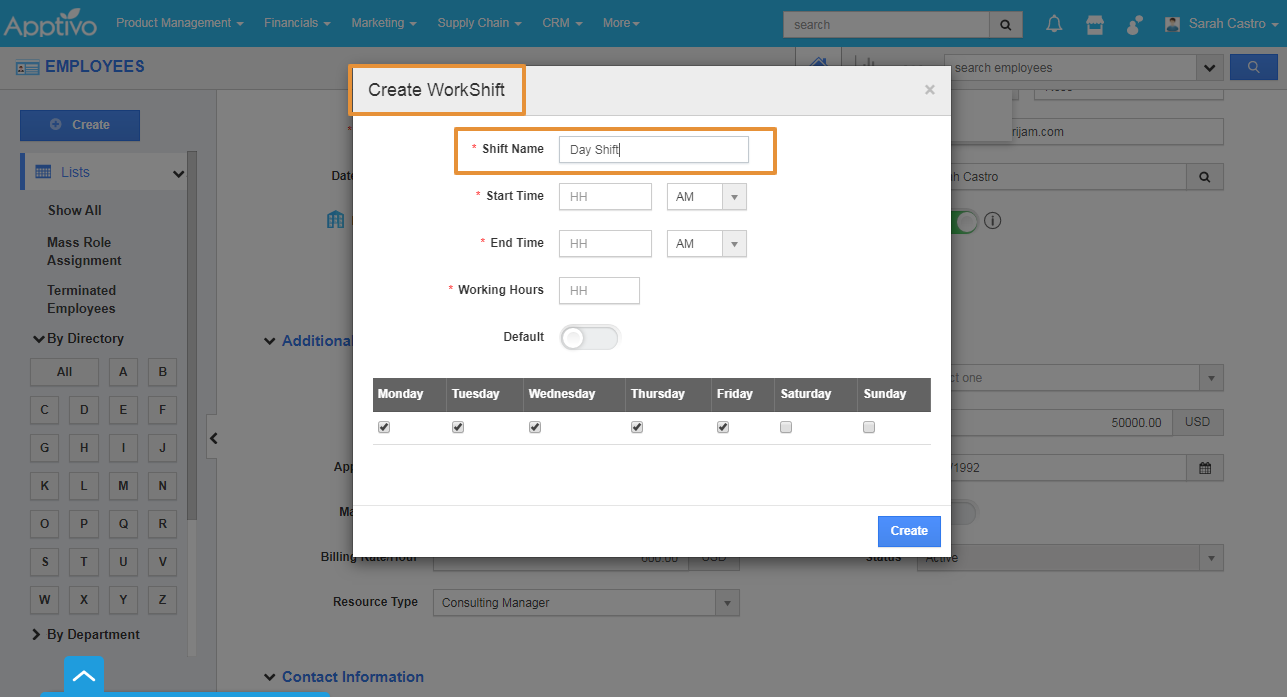 |
- Add the Start Time and the End Time of the shift.
- Enter the Total working hours of the shift.
 |
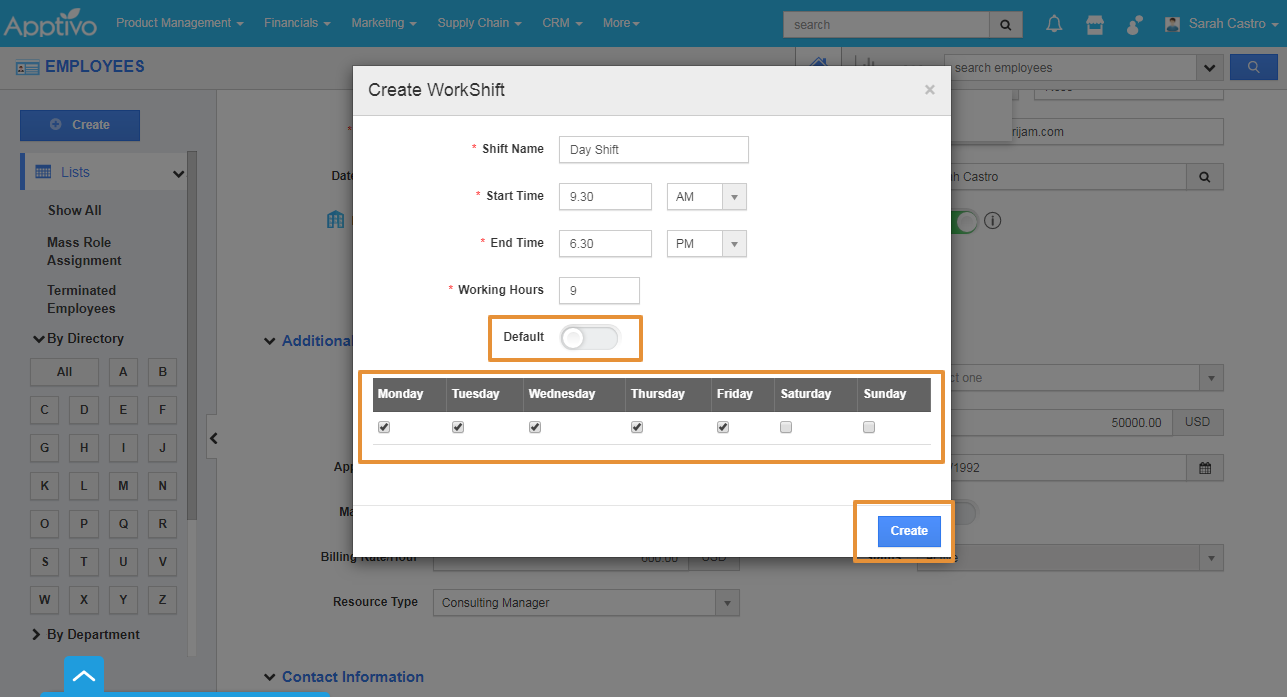
- By using the Default Toggle, you can make this Work shift hour as the Default for this employee.
- Selects the Working days of the Week.
- Then, click on the Create button. Click here to know how to create and configure the Work shift.
 |
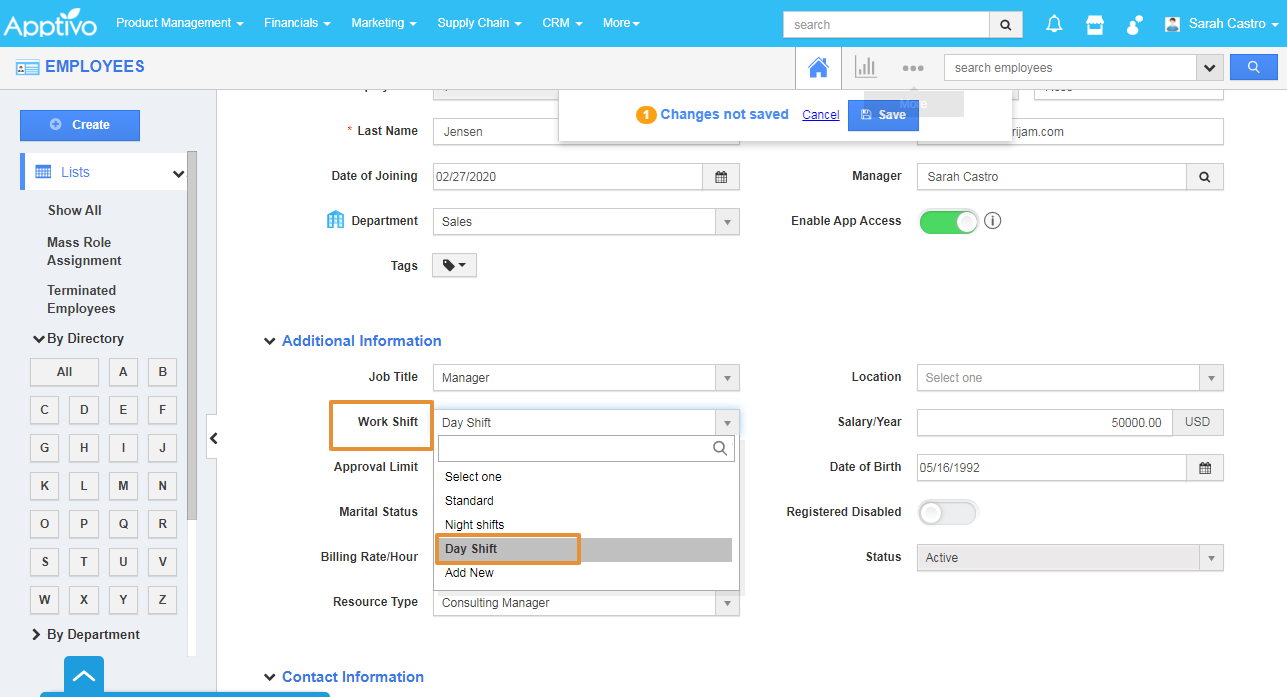
- Your work shift will get create and select the created work shift from the list.
 |
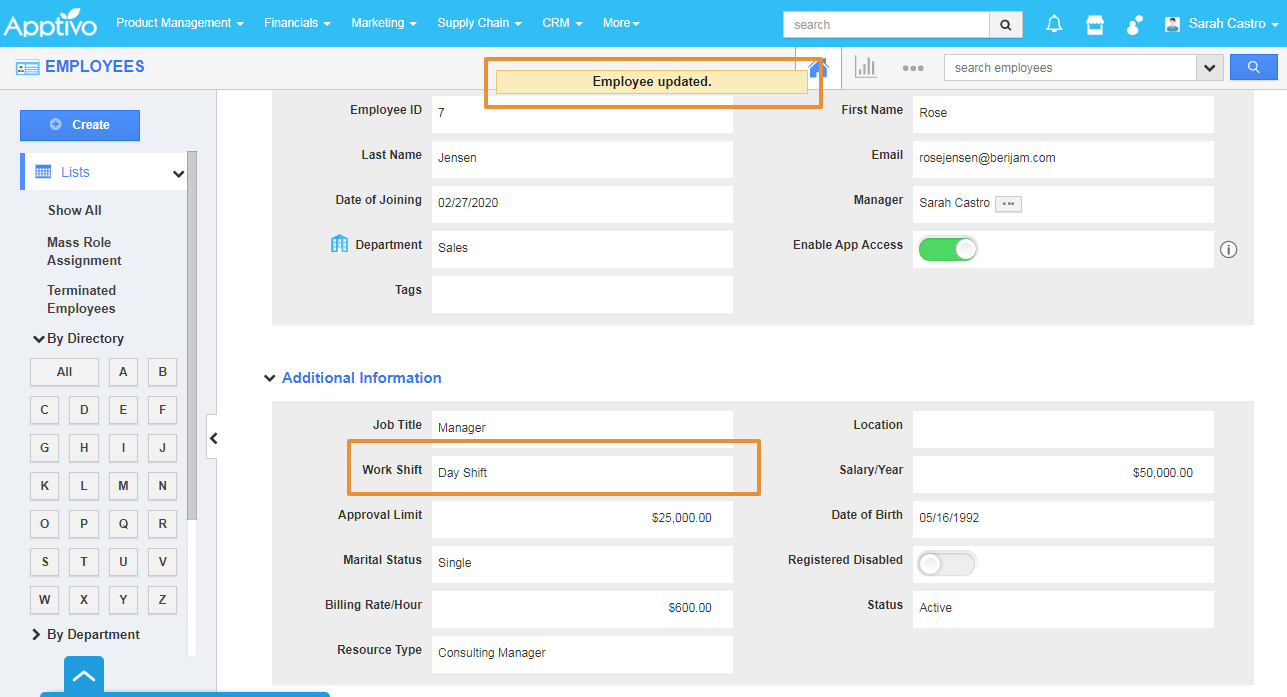
- Click on the Save. Employee work shit will get updated.
 |
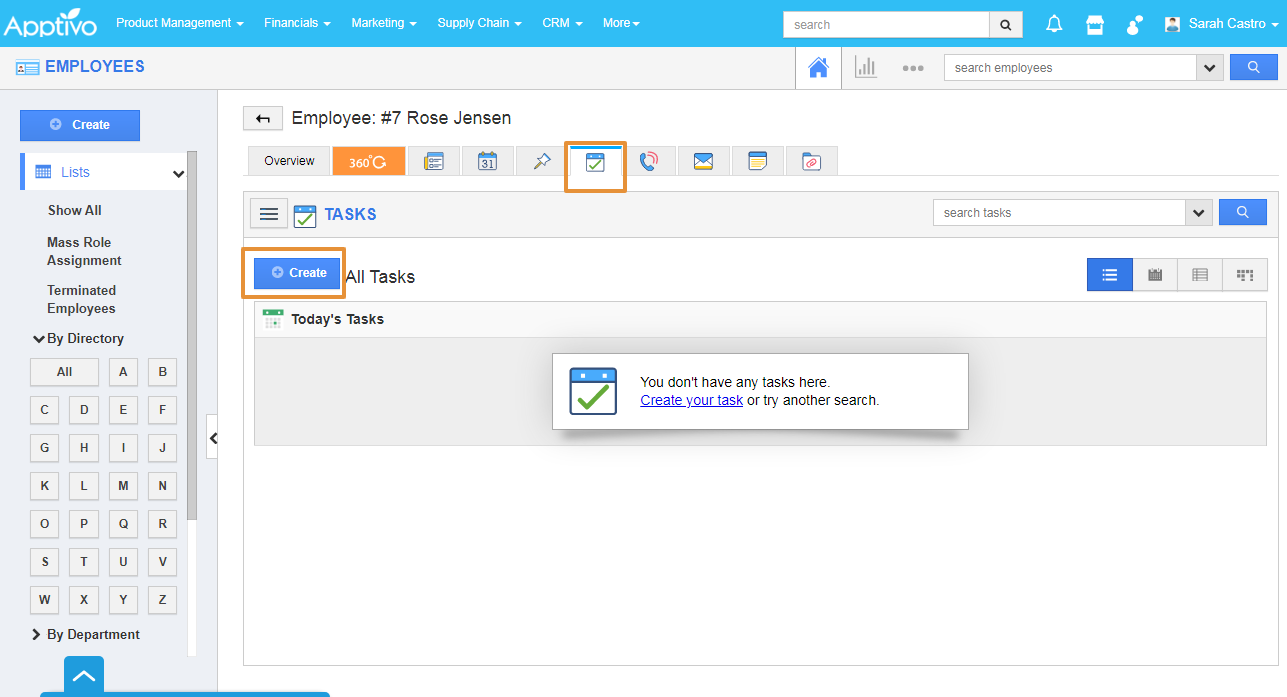
- Then, click on the Task Tab from the Employee Overview page.
- In the Task tab, click on the Create task.
 |
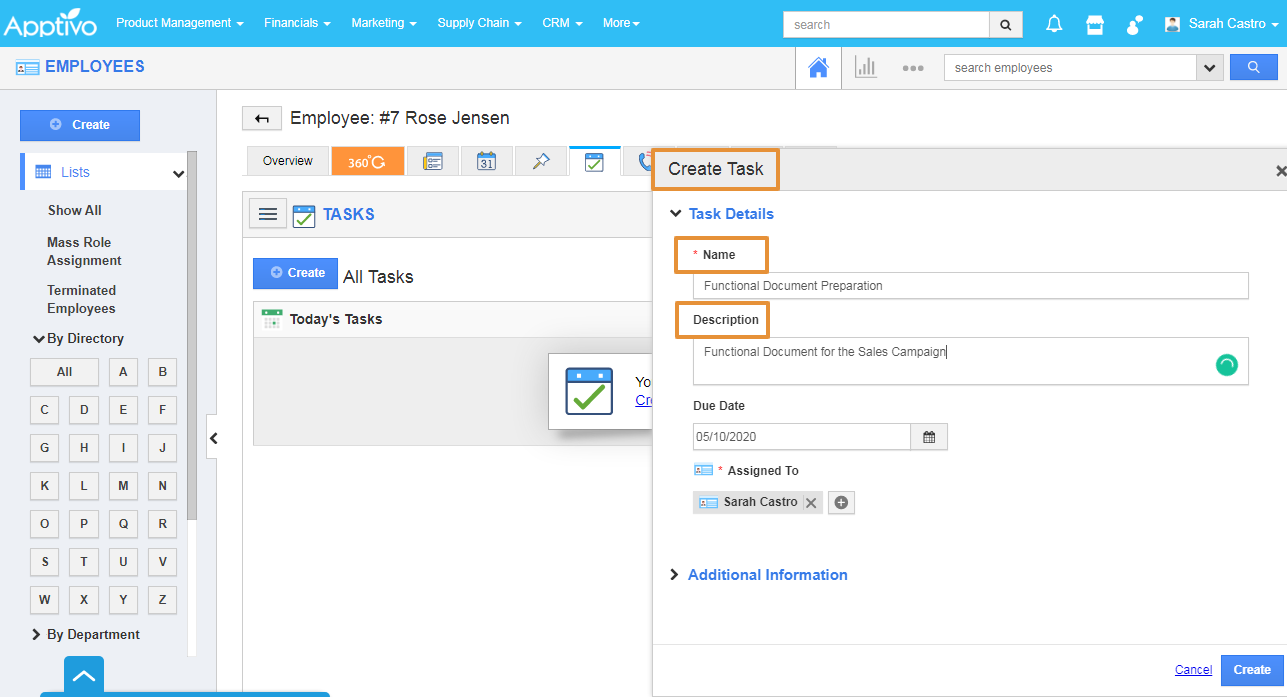
- The Create Task side panel will get open.
- Add the Name and the Description of the Task.
 |
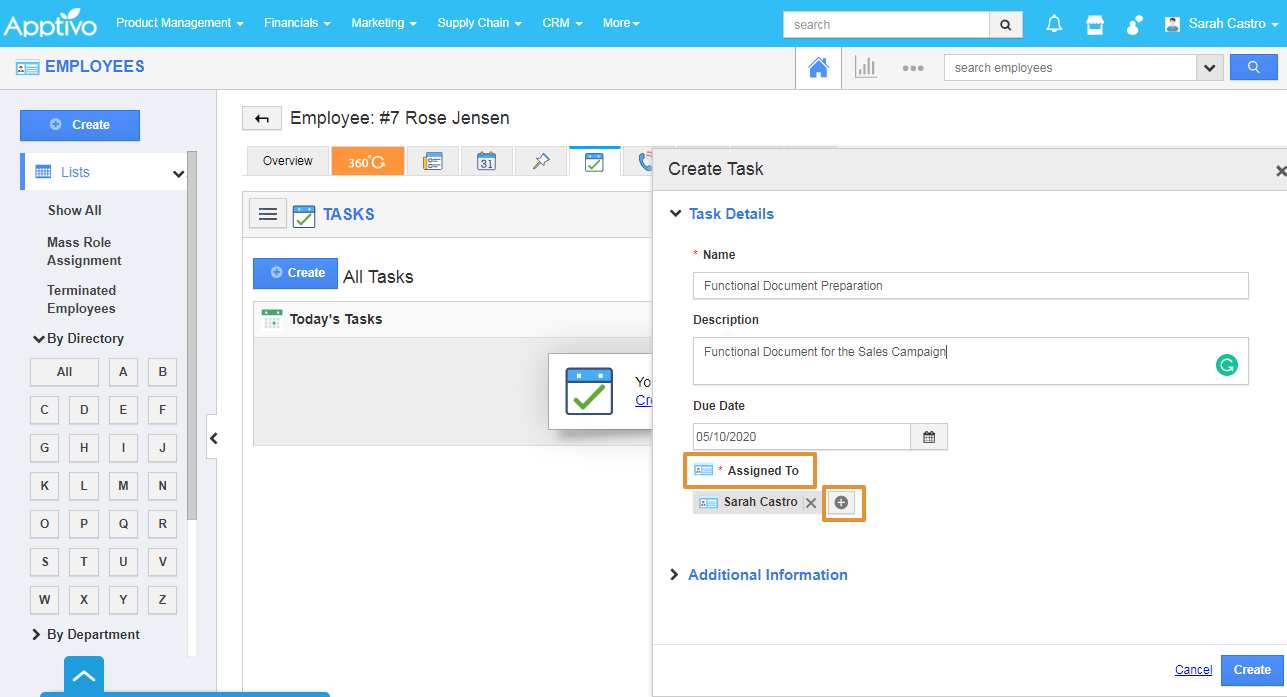
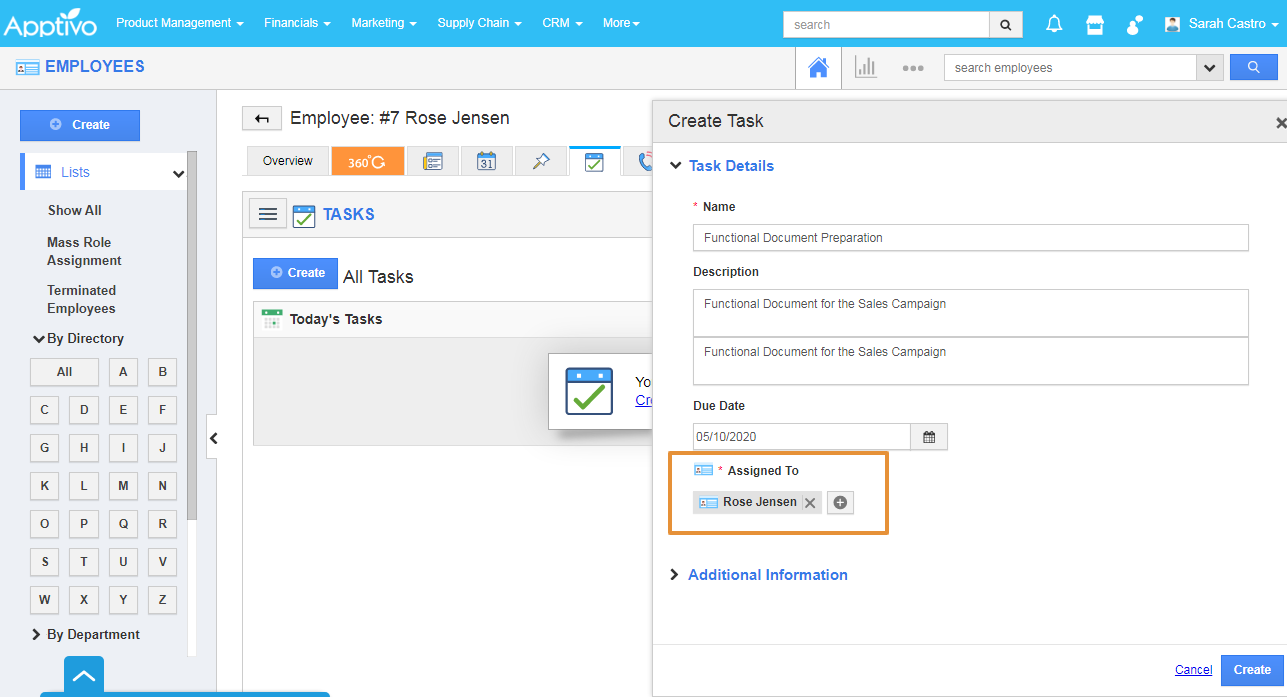
- Click on the “+” Add icon on the Assigned To.
 |
- Seach and Select the employee in the popup.
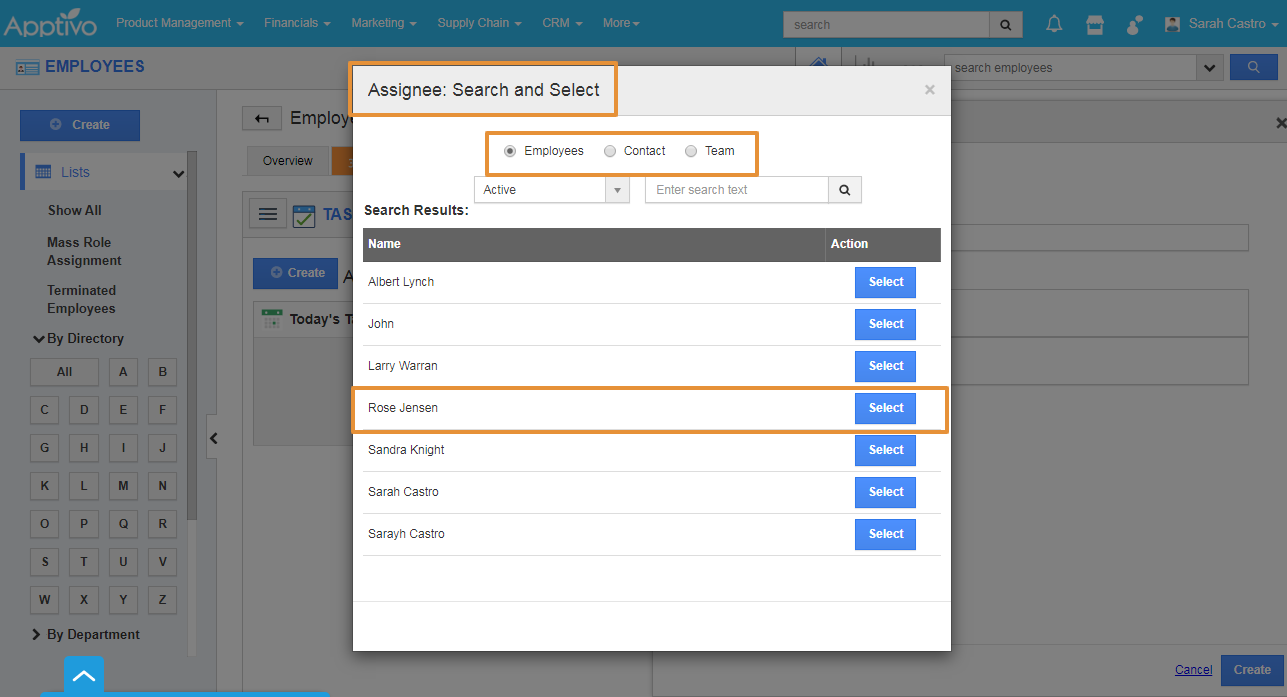 |
- The selected employee will get added. You can add the multiple employee or team or Contact can be assigned.
 |
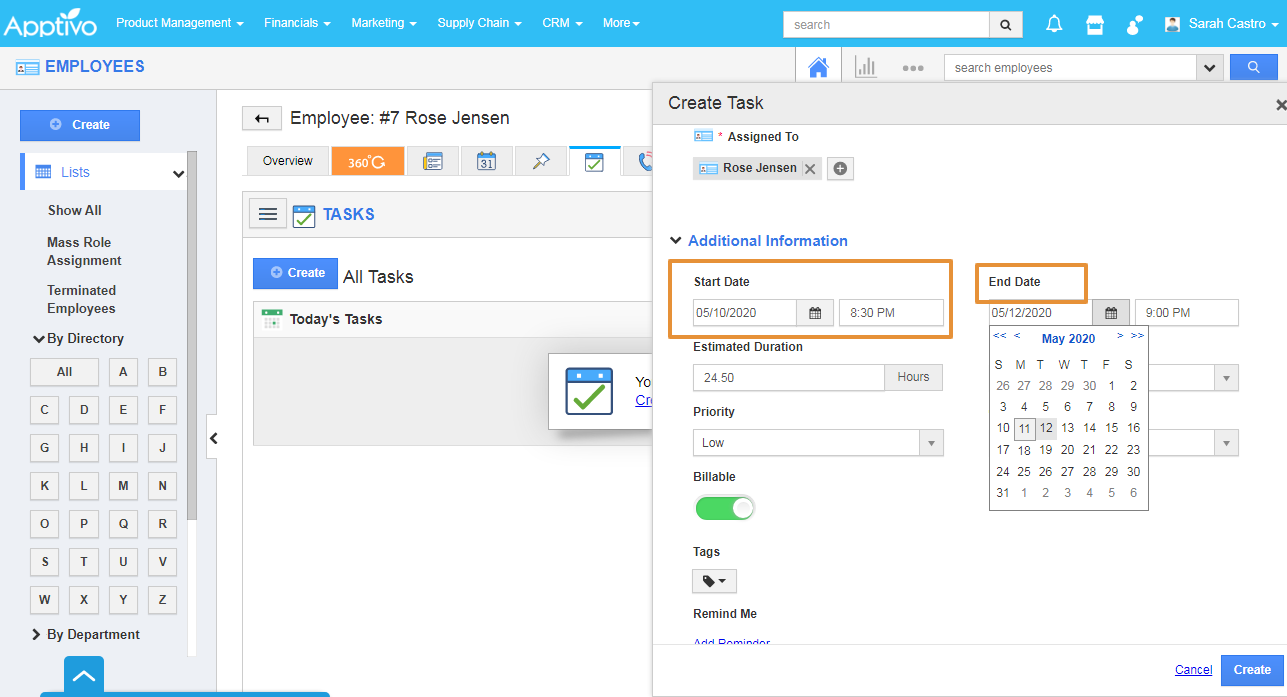
- Click on the Additional Information.
- Set the Start Date and the End Date for the task.
 |
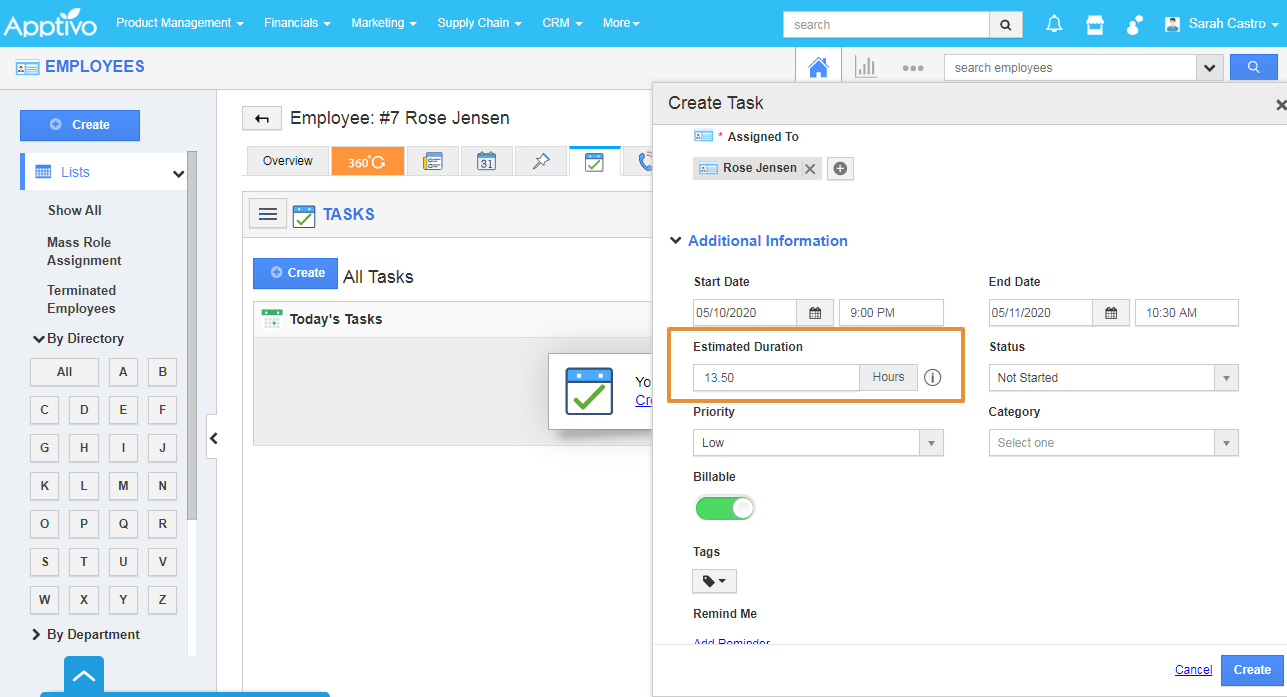
- In the Estimated Duration, the hours will get estimated automatically based on the Employee work shifts.
- For example, if the employee has 8 hours shift, the estimated duration will get calculated based on that.
 |
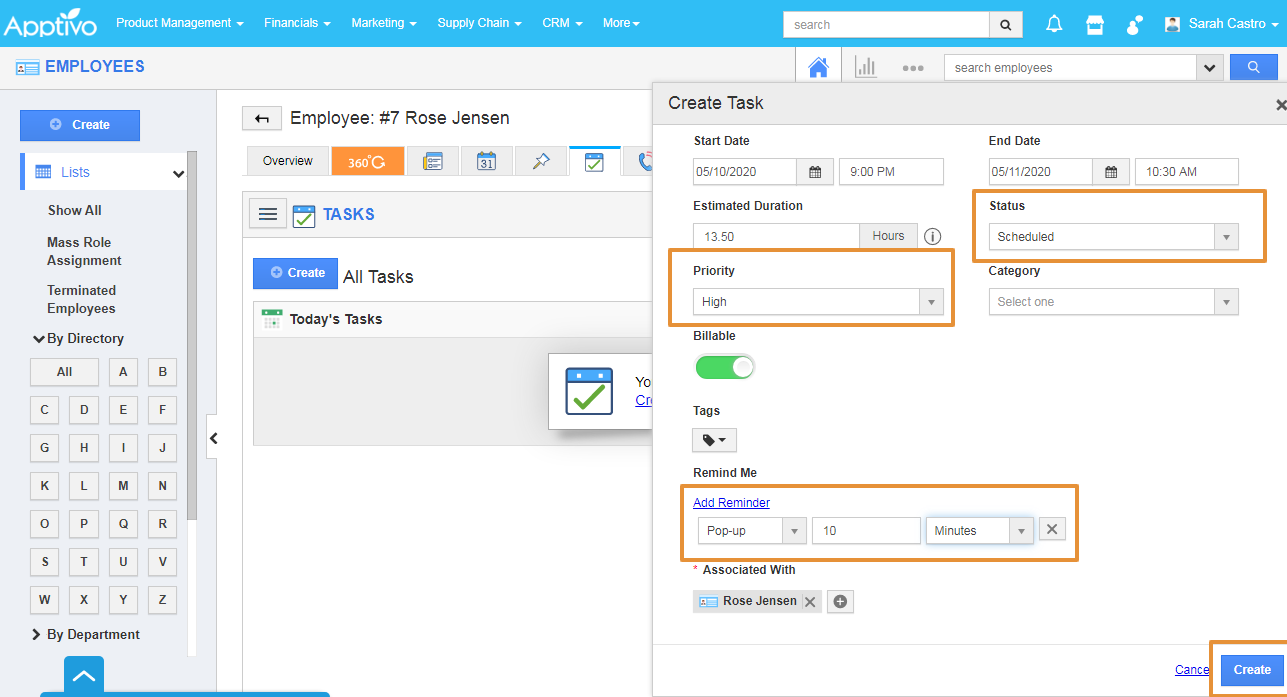
- Then, add the Status and the Priority of the Task.
- You can add the Reminder for the Tasks with pop up based on the time.
- Click on the Create.
 |
- The Task will get created and assigned to the Selected employee.
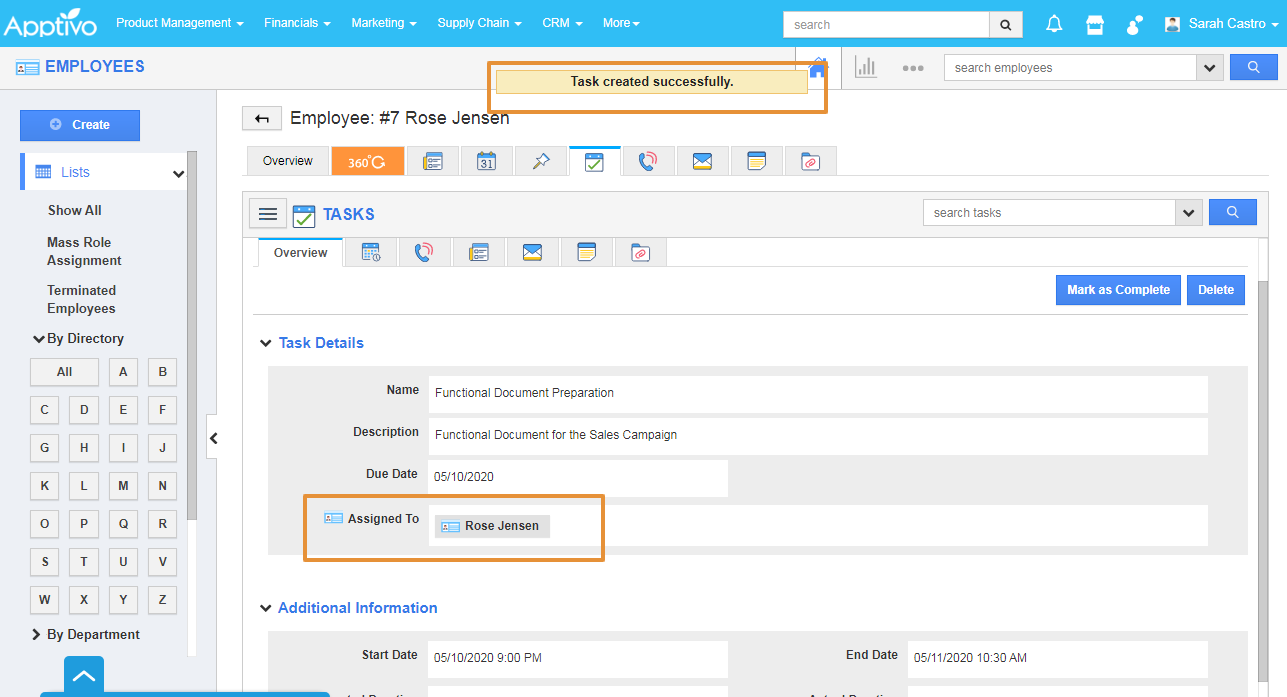 |
- The employee can view the Task that is assigned to them from his login.
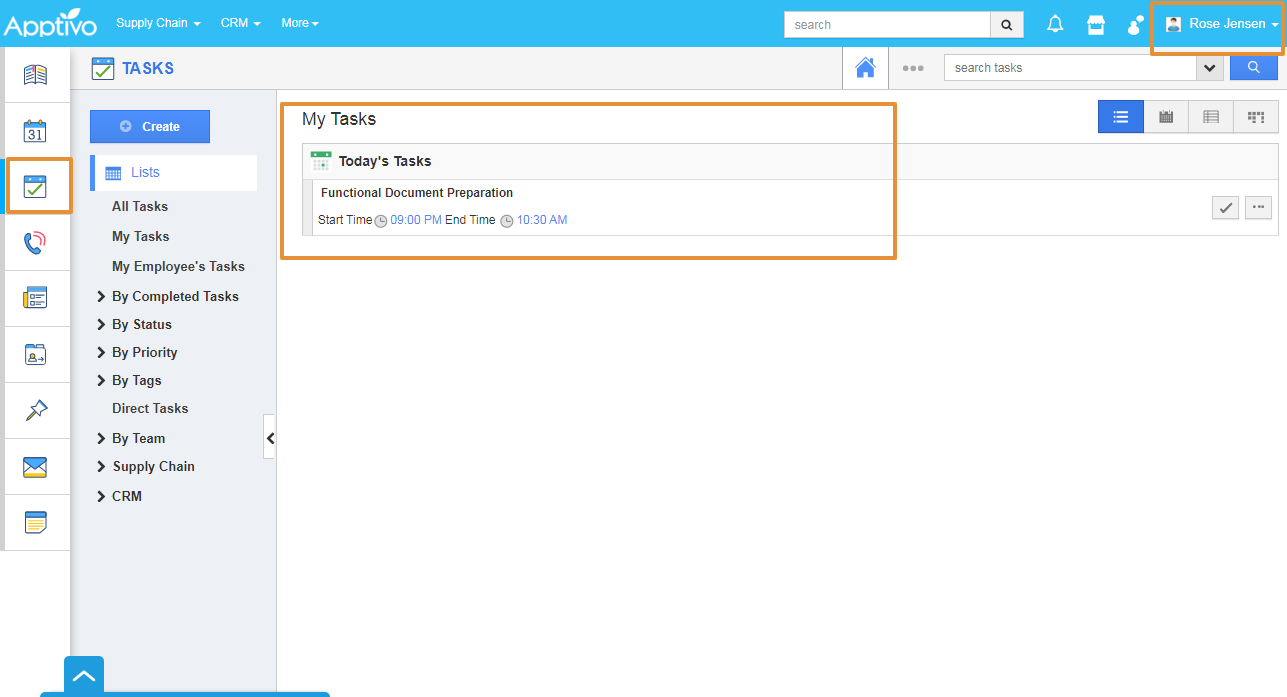 |
Flag Question
Please explain why you are flagging this content (spam, duplicate question, inappropriate language, etc):