Emails app from Apptivo allows you to send and receive emails from the business communications. Customization is the prime feature of the Apptivo. With that, you can easily create an email template for your frequently used content emails and use them while sending the emails for your business.
Steps to create a Template
- Login in your Apptivo account home page.
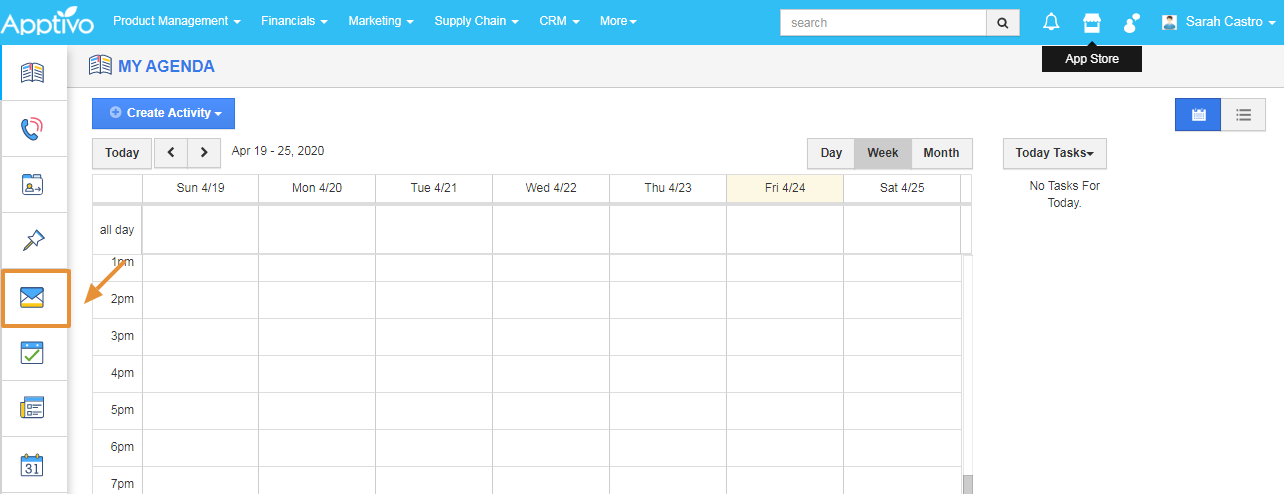
- Click on the Emails in the collaboration activities.
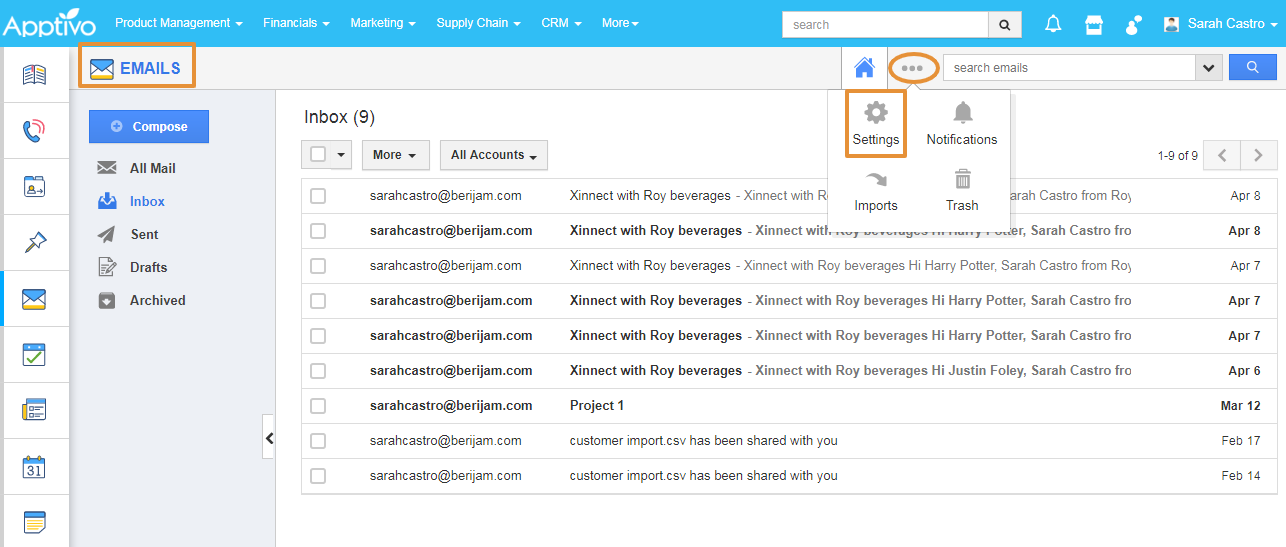
- From the emails home page, click on the More(...) icon and select Settings.
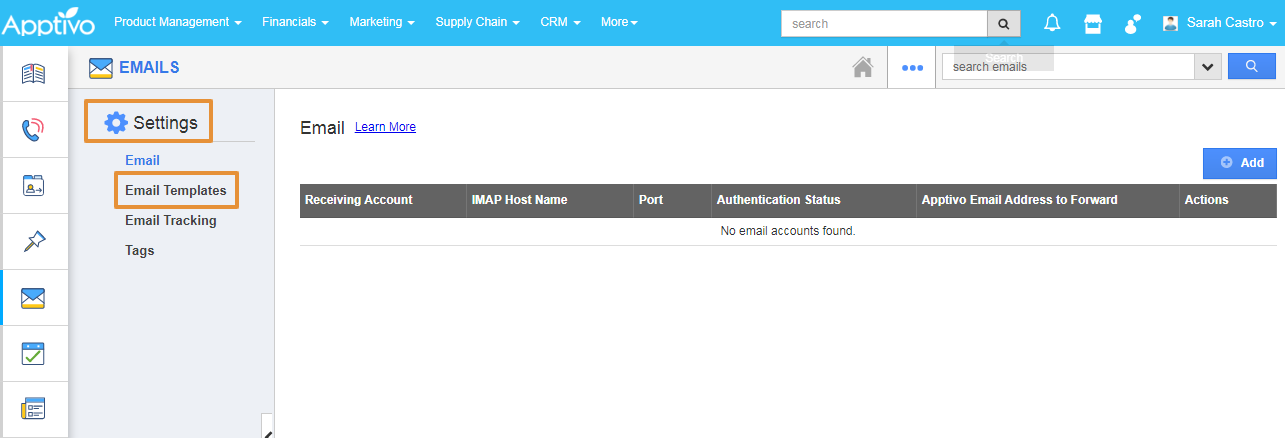
- In the Settings page, select the Email Templates from the left panel.
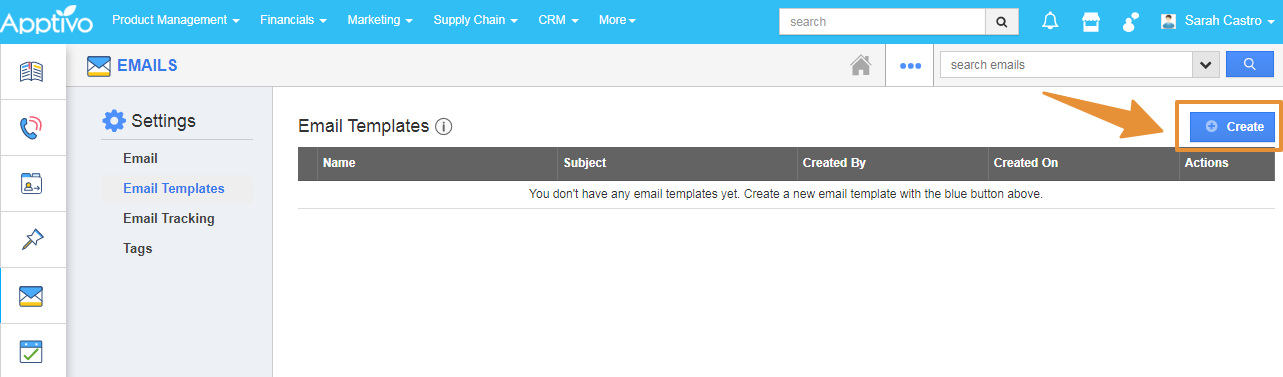
- Click on the Create button.
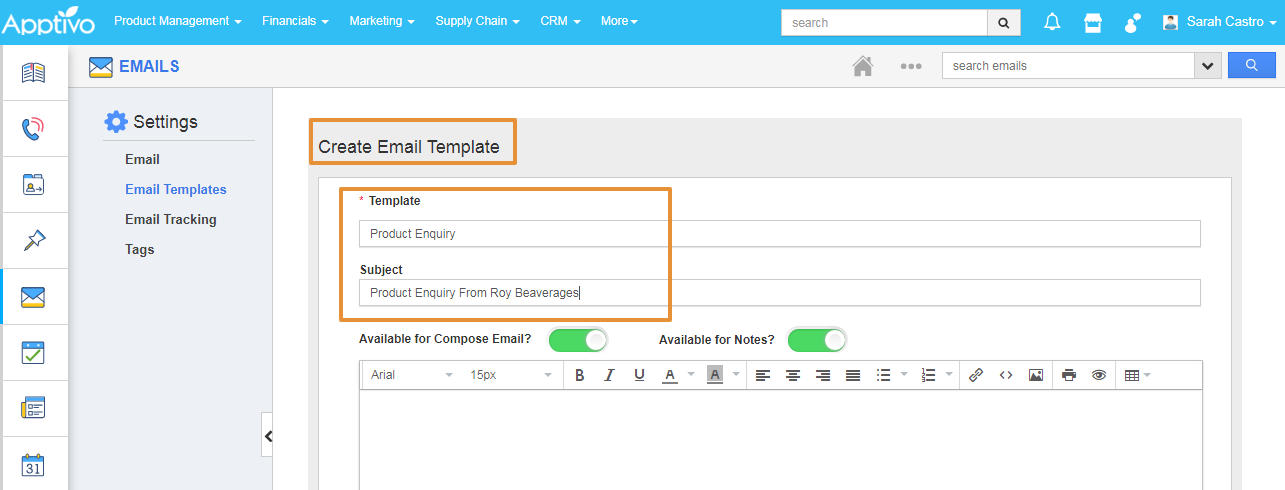
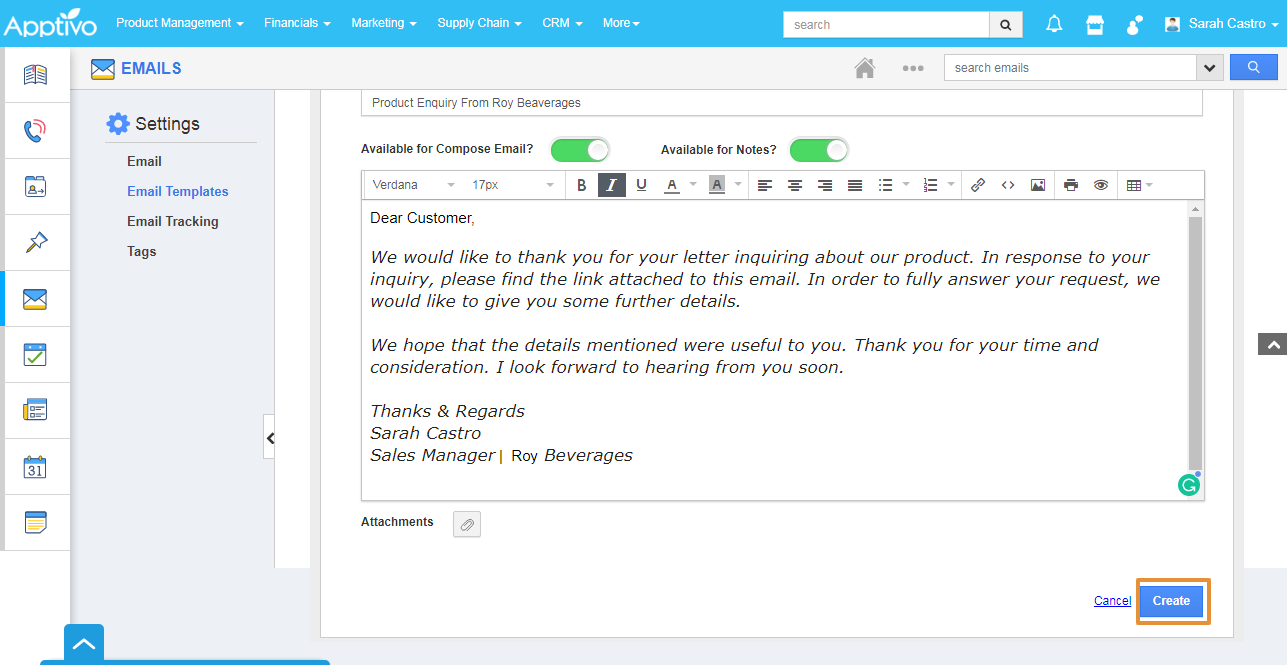
- In the Create Email Template, enter the Template name and the Subject.
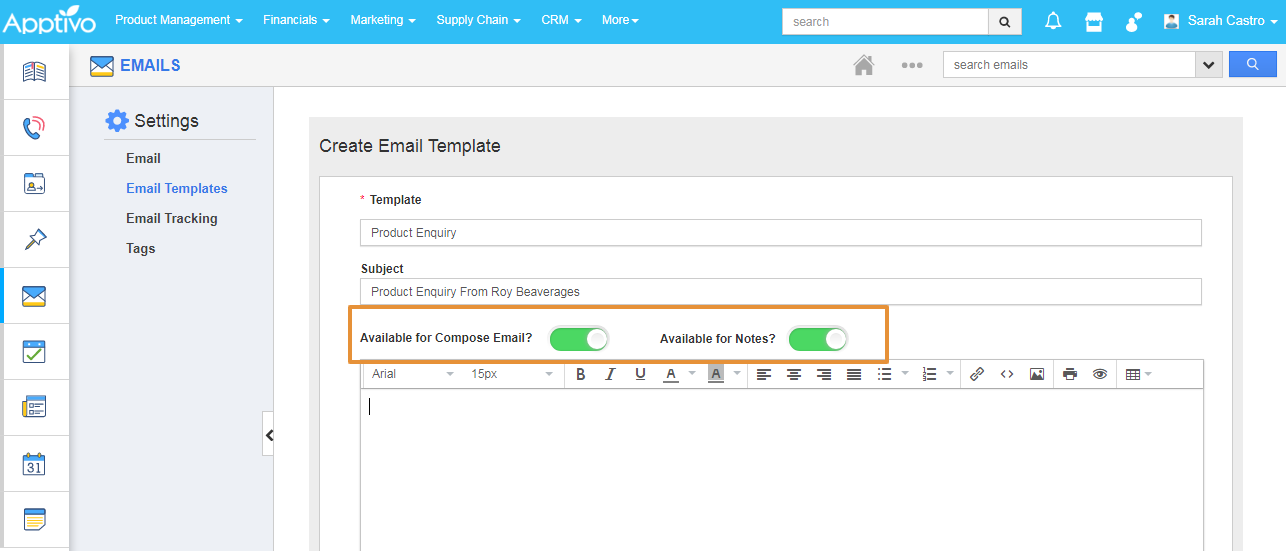
- With the Available for Compose Email Toggle, you can enable/ disable this template in the Compose email options.
- With the Available for Notes Toggle, you can enable/disable this template in the compose email section from the notes.
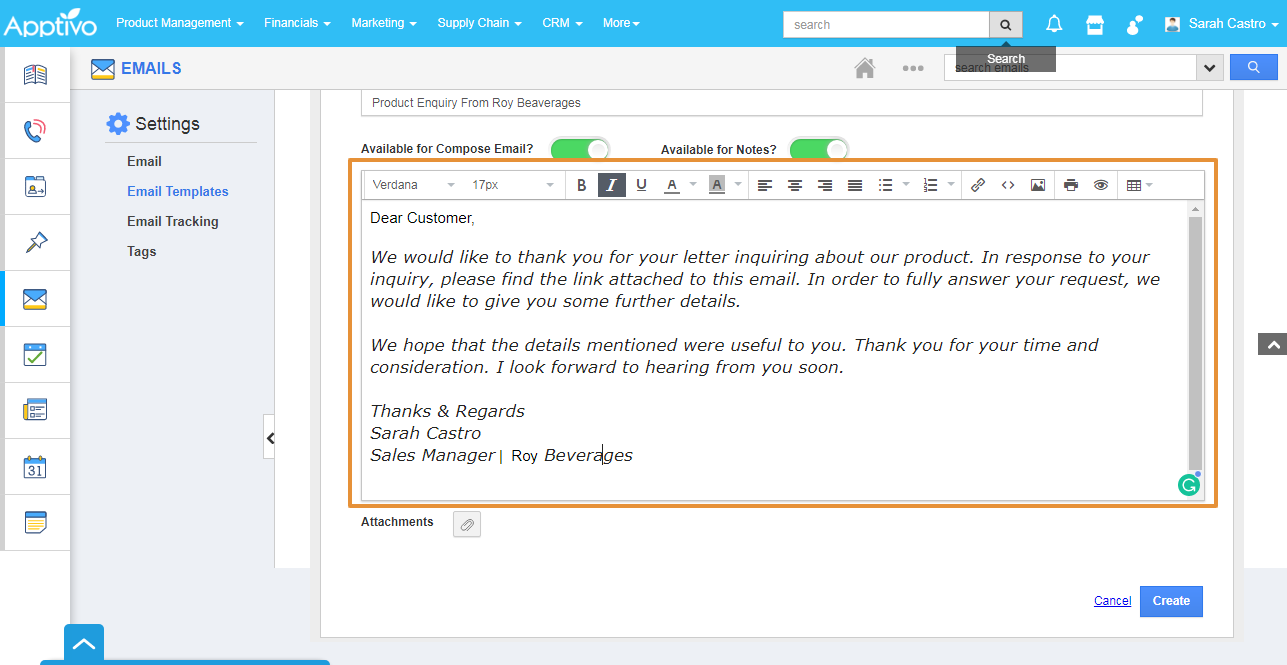
- In the Template body, enter the Email content as per your business need.
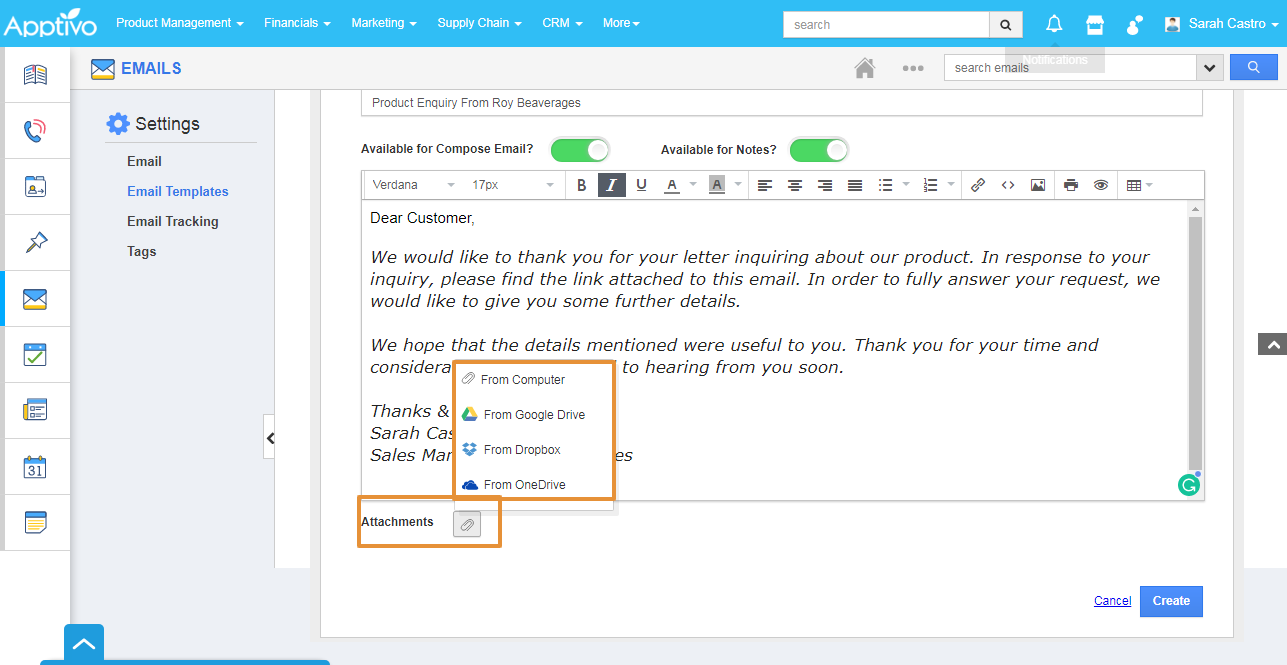
- Using the Attachments, you can add the attachments with the email template from your computer, Google Drive, Dropbox, and OneDrive.
- Then, click on the Create button.
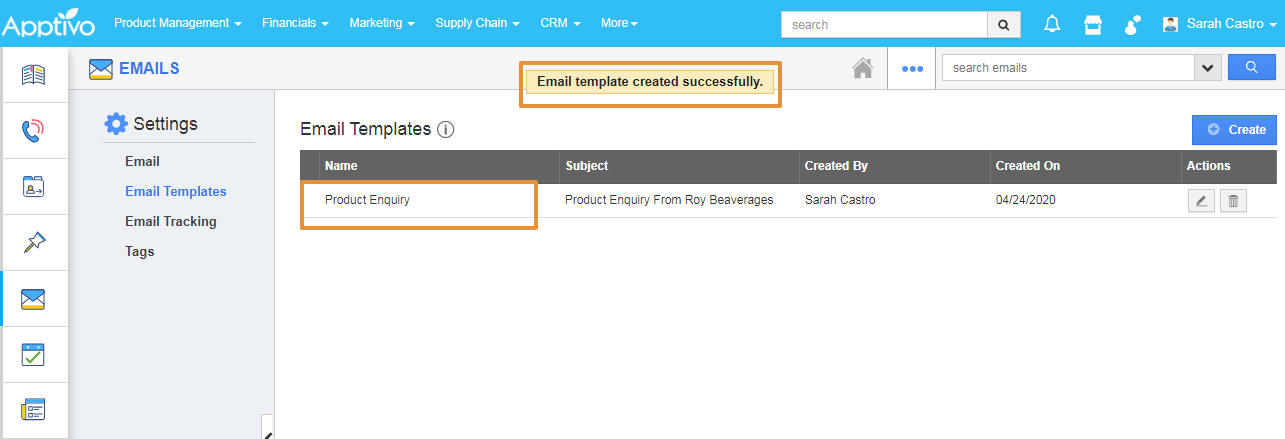
- Your Email Template will get created.
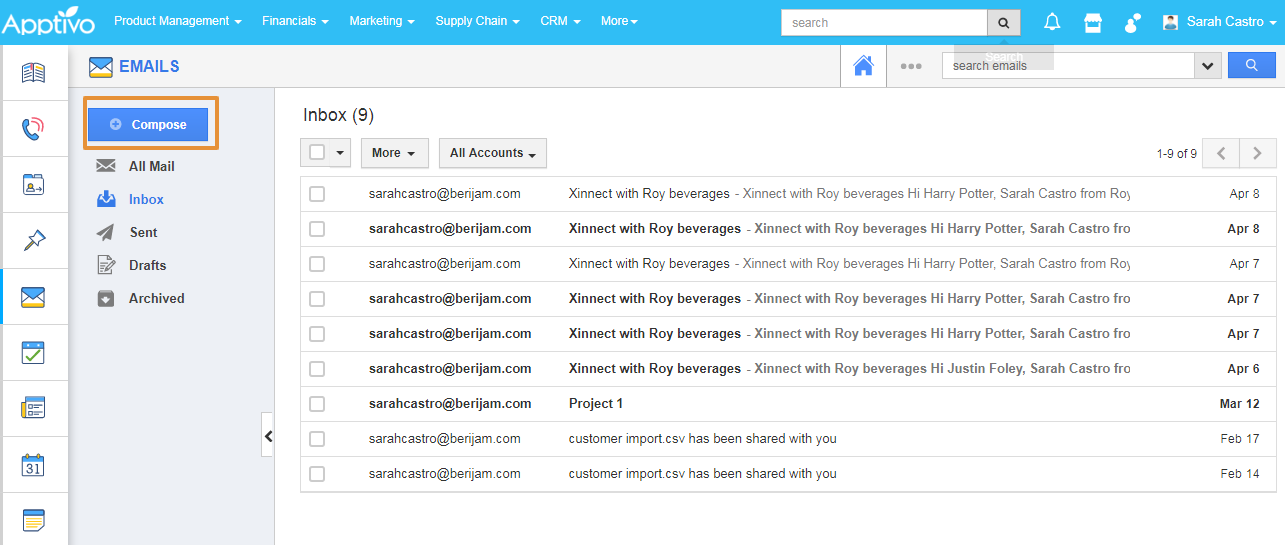
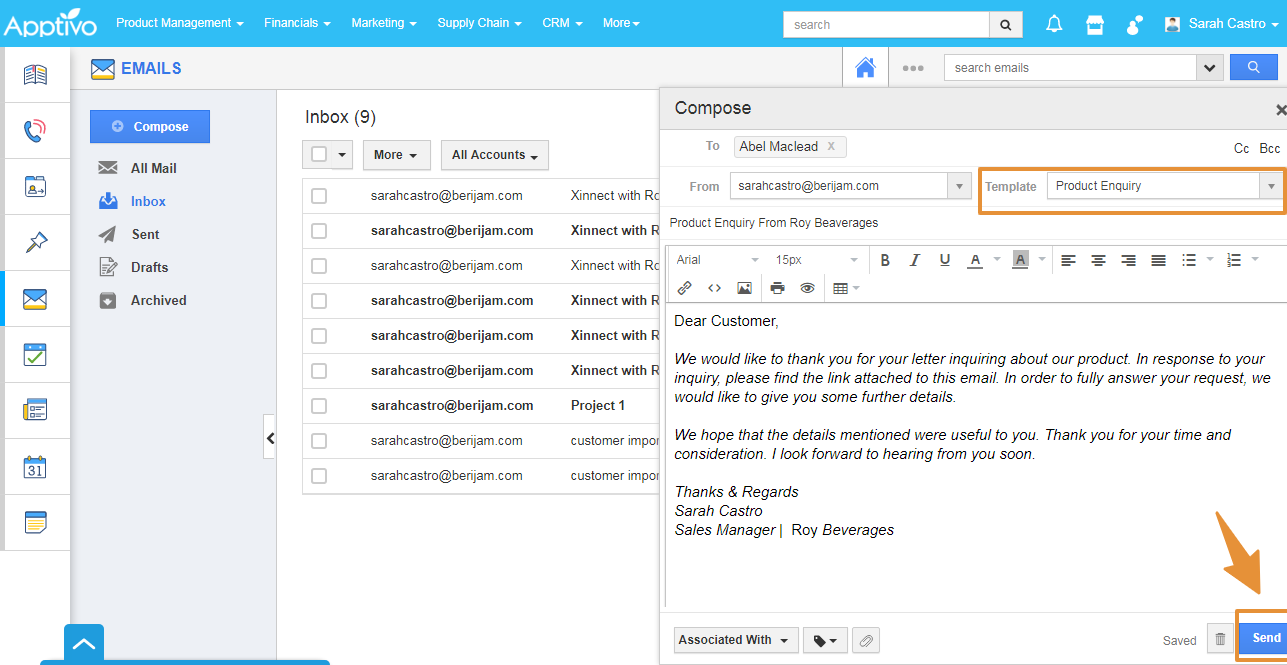
- Now, go to the email home page and click on the compose button.
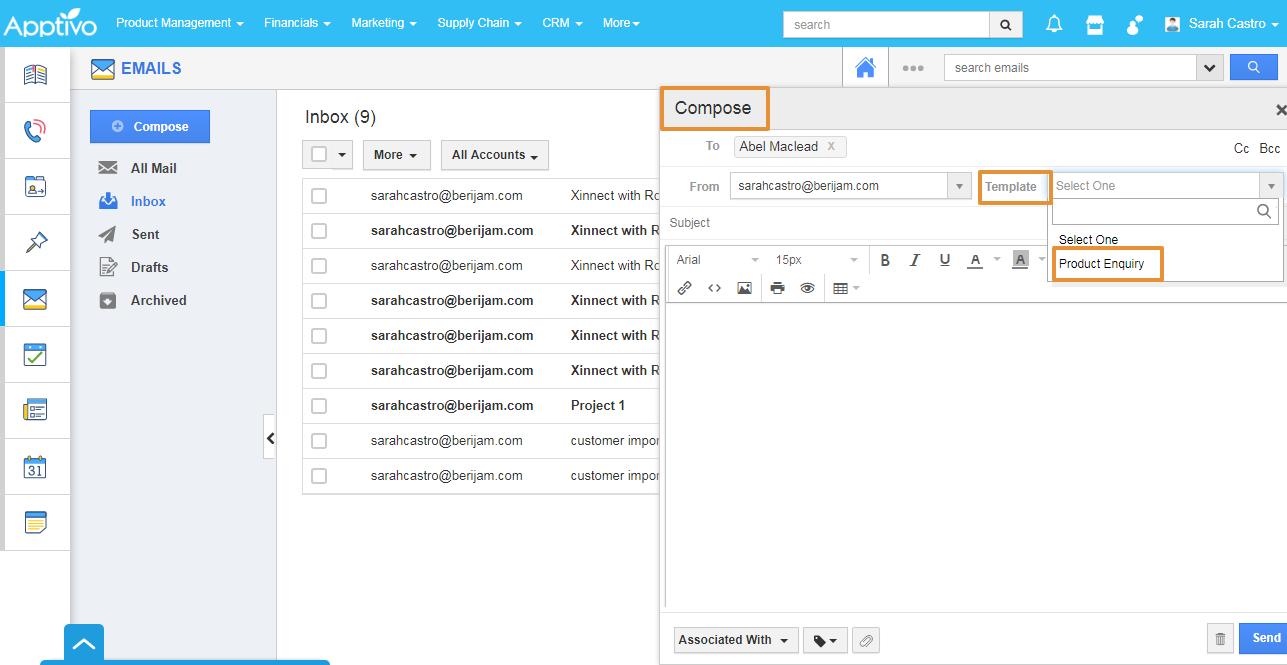
- In the Compose email, add the To Email address.
- Select the Template from the Template Dropdown.
- By Selecting the created Template, the template content will get loaded.
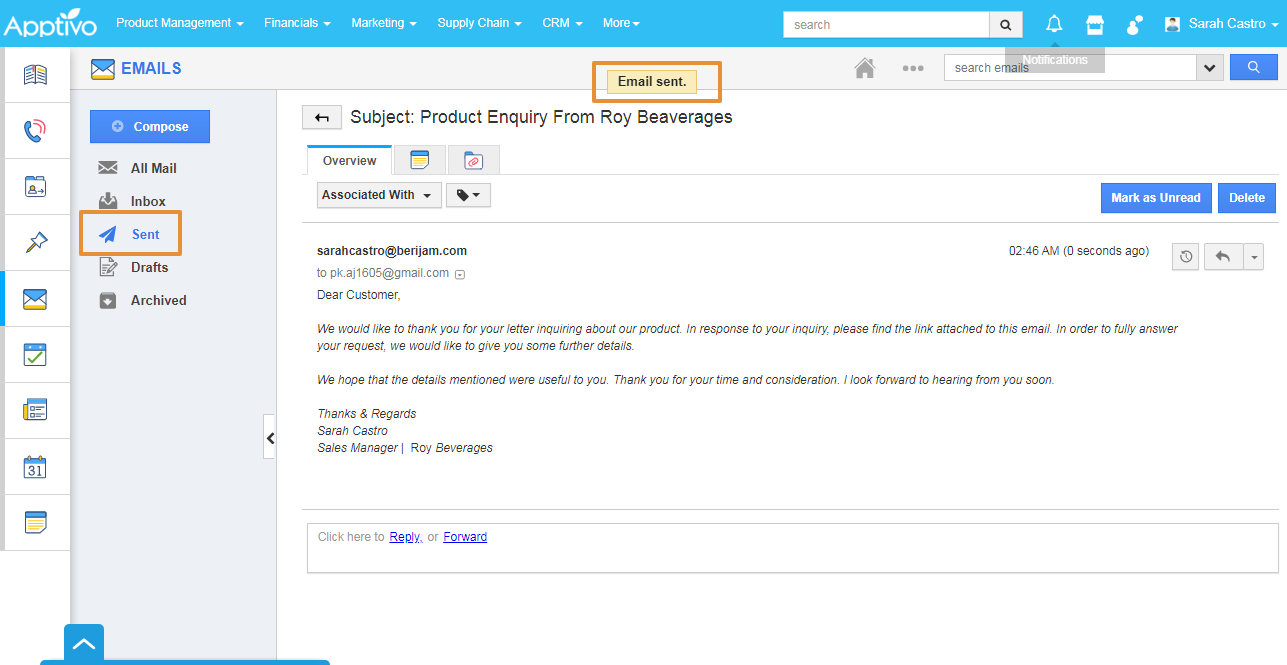
- Then, click on the send button.
- You can view the sent mail in the Sent mail.