Campaigns App in Apptivo allows you to create email templates for your Campaigns. It becomes time-consuming to design a campaign every time especially when the purpose is the same. You can use the email template feature to send Campaigns easily.
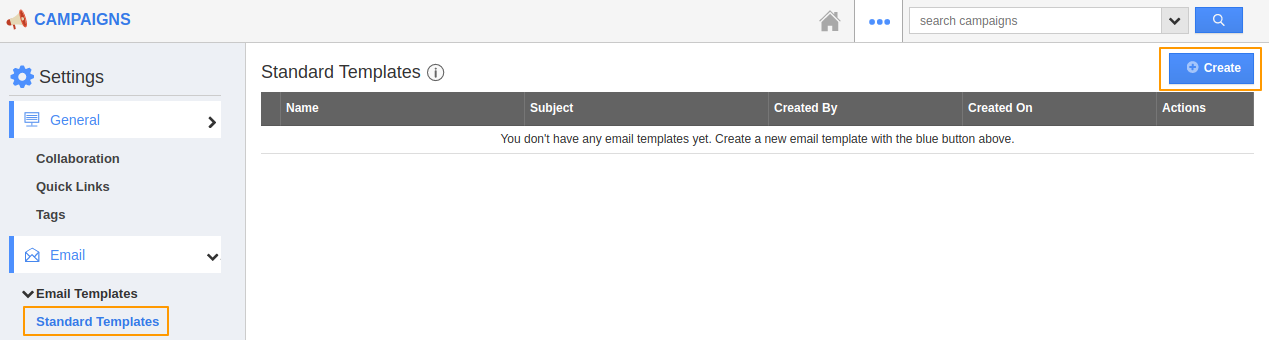
- Go to Settings → Email → Email Templates → Standard.
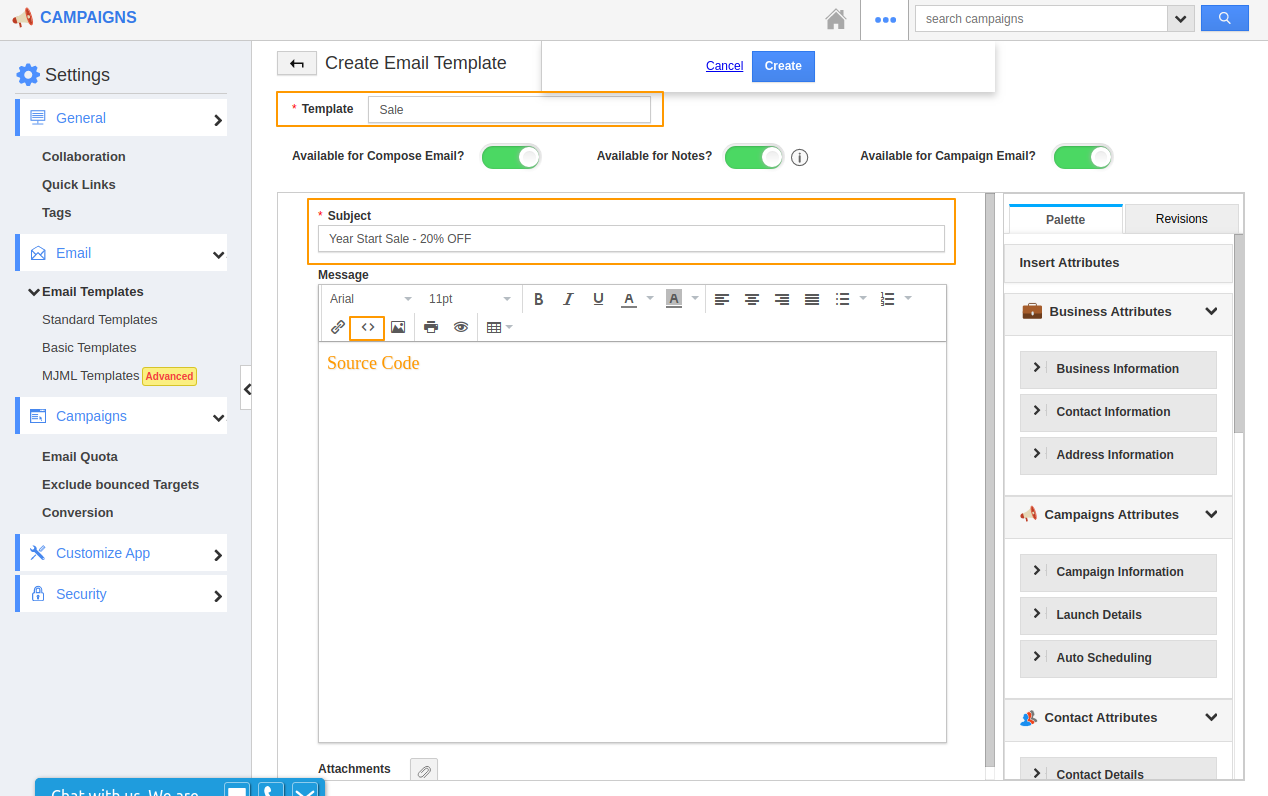
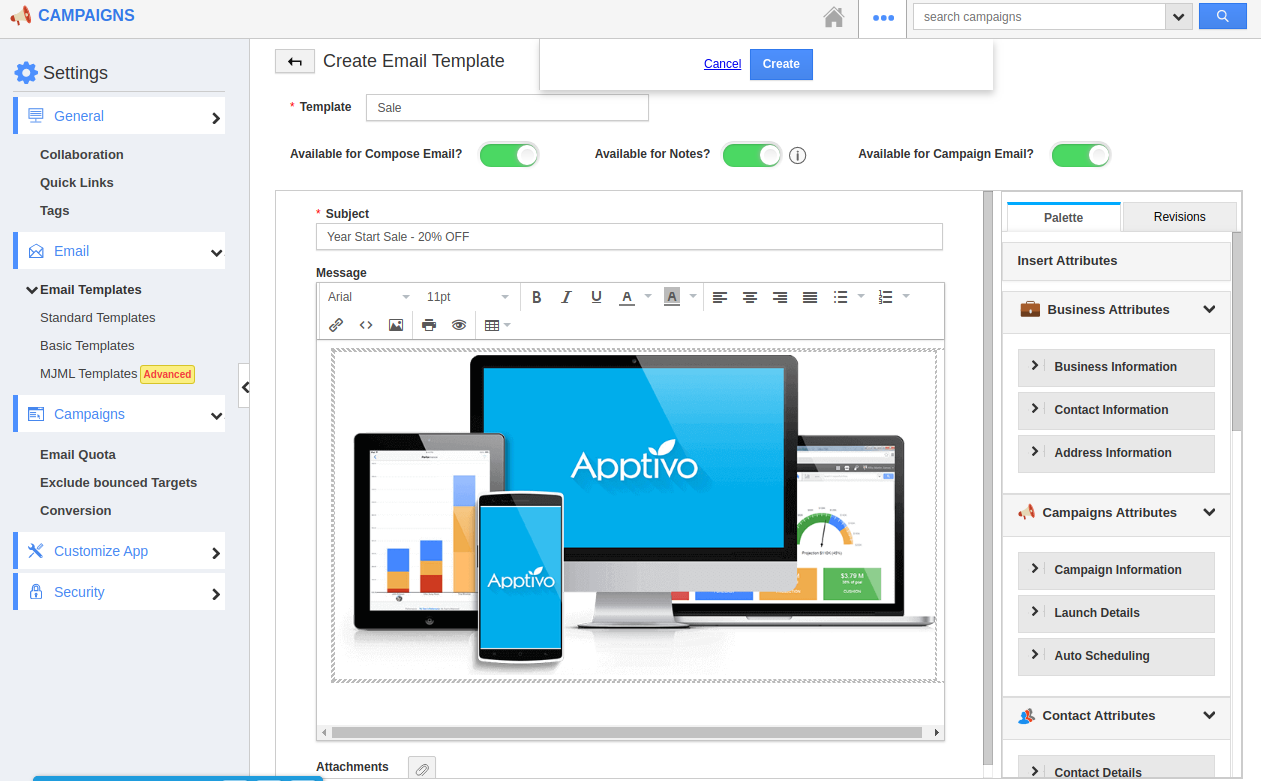
- Select Create to create a new template. In the Create Email Template page, add the name and subject of the template.
- In the Message section, select the source code feature to create the template using Source code.
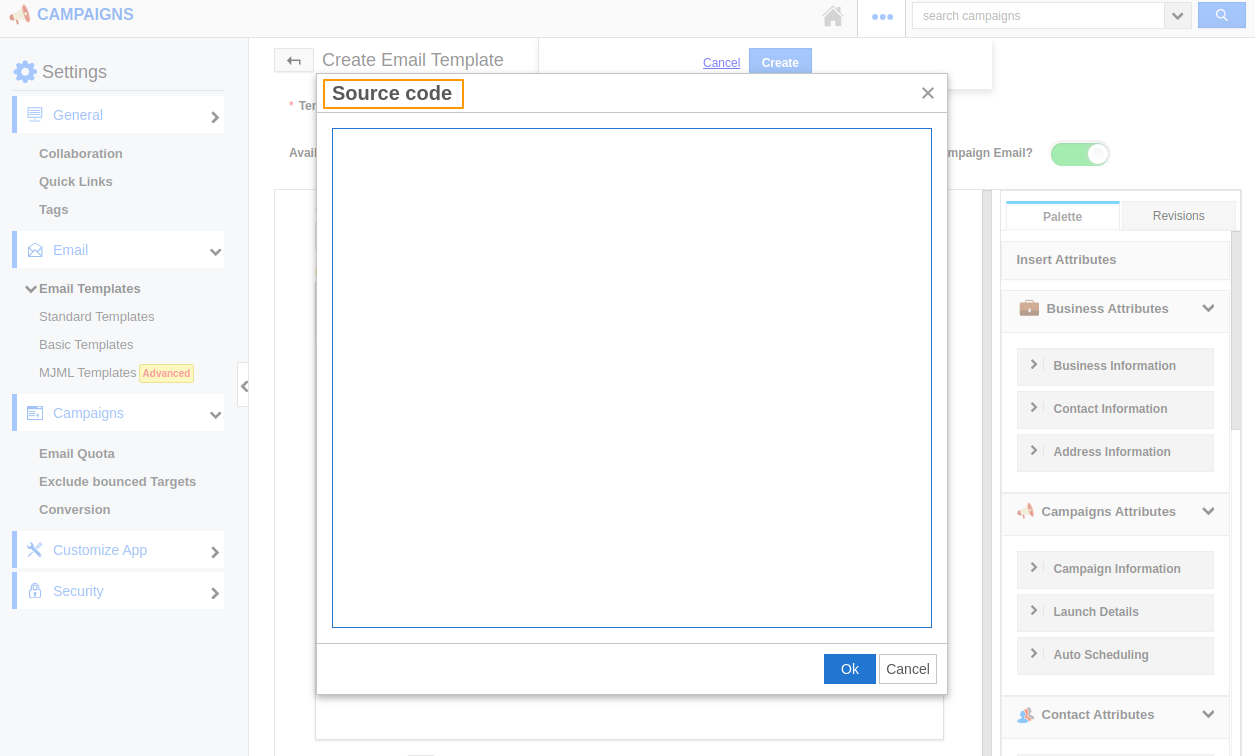
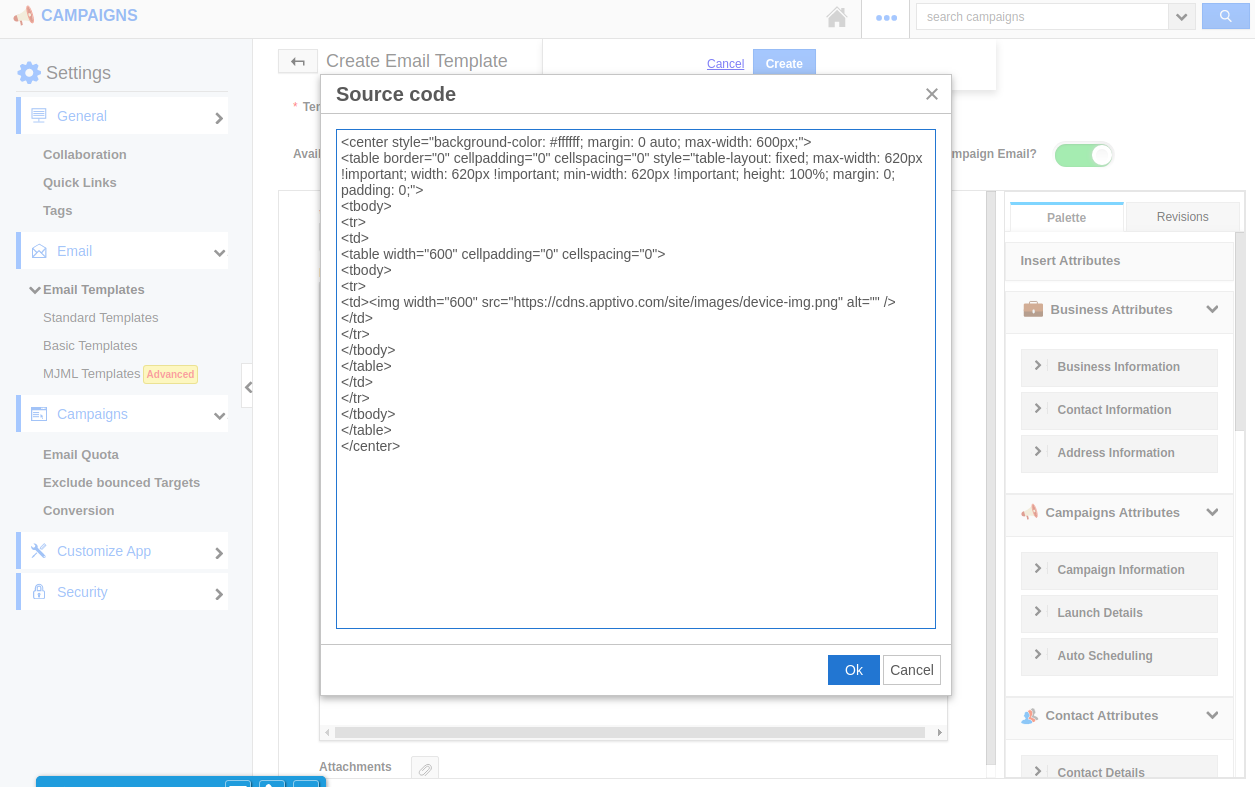
- You can add your HTML code to the Source Code page.
For Instance: You want to add an image to your Campaigns using the source code. Here, you can add your code using the Source Code page.
- On clicking Ok, you can see the image is present in the body of the template.
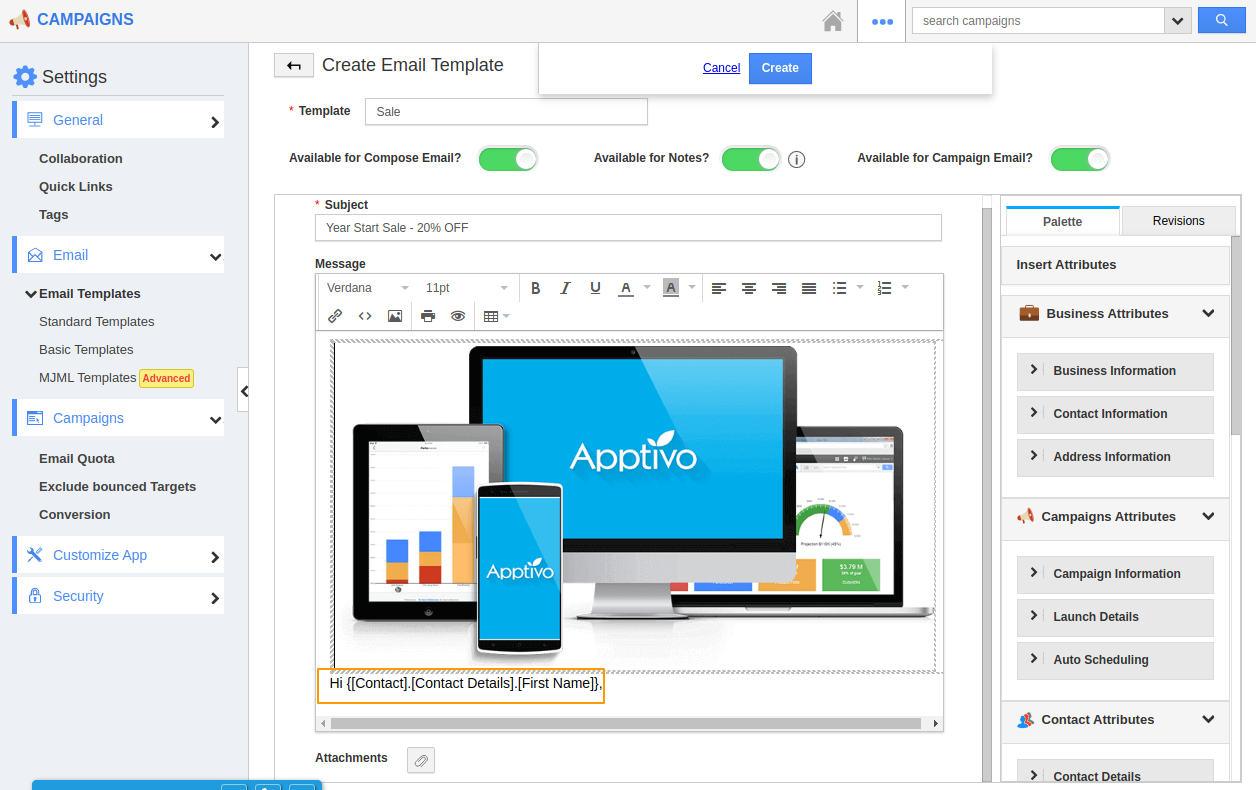
- Based on your requirements, you can add your code accordingly. You can also add the source code to link an attribute in the template.
- When you select Ok, you can see the attribute is added to the body of the email.
Bad Practices
- Copying the content and pasting it in the body of the email will cause unnecessary spaces between sentences. It is best to edit it using the Source Code feature.
- Use either the source code or the standard view for creating the template. Avoid using both at a time.
- It is advised to use the width as 600px as it can be used without any changes in the web version and mobile App.