When accessing your account you can view the Home page dashboard that organizes all of your activities. You can also customize the homepage settings as per your desire.
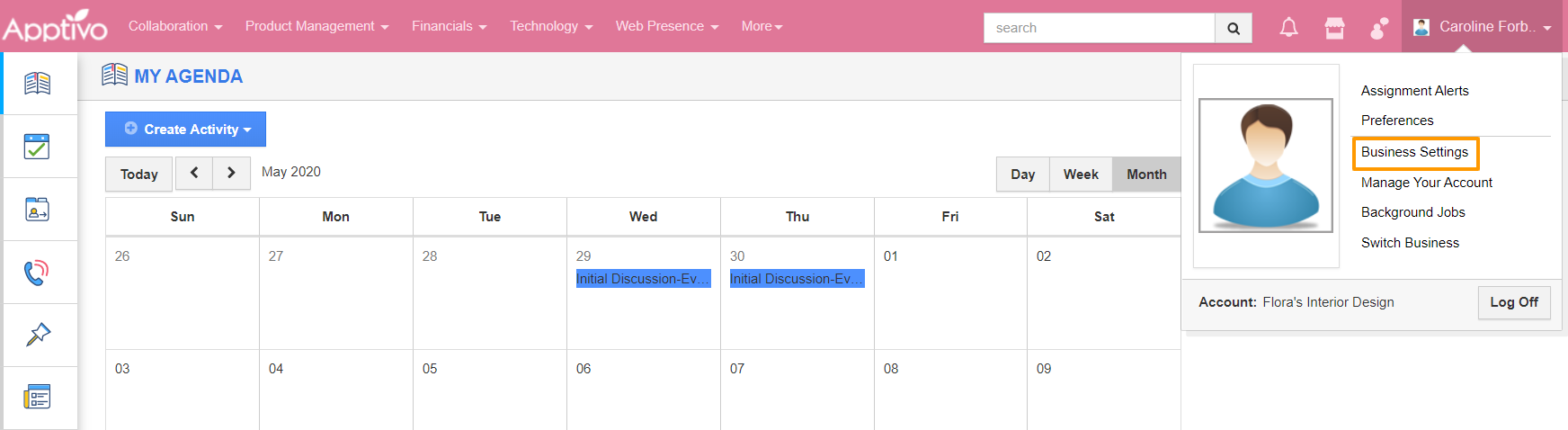
- Connect into your account and click on the User Menu at the top right corner. Select Business Settings from the dropdown menu.
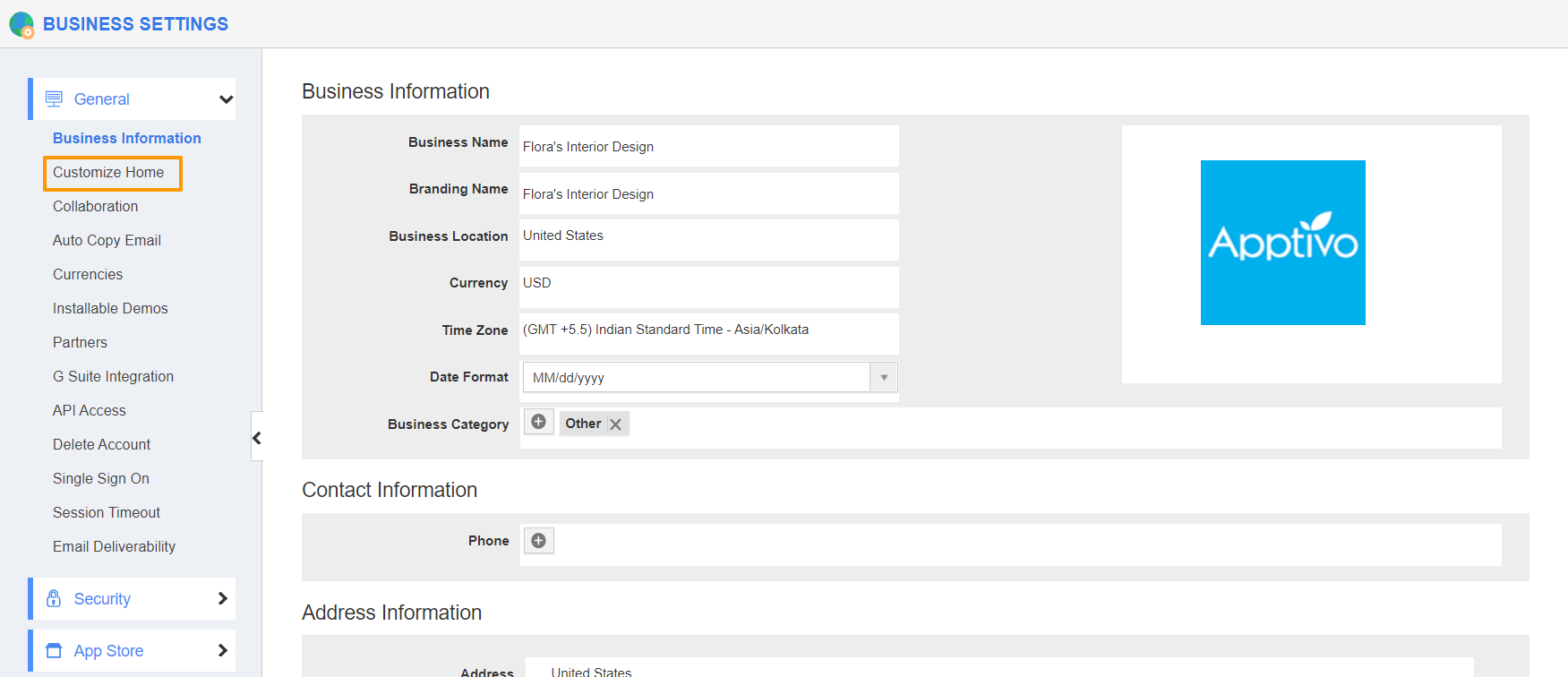
- Click on Customize Home from the left navigation panel.
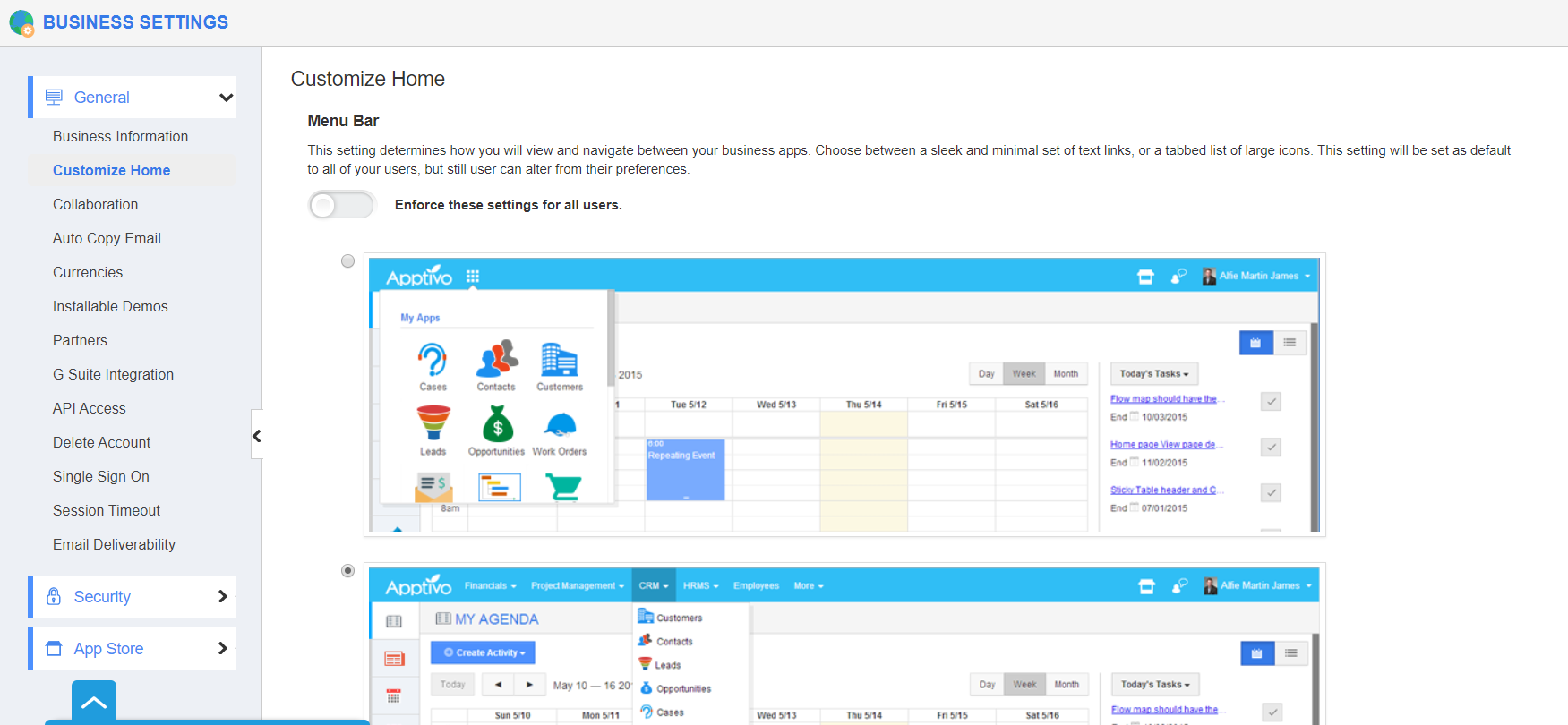
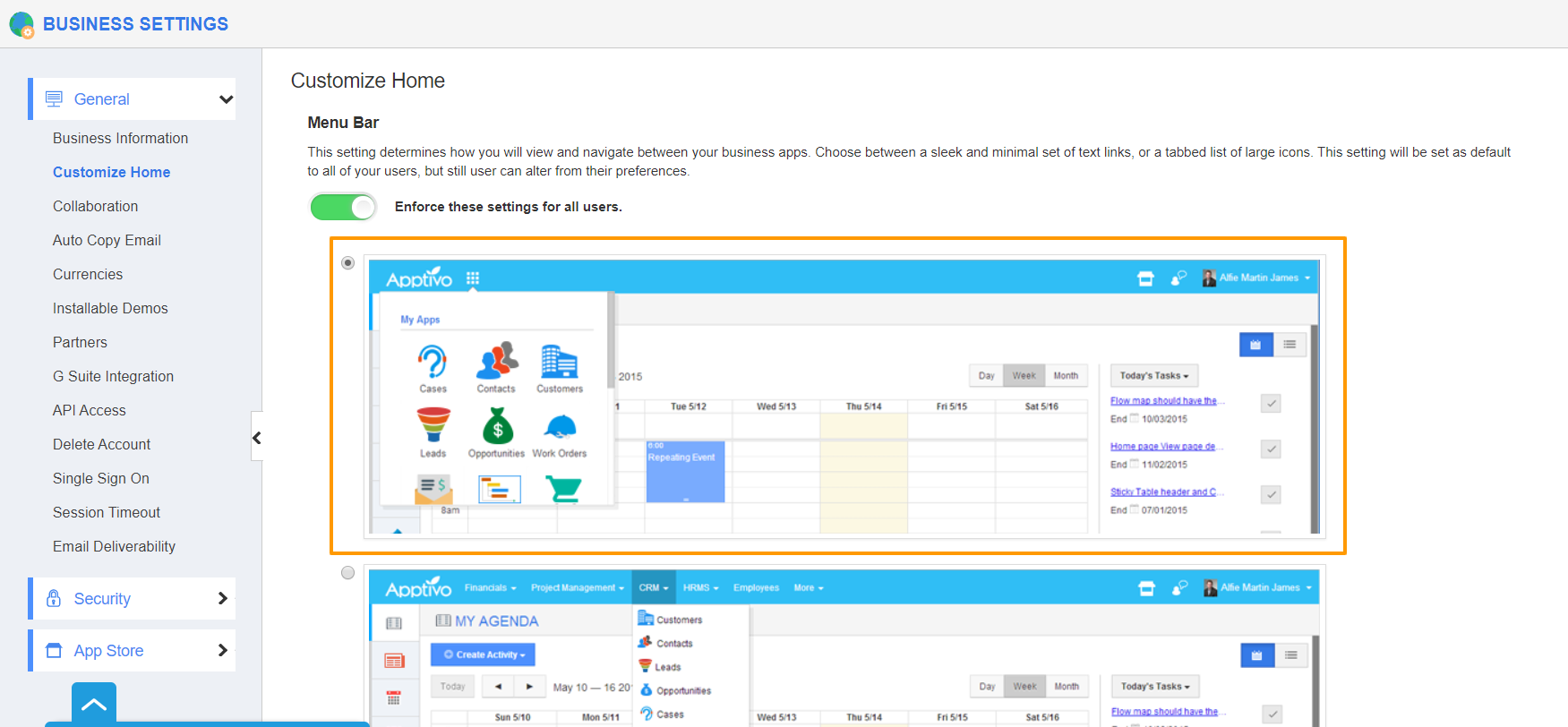
- In the Customize Home Page, you can manage the header menu and header color.
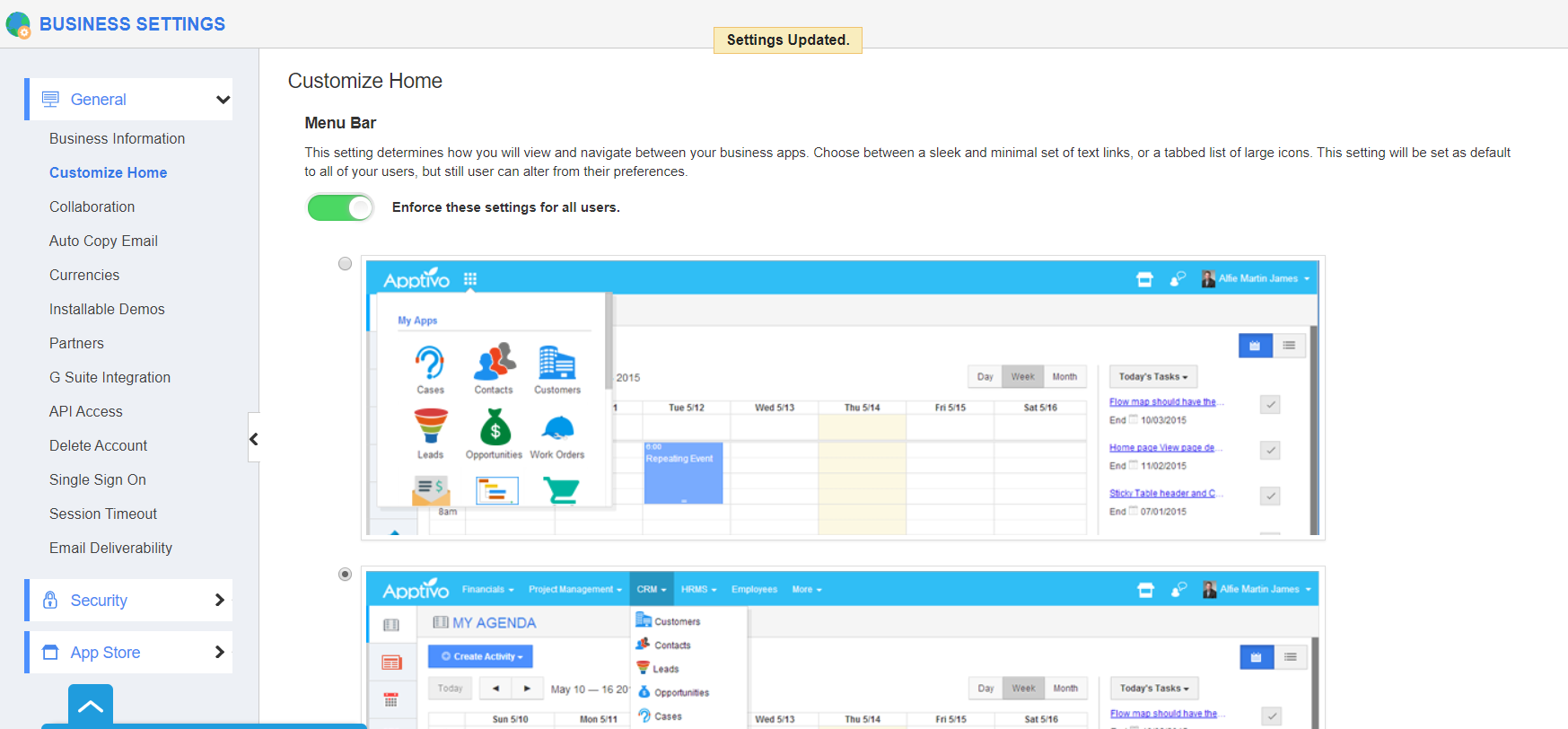
- By enabling the Enforce these settings for all users toggle, the changes made here will be reflected on your employee’s home dashboard.
- In the Menu Bar setting, you can choose how to view and navigate between your business apps.
- Click on the radio button and select the required view of the Apps. Apptivo offers two kinds of views:
- To view the App Header in Grid View, select the Grid View’s radio button.
- The App Header will be displayed in the Grid View.
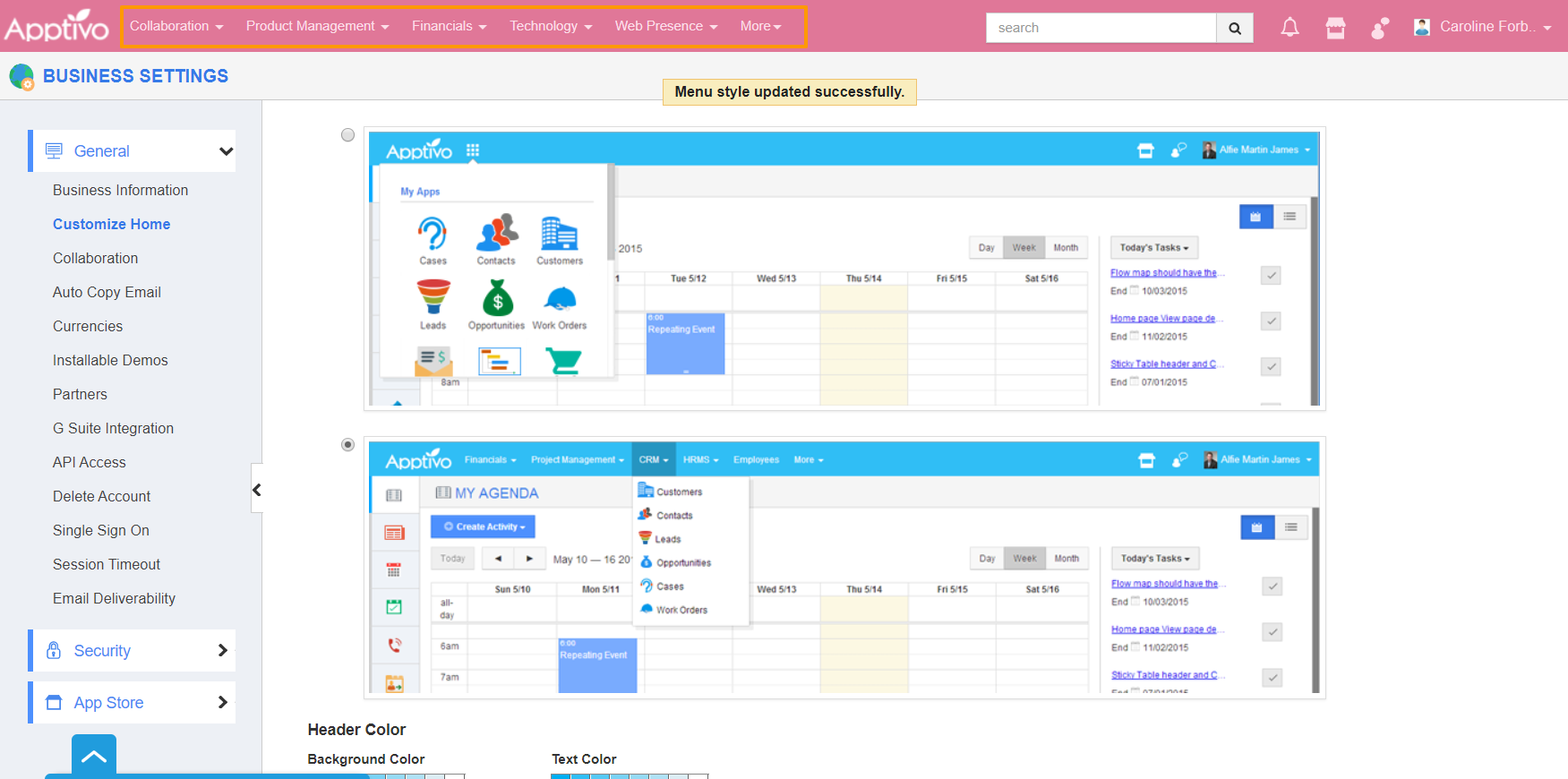
- To view in the List View, select the List View’s radio button in the Customize Home Page.
- The App Header will be displayed in the List View.
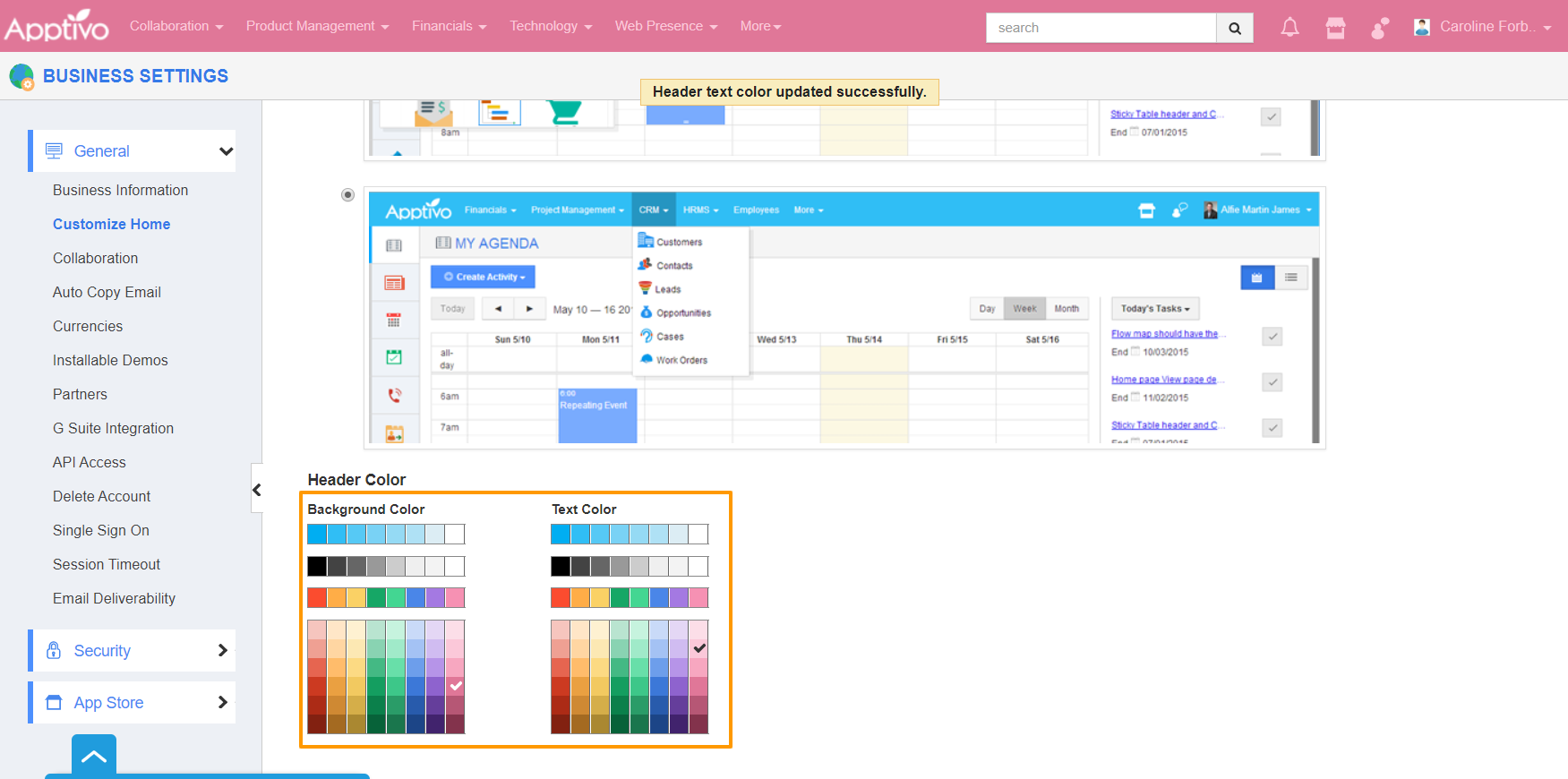
- In the Header color setting, you can choose the background color and text color of the header bar.
- The performed actions will be auto-updated and you can view the changes in the home dashboard.